
CalcTape Web - User manual
CalcTape Web is the browser-based version of the CalcTape calculator. Instead of showing only a single intermediate result like a conventional calculator, CalcTape works like a paper tape with a notepad function: you write your calculation line by line, can add a comment to every value, and edit anything at any time. Everything is recalculated instantly.
Calculate, Comment, Correct: in your browser, no installation required. Your calculations are stored locally in your browser.
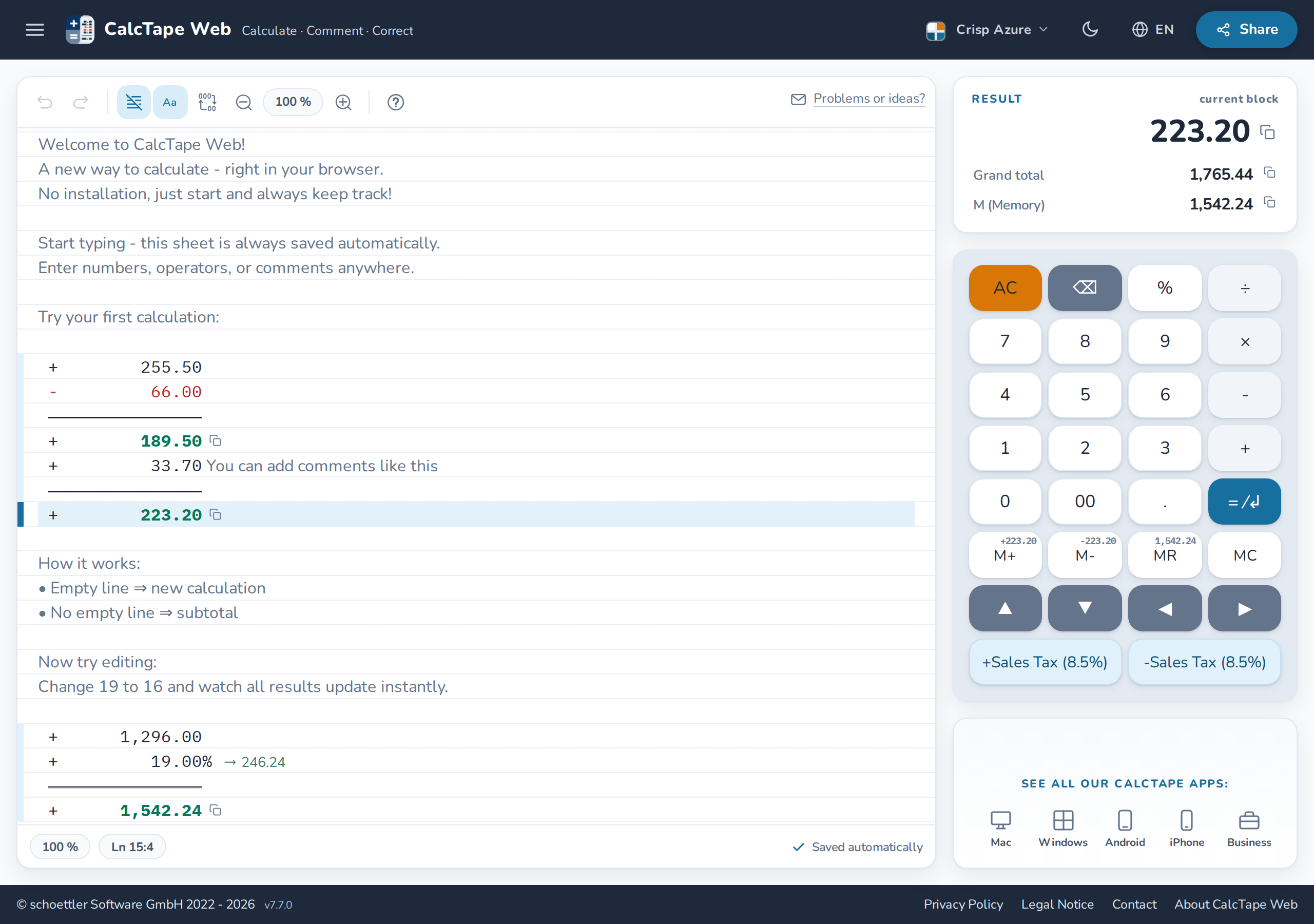
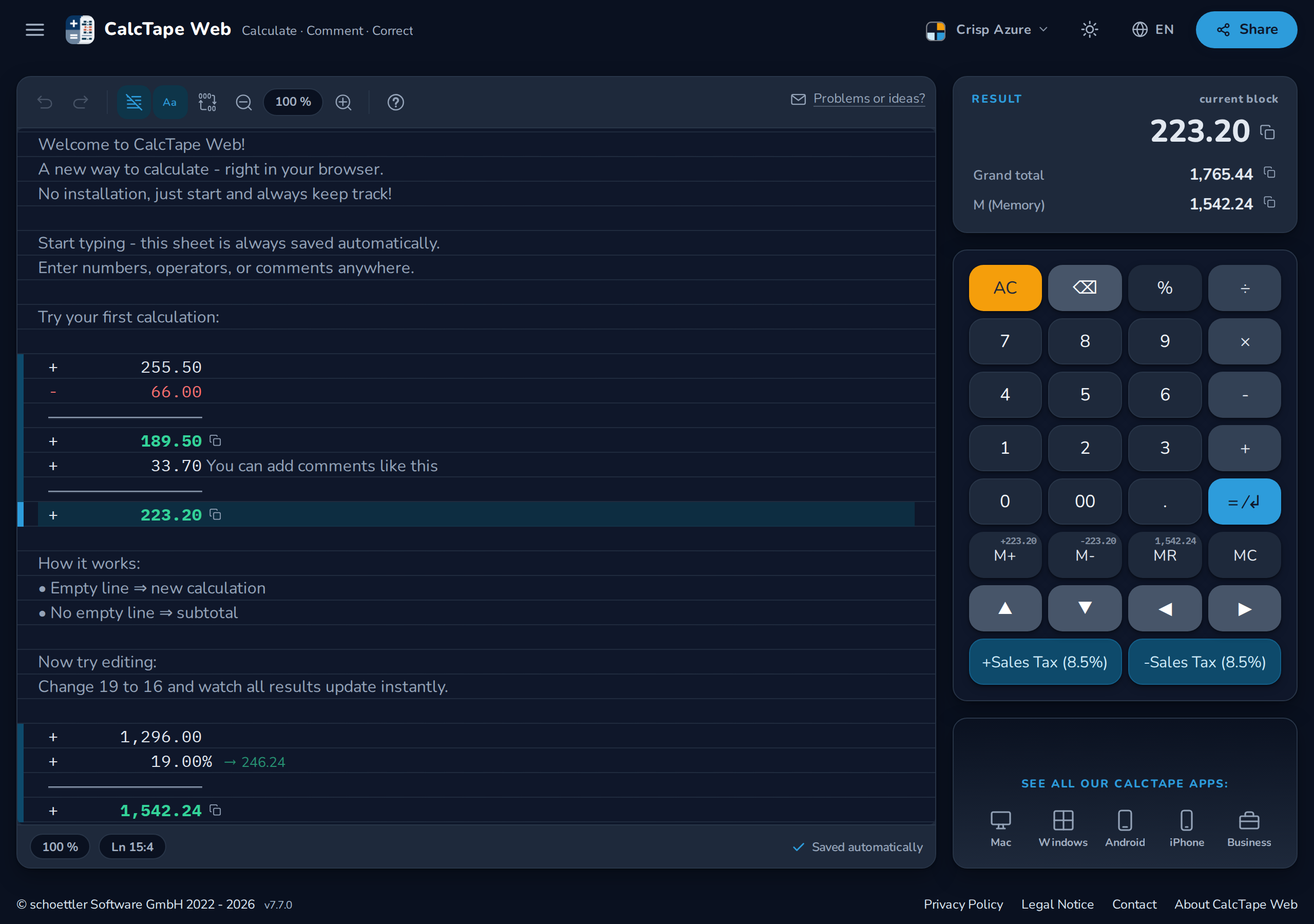
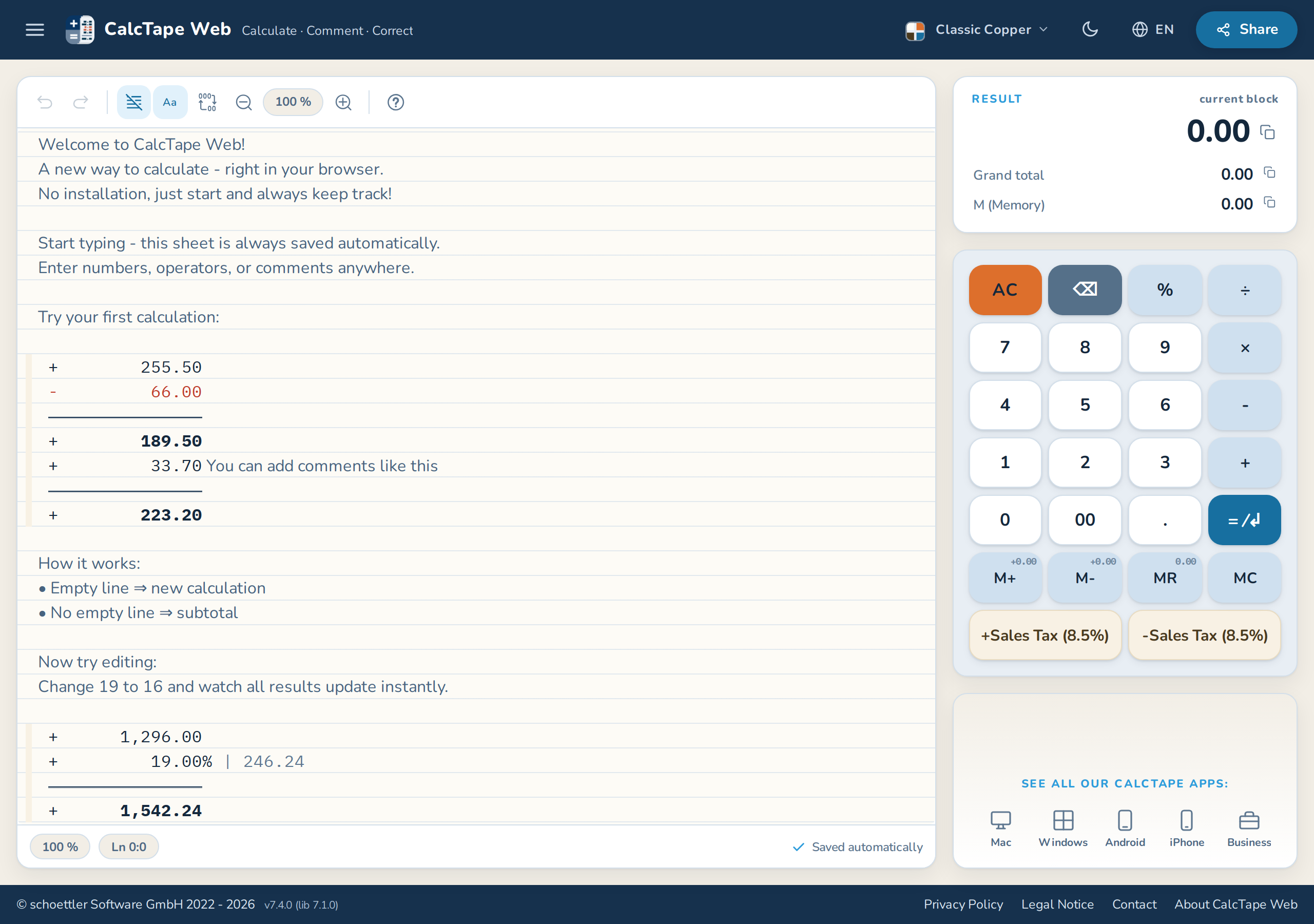
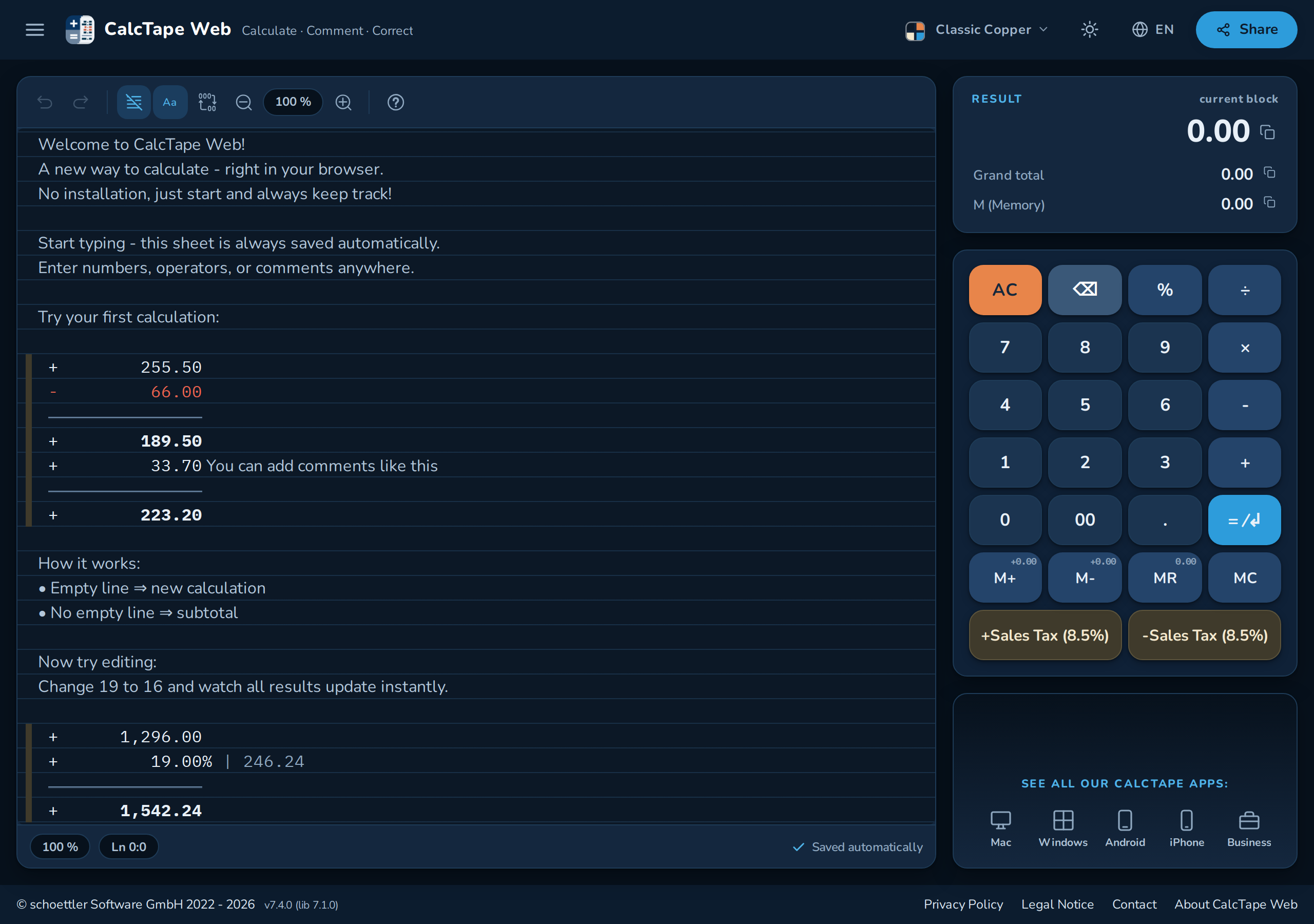


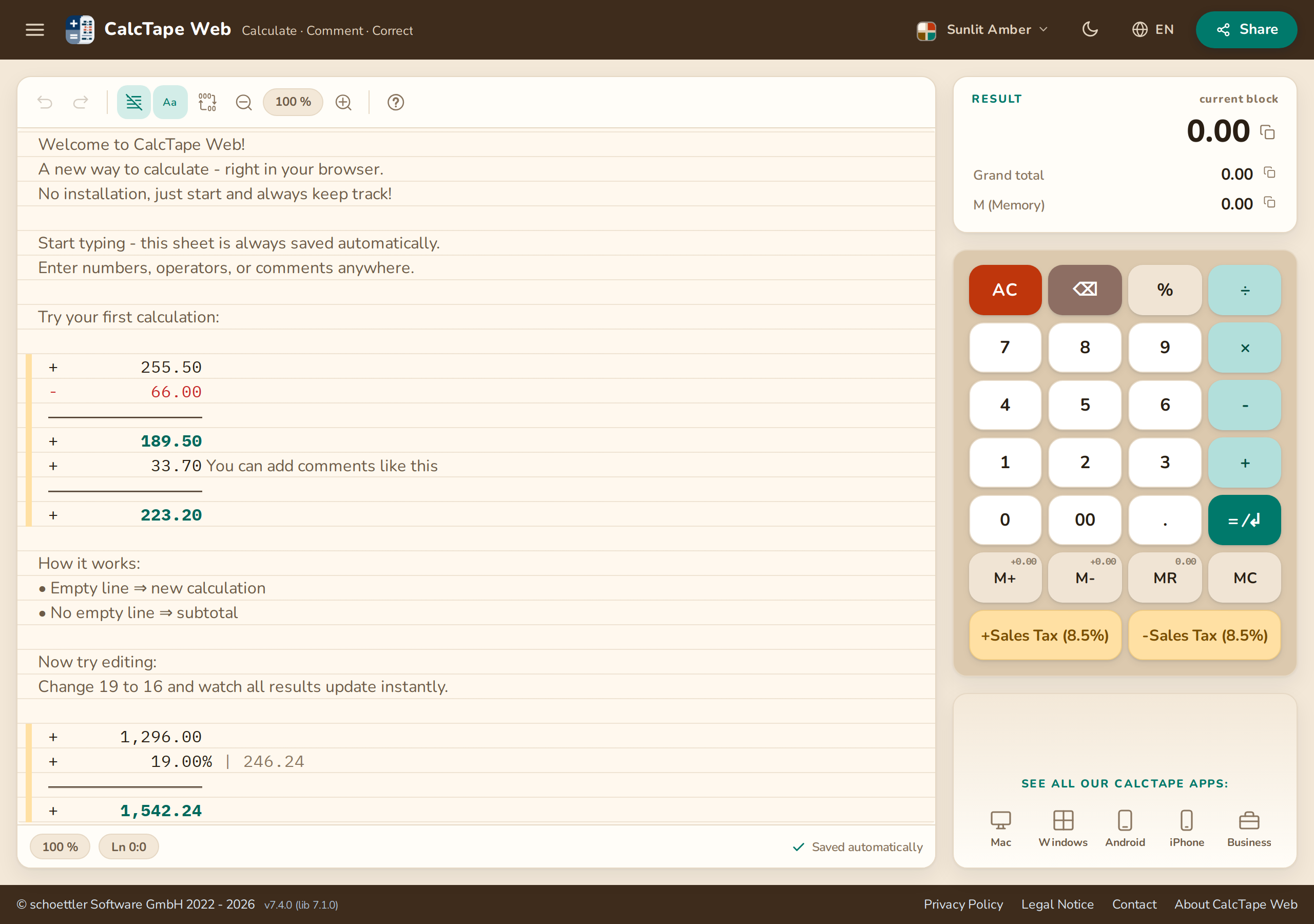
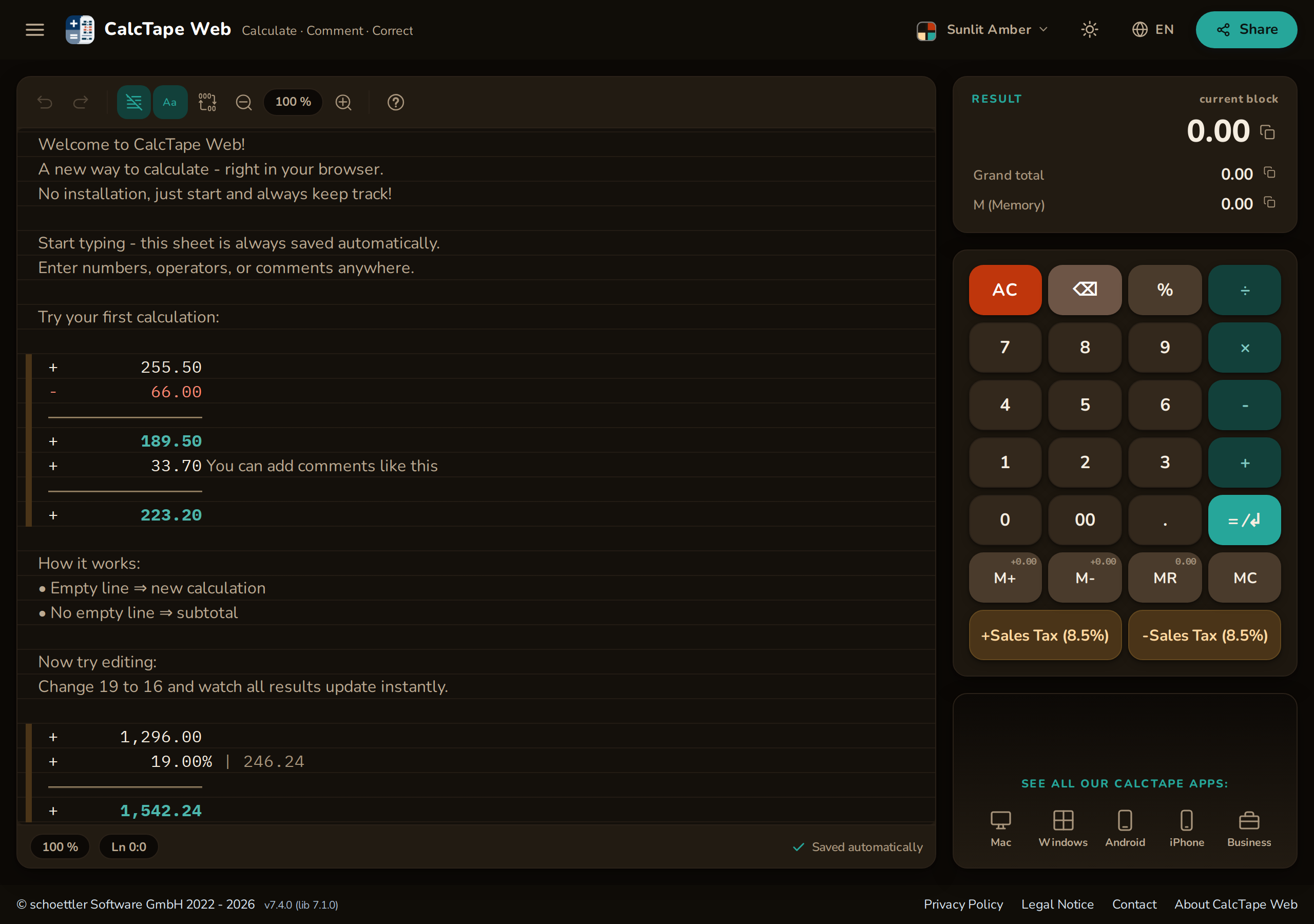
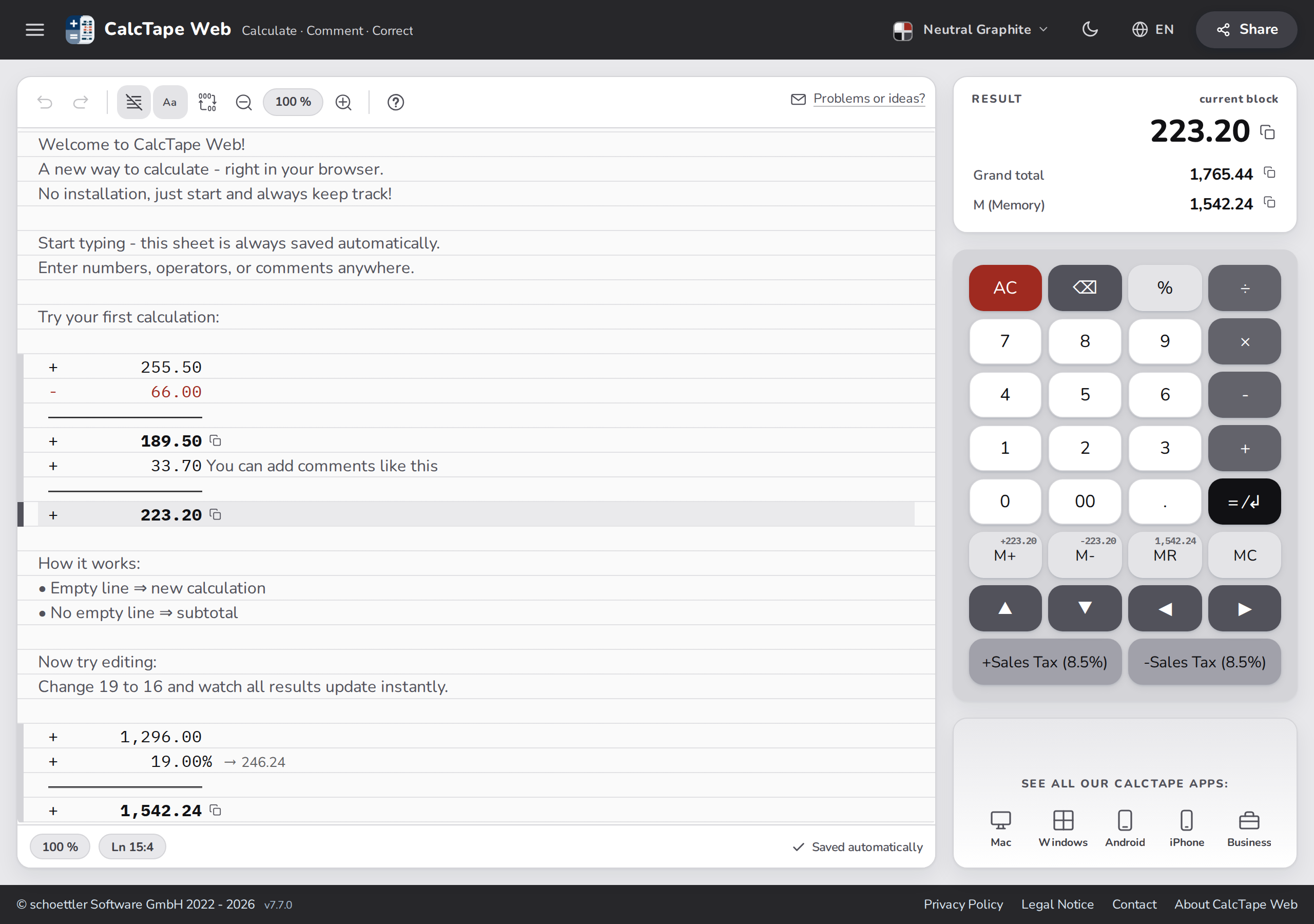
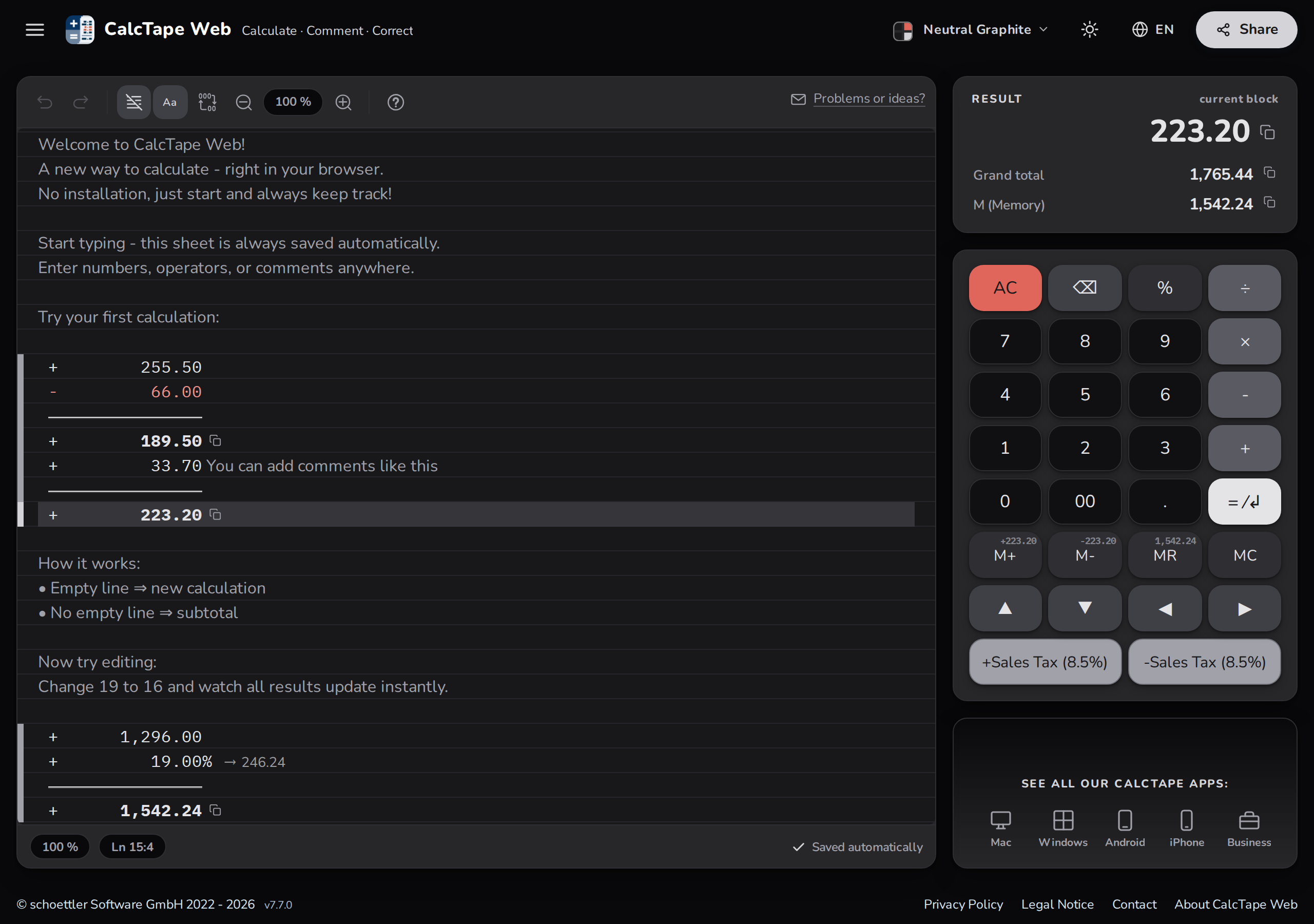
Contents
- The concept: how CalcTape works
- Interface overview
- The editor: writing calculations
- The keyboard: all keys explained
- Customizing user keys (VAT)
- The menu
- The status bar
- Sharing calculations
- Saving and automatic backup
- Keyboard shortcuts
- Error messages
- Limits & notes
- Privacy
- CalcTape for other platforms
1. The concept: how CalcTape works
CalcTape differs from a conventional calculator in four ways:
Quick start: 60 seconds
Type these two lines and close the block with =:
 +      1,000.00 Net price
 +         19.00% VAT
 ---------------
 +      1,190.00
That is all there is to it. Four moves come up in daily use:
- Change a value - click into the first line and make it 1,500; everything below recalculates instantly.
- Comment - behind every number you may write what it is about.
- Copy the result - one click on the large value at the top right puts it on the clipboard.
- Pass it on - Share creates a link that carries the calculation itself, or saves it as a file (sections 8 and 9).
The rest of this manual covers the details - you do not need it to get started.
Line-by-line calculation
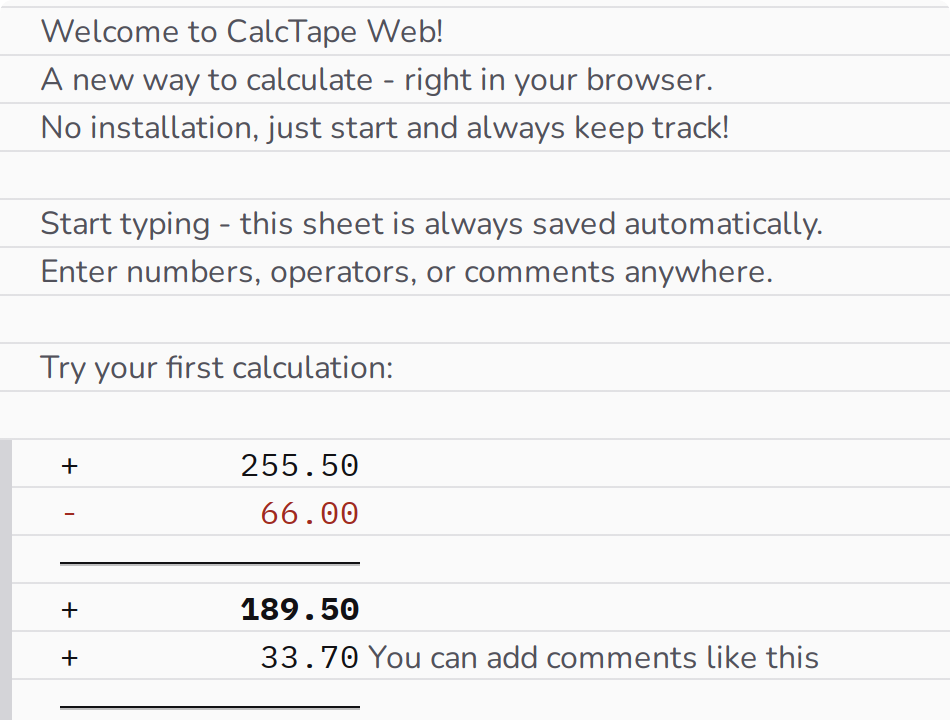
Each line contains an operator and a value, e.g. + 1,350.00. CalcTape accumulates the lines continuously, like a receipt.
Automatic subtotals
When you close a block (using the = / Enter key), CalcTape automatically draws a separator line and writes the running subtotal below it:
 +      3,230.00 Salary
 -      1,350.00 Rent
 -        780.00 Groceries
 ---------------
 +      1,100.00 Available
Comments right next to the numbers
You can write any text after a value (in the example above "Salary", "Rent" …). CalcTape ignores the text when calculating but displays it alongside the numbers, so every calculation stays easy to follow.
Edit anything at any time
You can change any value in any line at any time. The entire calculation is recalculated instantly. That is what makes CalcTape so flexible.
Multiple calculations side by side
- Without a blank line between two blocks you get a convenient subtotal.
- With a blank line you start a completely new, independent calculation in the same document.
2. Interface overview
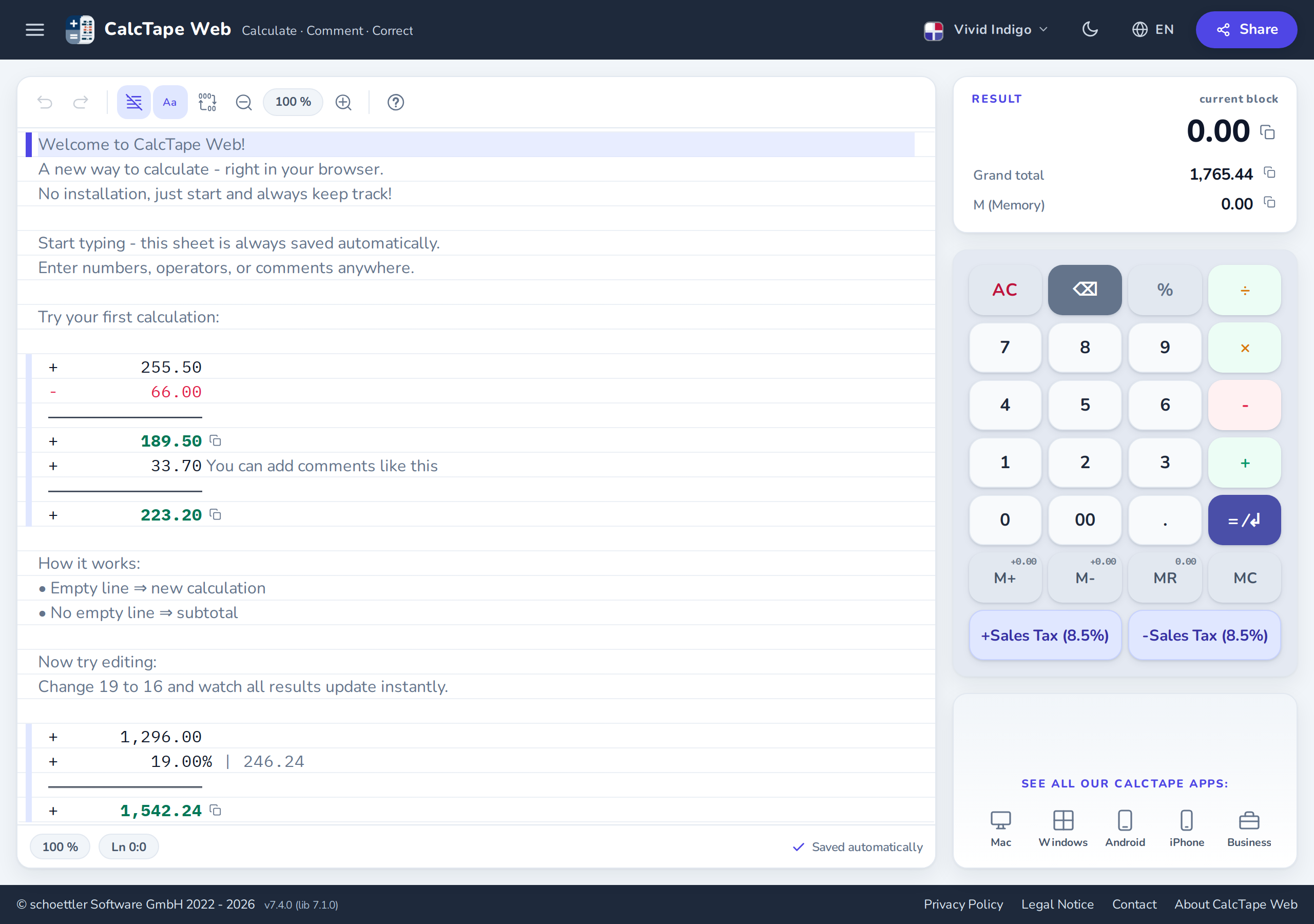
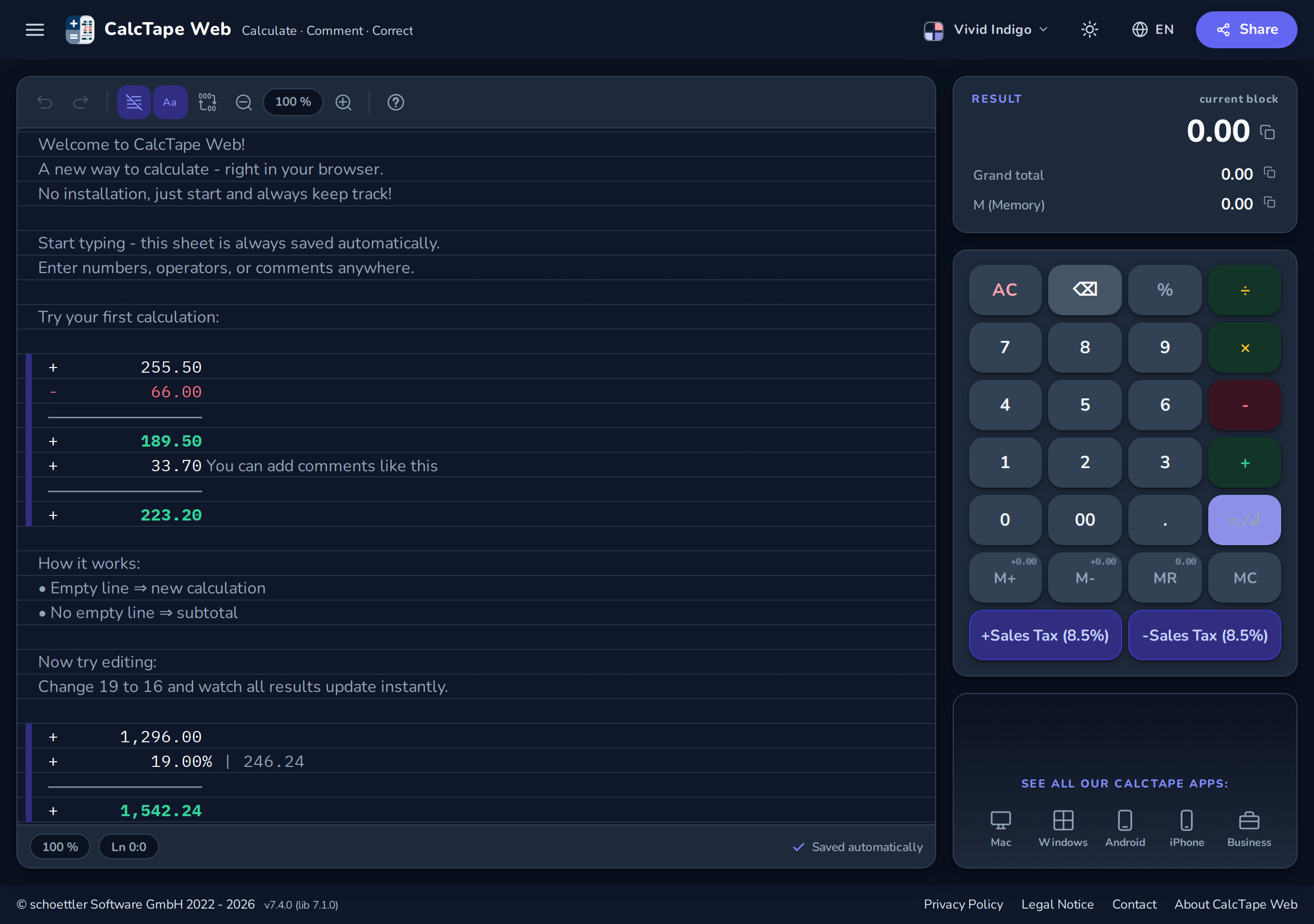
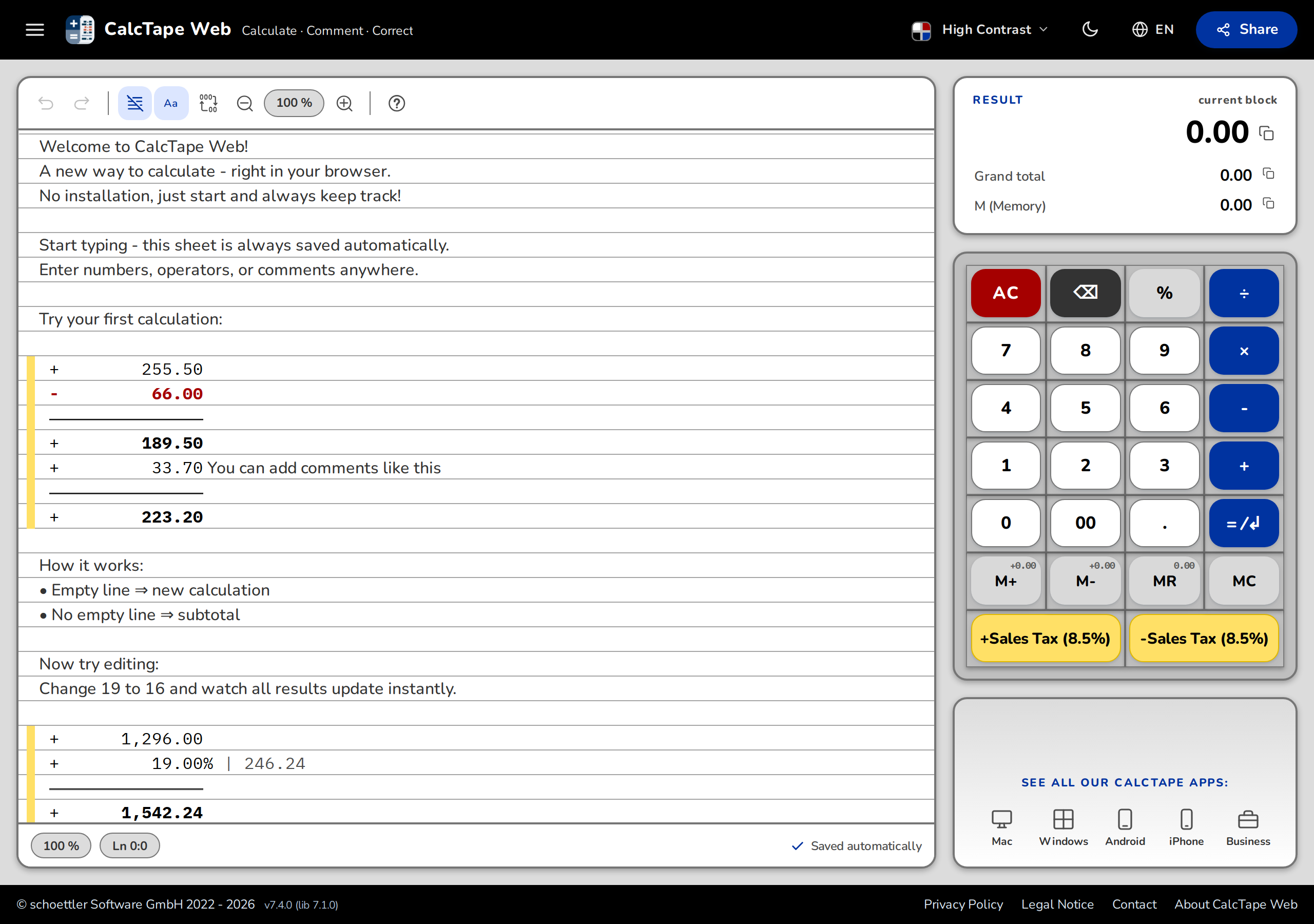
The app is divided into the following areas:
| Area | Position | Function |
|---|---|---|
| Header | very top (dark bar) | Menu icon ☰, logo & product name, theme menu, dark mode switch, language selector (globe icon), "Share" button |
| Toolbar | above the editor | Undo/Redo, lines, typeface, digit grouping, zoom, help, contact link (see below) |
| Editor (tape) | center, full height | Input area for your calculations (lined "paper") |
| Status bar | below the editor | Clickable chips: Zoom, cursor position; errors; "Automatically saved" |
| Result panel | top right | Current block result, grand total and memory - each click to copy |
| Keyboard | right (mobile: bottom) | Virtual calculator keyboard |
| Apps panel | bottom right | Links to the CalcTape apps (Mac, Windows, Android, iPhone, Business) |
| Footer | very bottom | Copyright, version, legal links |
The header
The header spans the very top of the window (the dark bar) and gathers the app's global controls. From left to right it holds:
- the menu icon (☰) - opens the main menu with all commands (section 6);
- the logo and product name "CalcTape Web";
- the theme menu - pick a color palette (see below);
- the dark-mode switch (moon/sun icon);
- the language selector (globe icon);
- the "Share" button - create a share link or save the calculation (section 8).















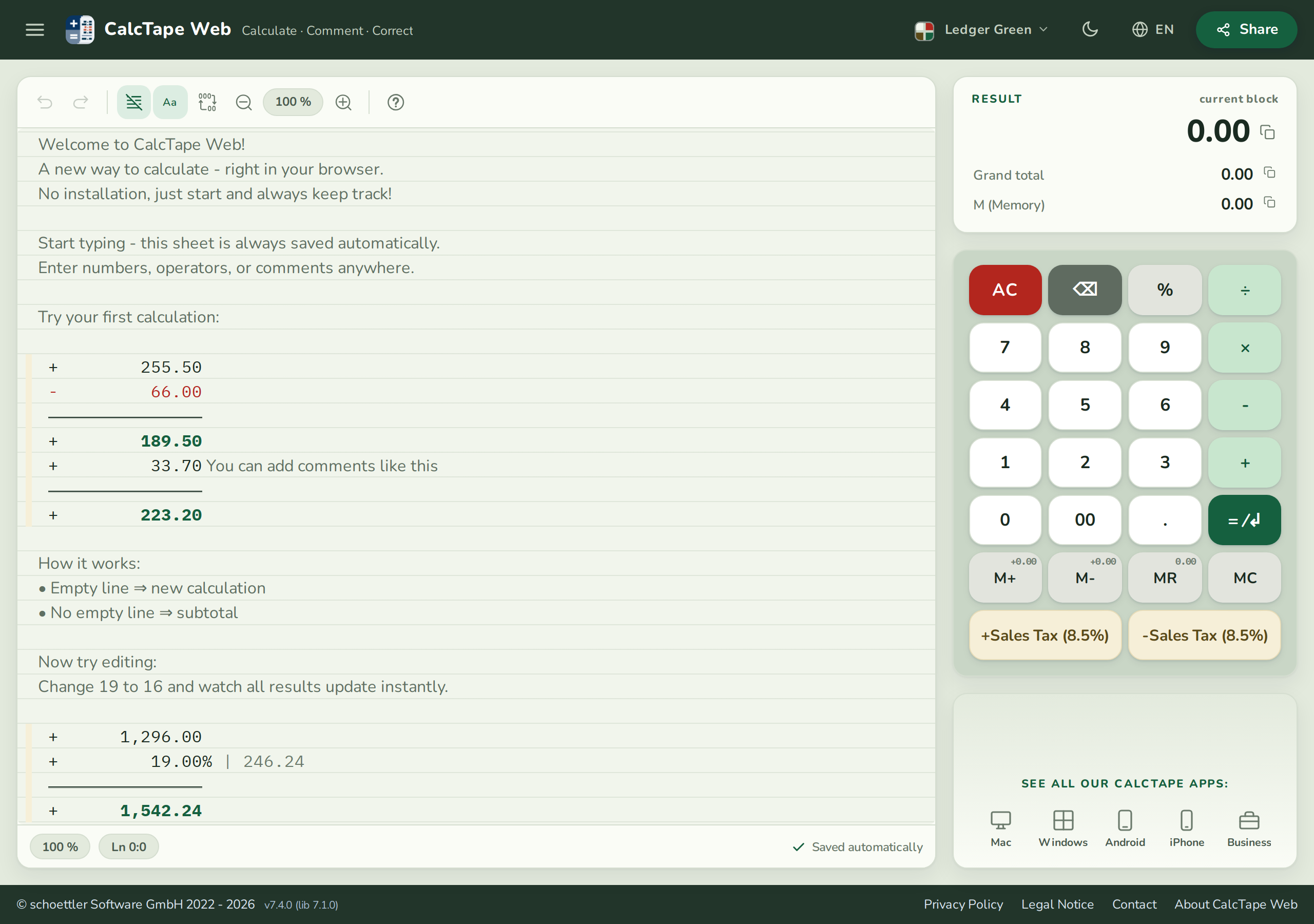
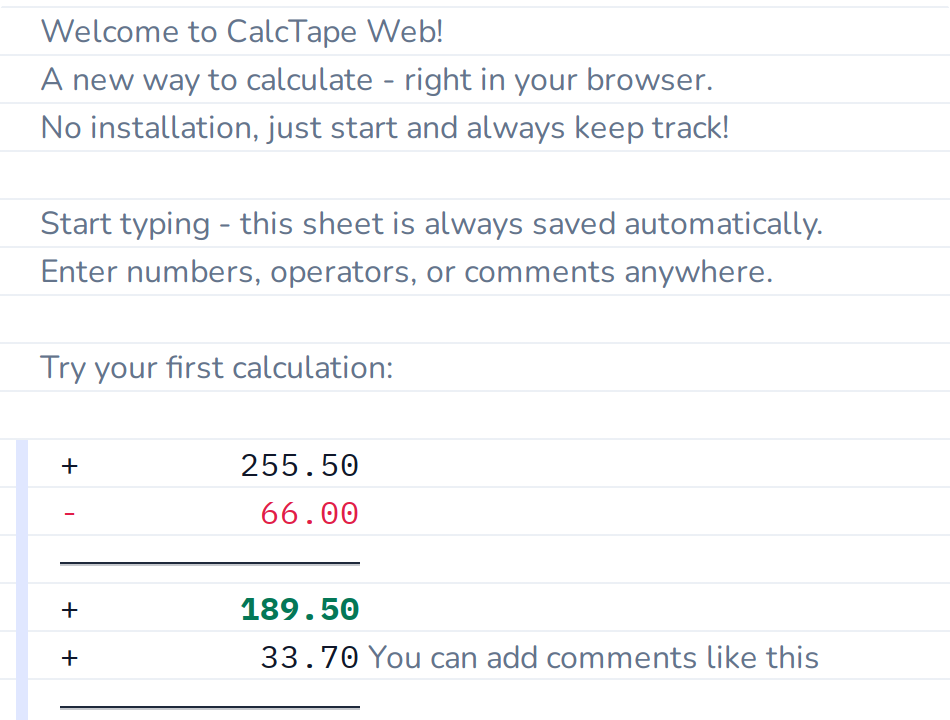
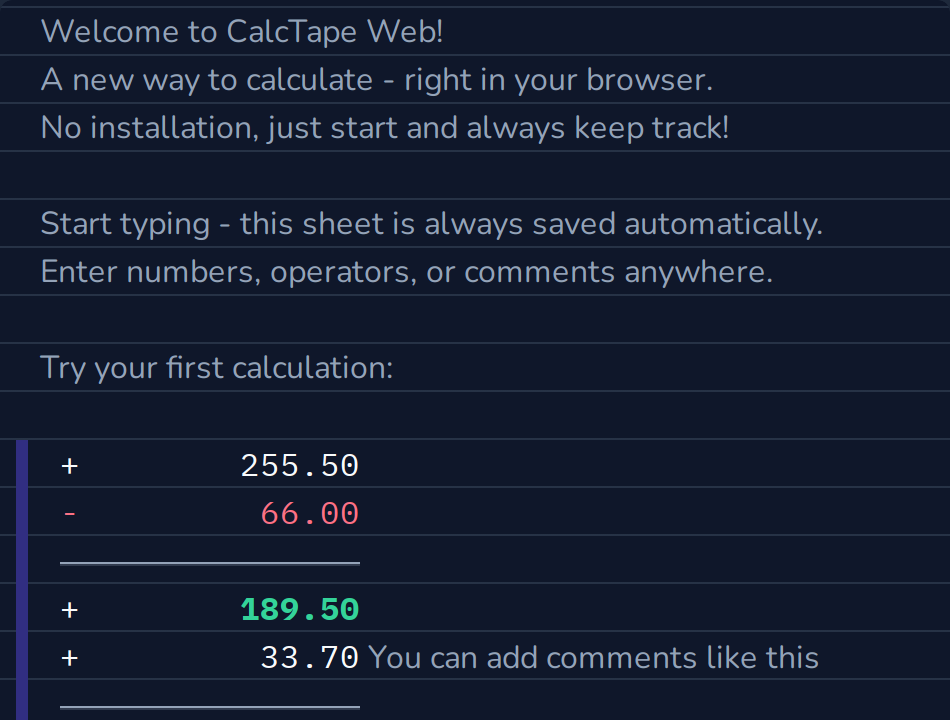
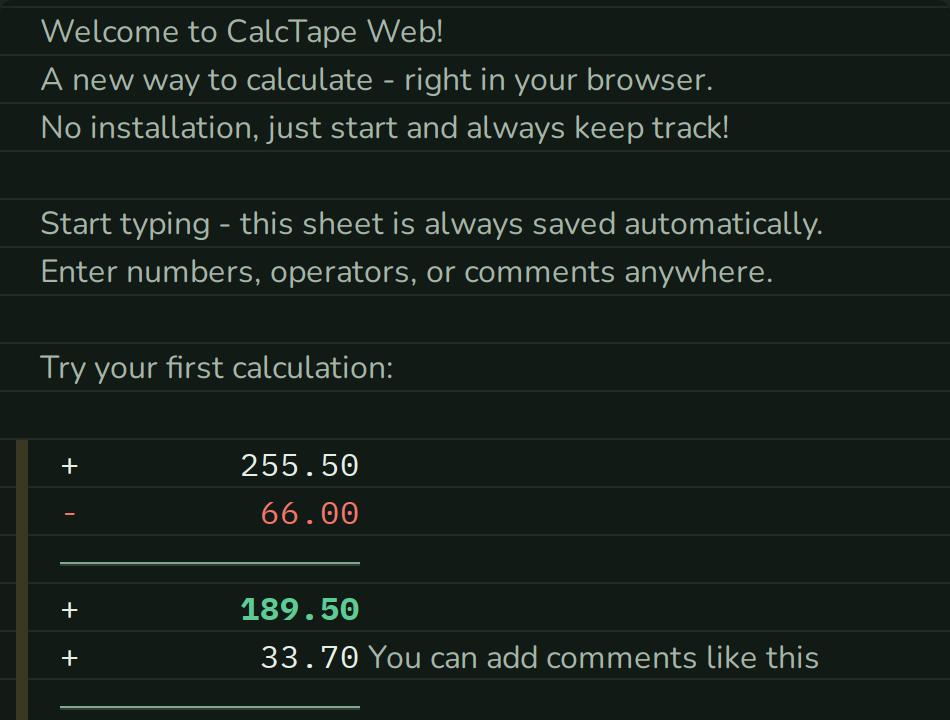
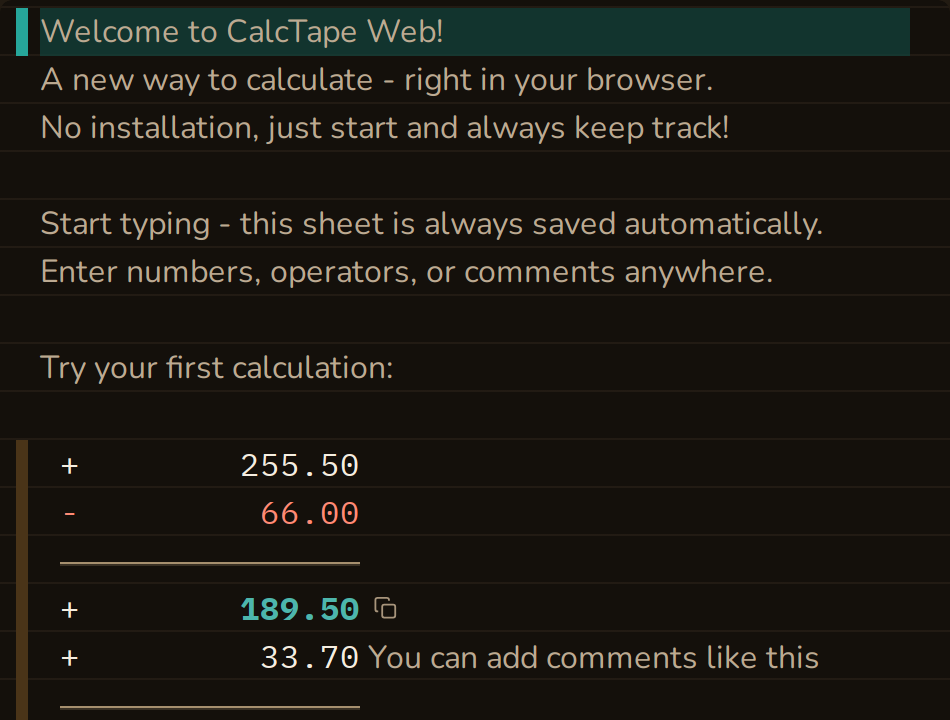
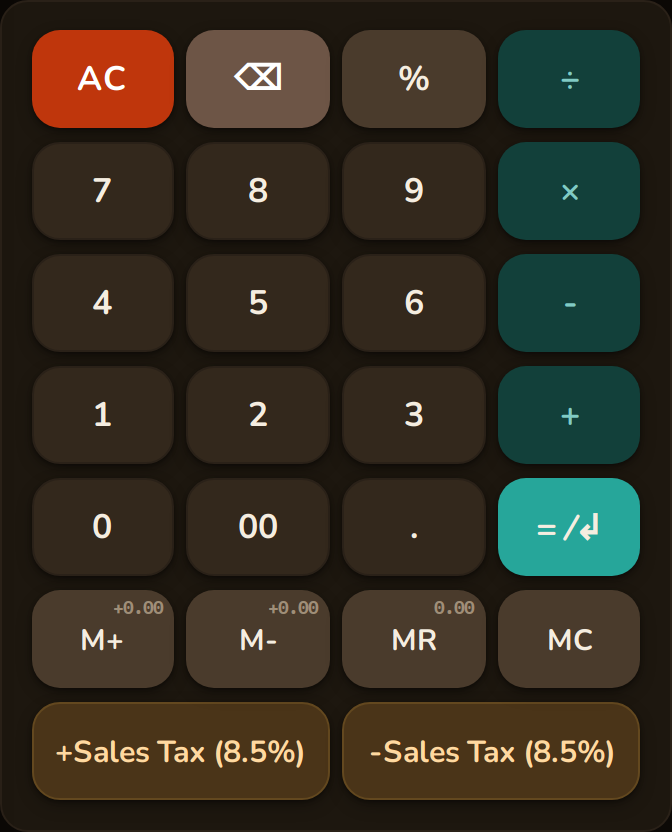
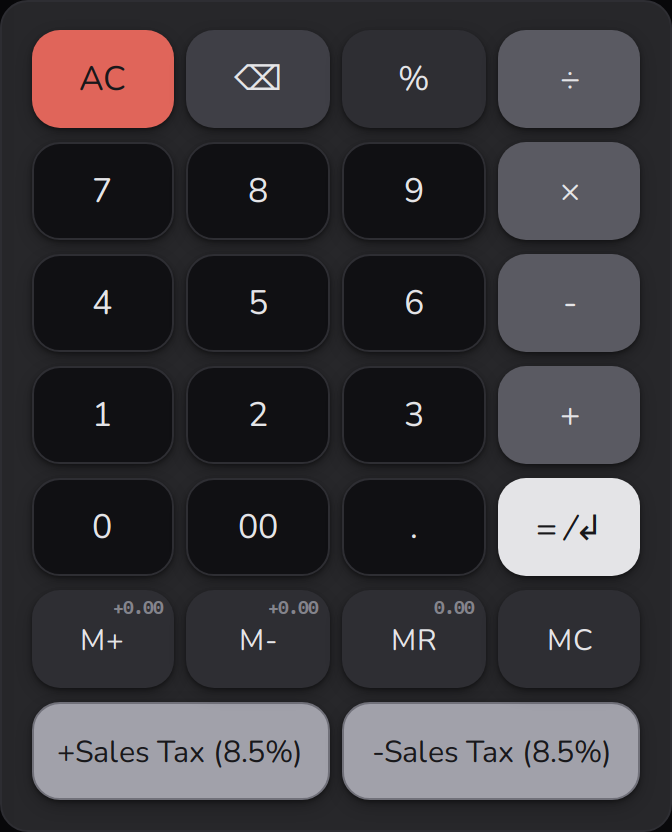
Color theme. The theme button in the header (a small color tile with the theme's key colors, the active theme's name and a small arrow) opens a menu with several color palettes. Each palette is shown as a preview tile - a miniature of the tape and the keypad in that palette's colors, matching the light or dark mode you are in. The active palette is framed and carries a check mark. Available palettes:
- Crisp Azure - the default: near-white surfaces, with CalcTape blue used only as an accent on the result, variables and custom keys, plus an amber AC key as the sole warning signal.
- Classic Copper - the classic CalcTape look (navy/blue).
- Vivid Indigo - a bold indigo/slate scheme with colored key accents.
- Subtle Slate - a calm, muted steel-blue for relaxed work.
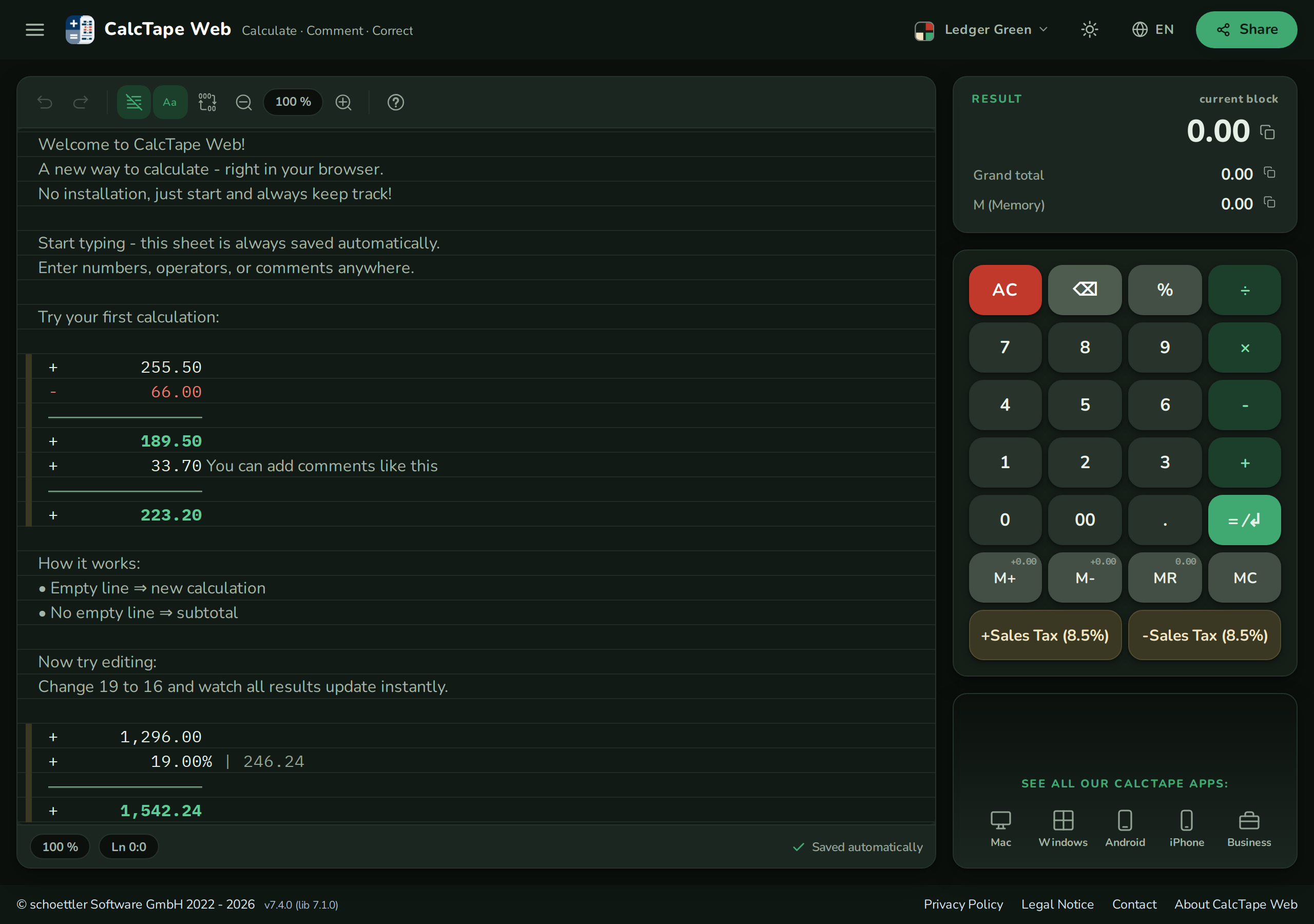
- Ledger Green - the accountant's look: green journal paper, a red pencil for negatives, ledger green for the results.
- Sunlit Amber - built for bright light: warm paper instead of glaring white, strong contrast and cool operator keys.
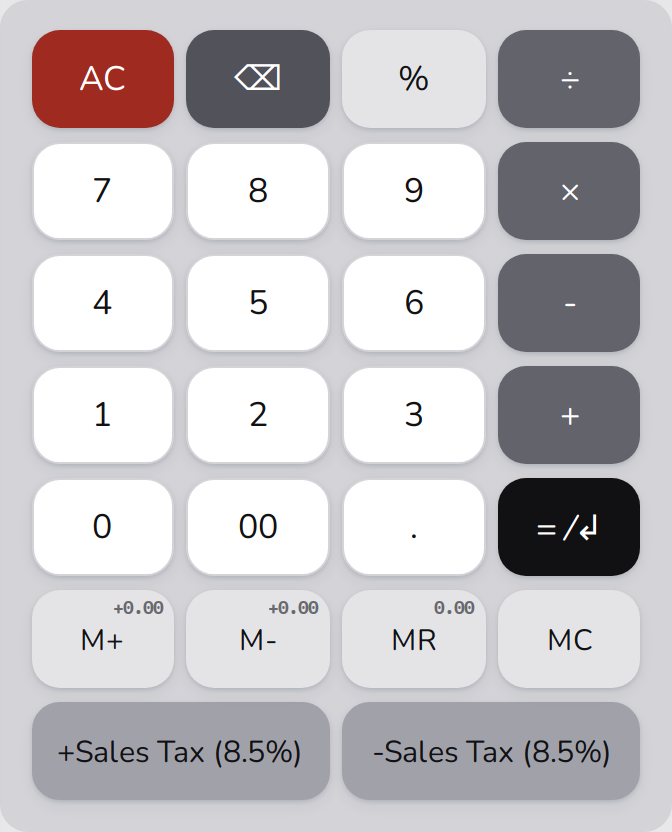
- Neutral Graphite - entirely grey, with no colour accent at all: keys are distinguished only by brightness, with colour reserved for negative numbers and the AC key. For anyone who wants the interface to stay as quiet as possible.
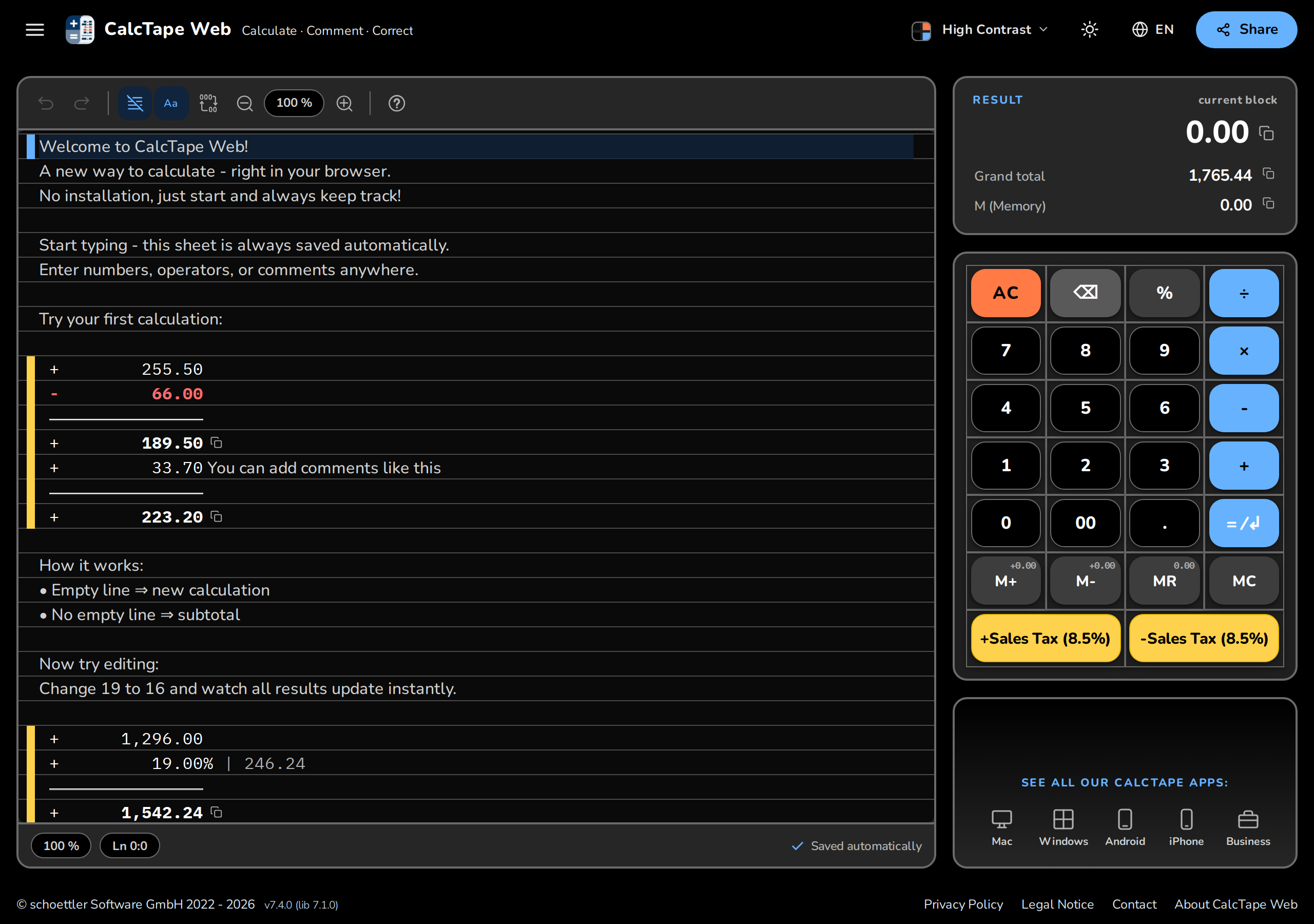
- High Contrast - for washed-out or reflective displays in bright light: pure white and pure black instead of fine gradations, keys separated by colour as well (blue operators, yellow custom keys, red AC), heavier type in the tape and on the keys, and visible borders around tape, keypad and panels.
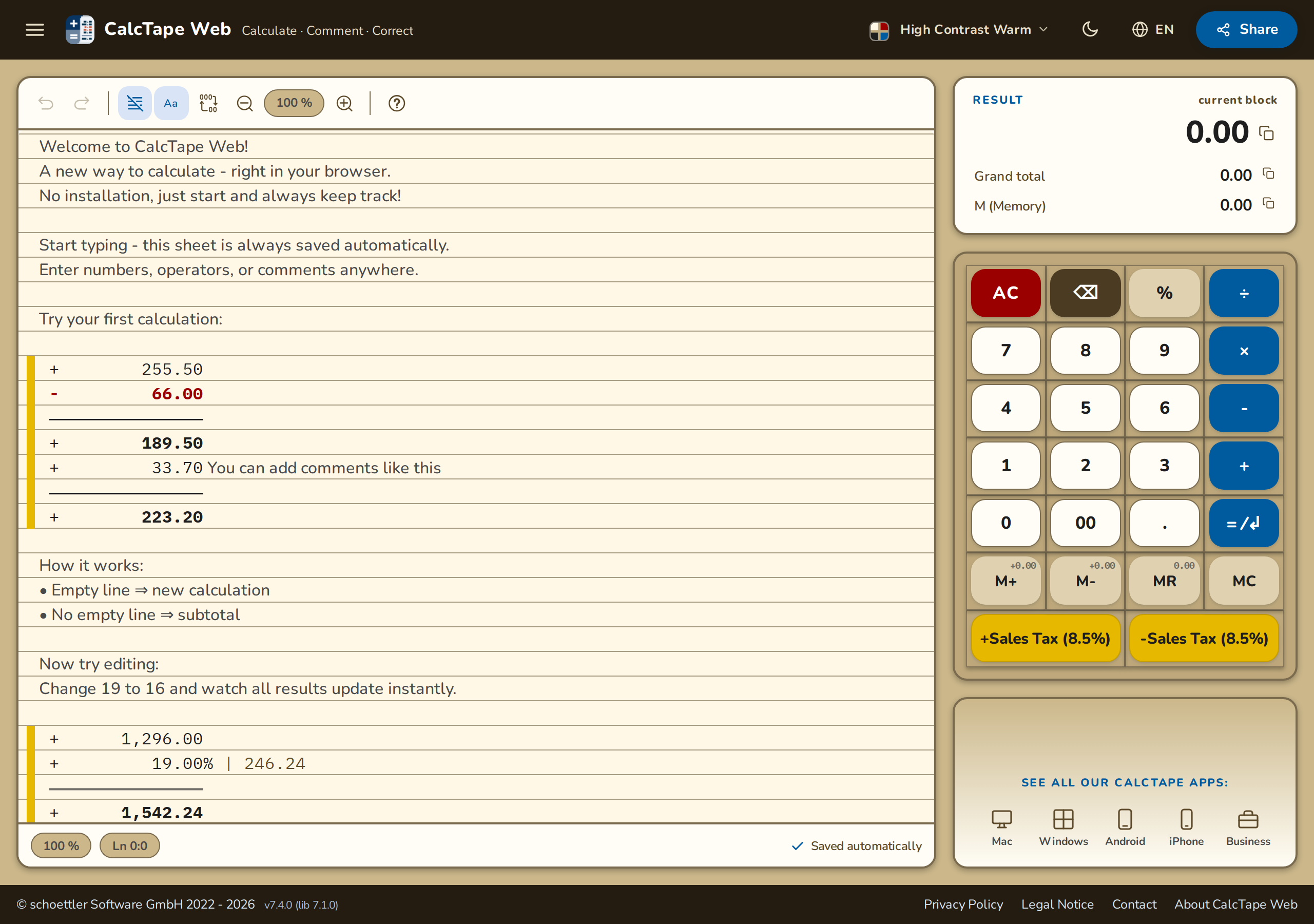
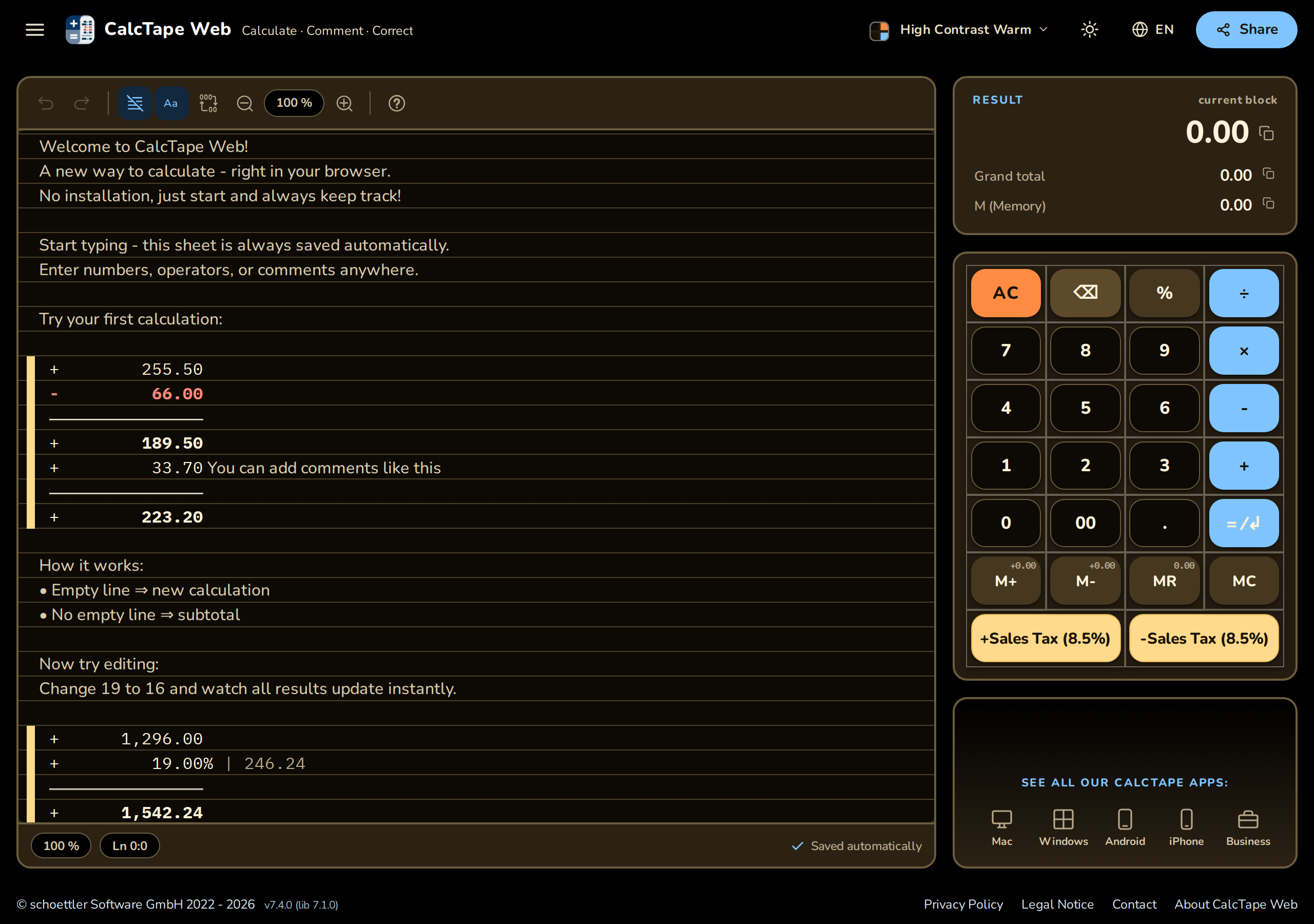
- High Contrast Warm - the same contrast level on cream instead of pure white paper: glossy displays turn a white sheet into a mirror, and maximum brightness is tiring over time. The first choice for long sessions in bright surroundings.
On your first visit CalcTape starts everyone off with the same palette ("Crisp Azure"); as soon as you choose one yourself, your choice applies.
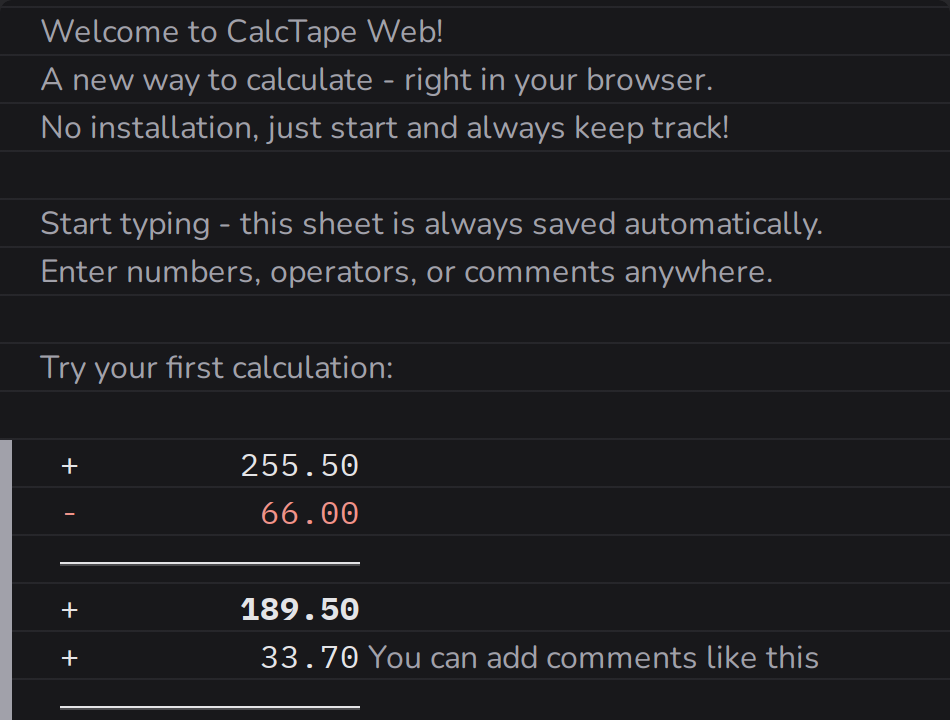
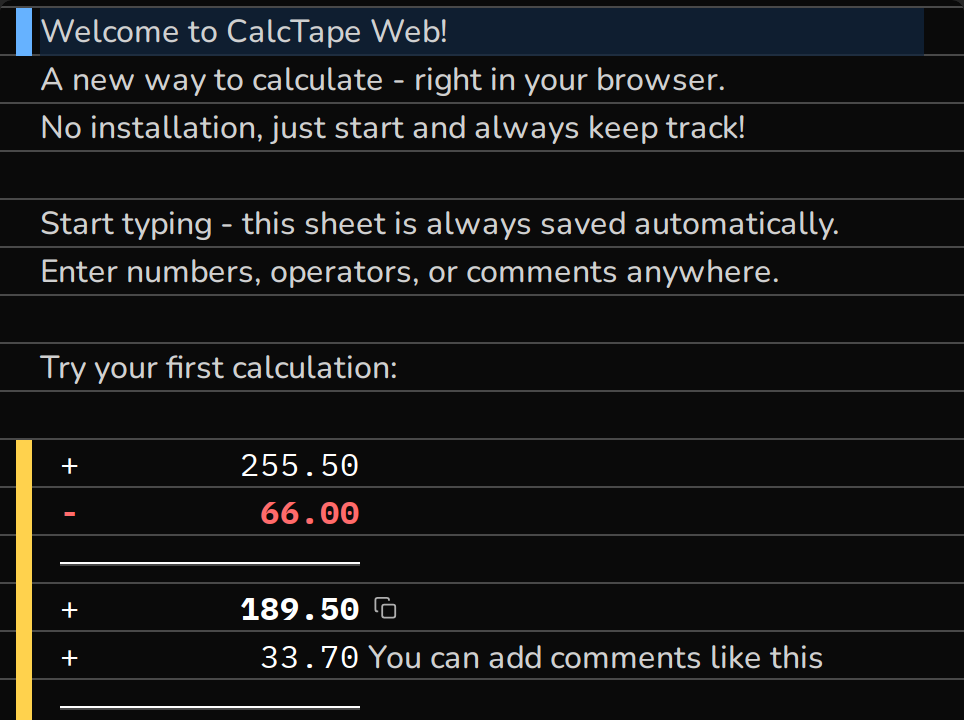
The palette is independent of light/dark mode: any palette can be combined with the light or dark theme.
Dark mode. The moon/sun icon switches between light and dark themes. On the first visit CalcTape follows your device's system setting; your choice is then saved.
Language. The globe icon switches between Deutsch, English, Español, Français, Italiano, Português, हिन्दी (Hindi) and Bahasa Melayu (Malay); the active language is marked with ✓ and is saved. Without an explicit choice CalcTape follows your browser's language. This manual is available in all of these languages too.
Your palette, dark-mode and language choices are all stored locally and restored on your next visit.
The toolbar
The most important actions are available as icon buttons directly above the tape, organized in groups:
- Edit: Undo, Redo (grayed out when not available)
- View: lines on/off, proportional typeface, Indian digit grouping, zoom out, zoom display (click = reset), zoom in
- Help: opens the help menu with the Tutorials, links to this manual and the CalcTape apps, and the About dialog. At the far right, the Problems or ideas? link opens the contact form on calctape.com in a new tab, with "Web" already selected as the platform. In a narrow window (mobile) the link is hidden; in a wide one it is the first thing to go when the toolbar gets too tight.


















Save calculation lives in the Share popover (section 8), not in the toolbar.
Each icon shows a tooltip with a plain-text label and keyboard shortcut on hover (e.g. "Undo (Ctrl+Z)").
The result panel
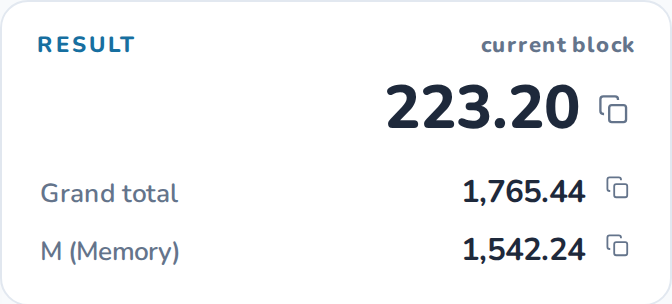
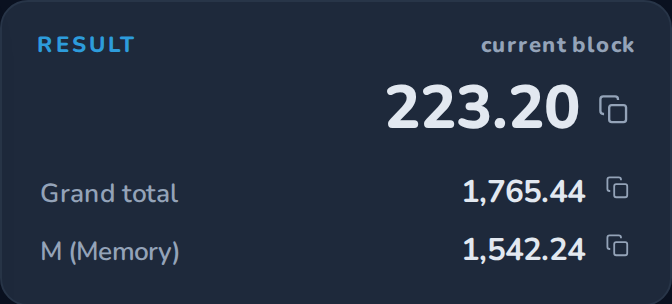
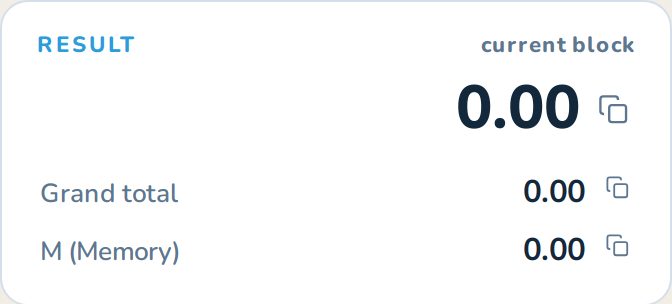
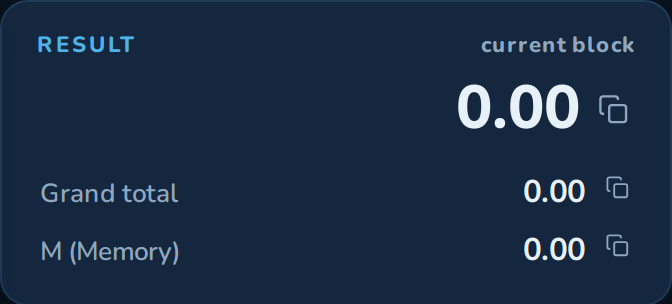
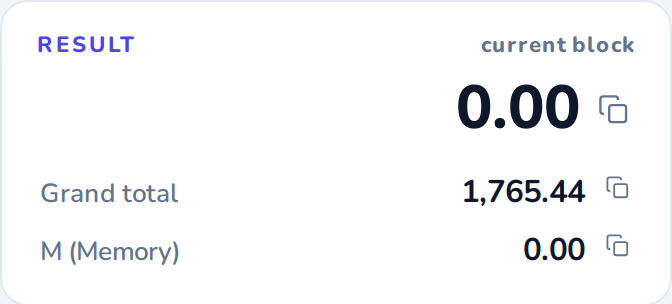
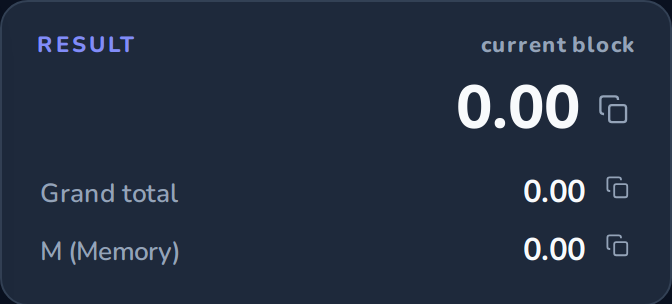
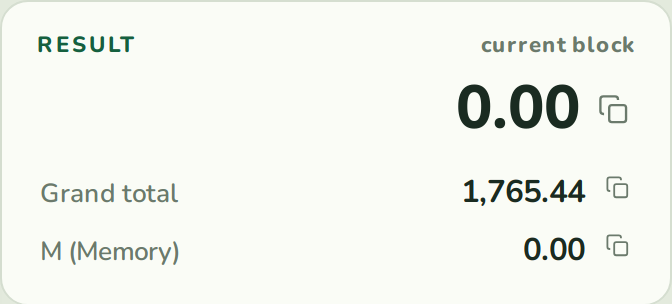
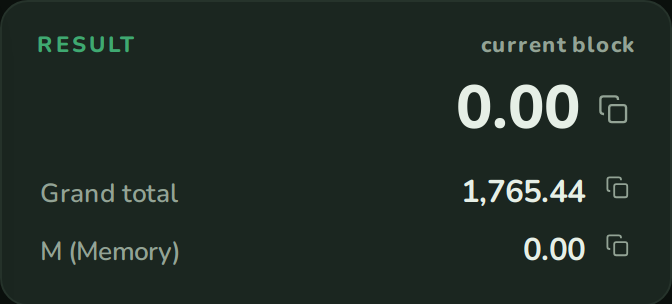
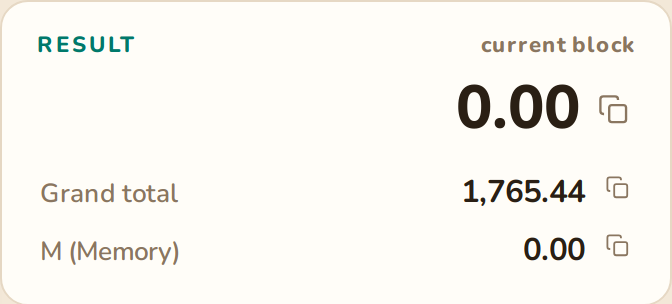
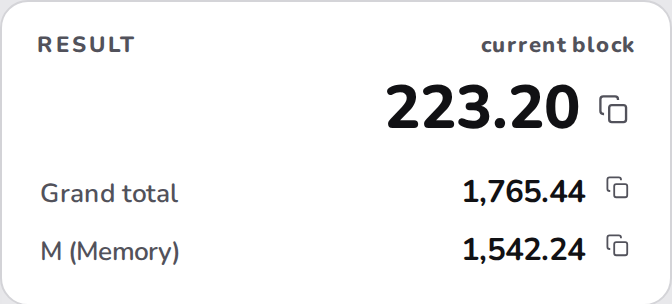
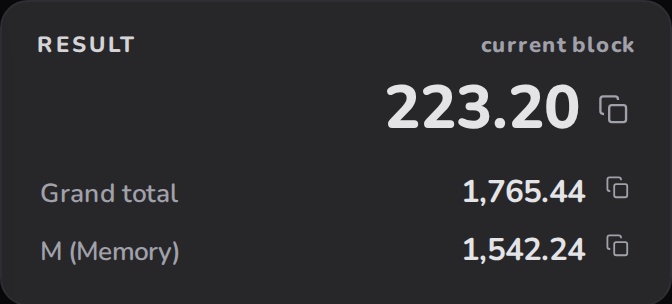
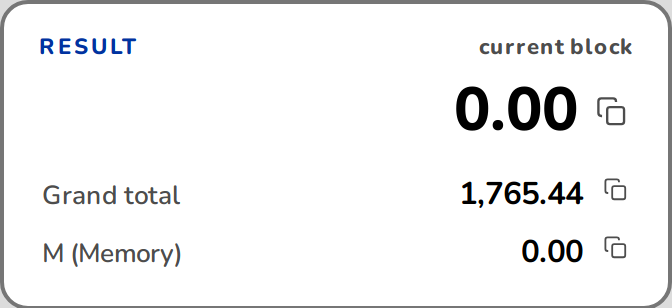
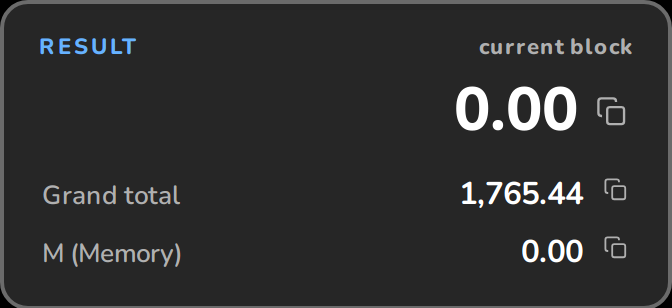
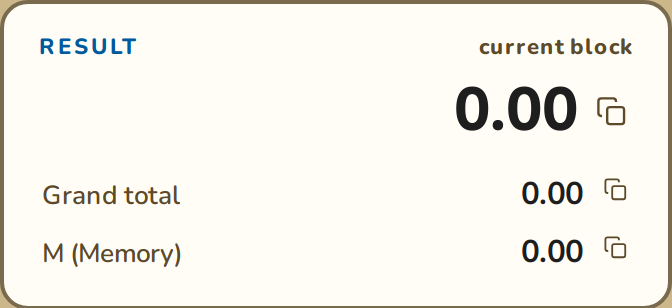
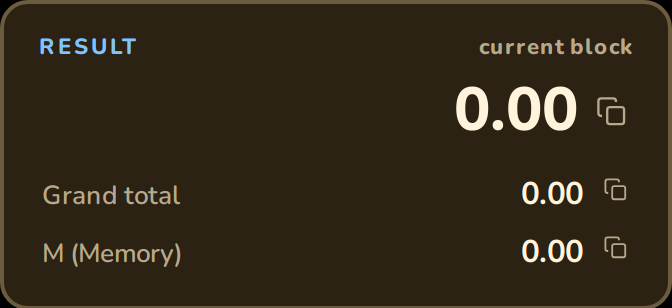
The result of the current block is displayed large and clearly in the top right. Clicking the value copies it to the clipboard (brief confirmation "Result copied"). Below it, two rows show the grand total (the sum of the final totals of all completed blocks) and the memory value; each can be copied with a click. The small copy icon next to a value indicates this.


Adapting to window size
The interface is responsive:
- Wide window (desktop): Editor on the left, result panel and keyboard on the right; everything uses the full window height, and the tape scrolls internally.
- Narrow window (mobile): The keyboard becomes a bottom sheet at the bottom of the screen, with a drag handle and a mini result in the header. Tapping the drag handle collapses and expands the keyboard.
- At very low window heights, the keys are automatically made more compact.
CalcTape can also be added to the home screen on mobile devices as a PWA (Progressive Web App) and launched like a native app. For everyday work on a phone, the CalcTape apps for Android and iOS are the better choice (section 12).
3. The editor: writing calculations
The editor is the heart of the app. You can type freely using a physical keyboard or use the on-screen keyboard buttons; both work equally well.
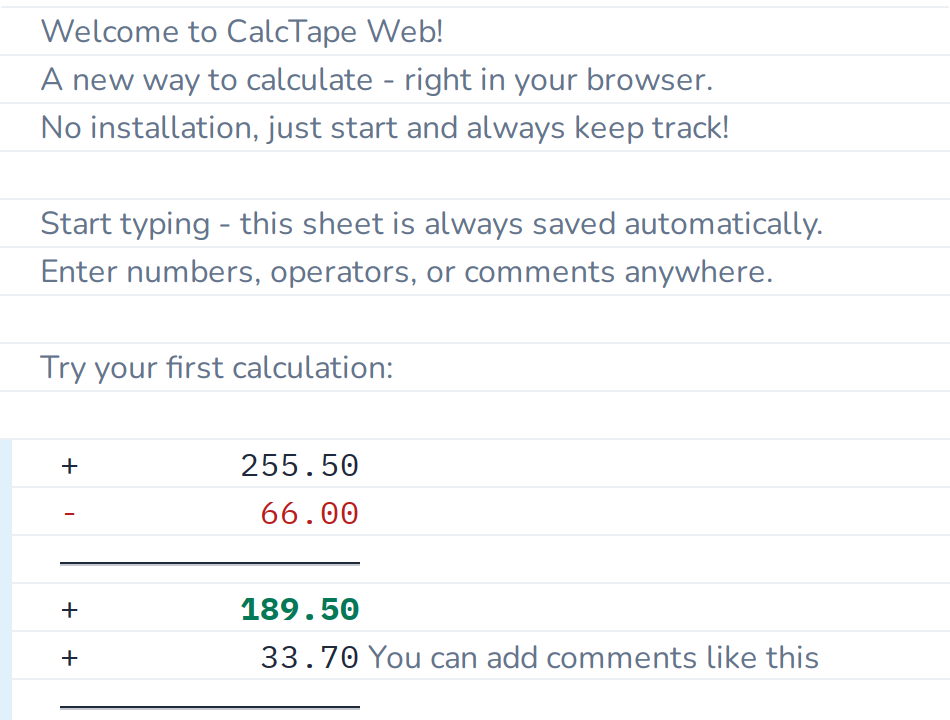
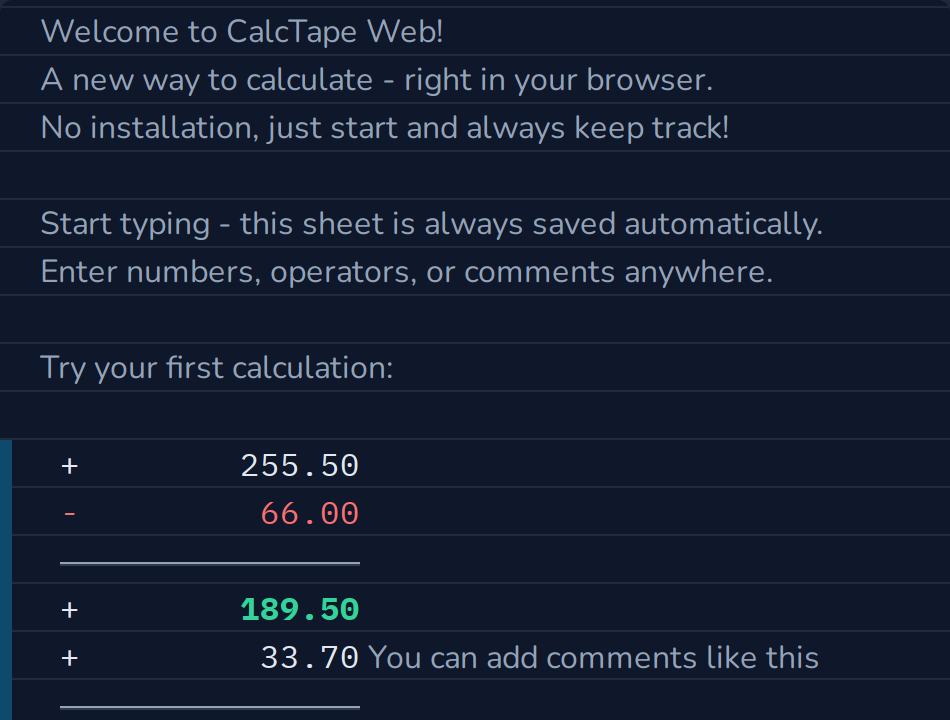
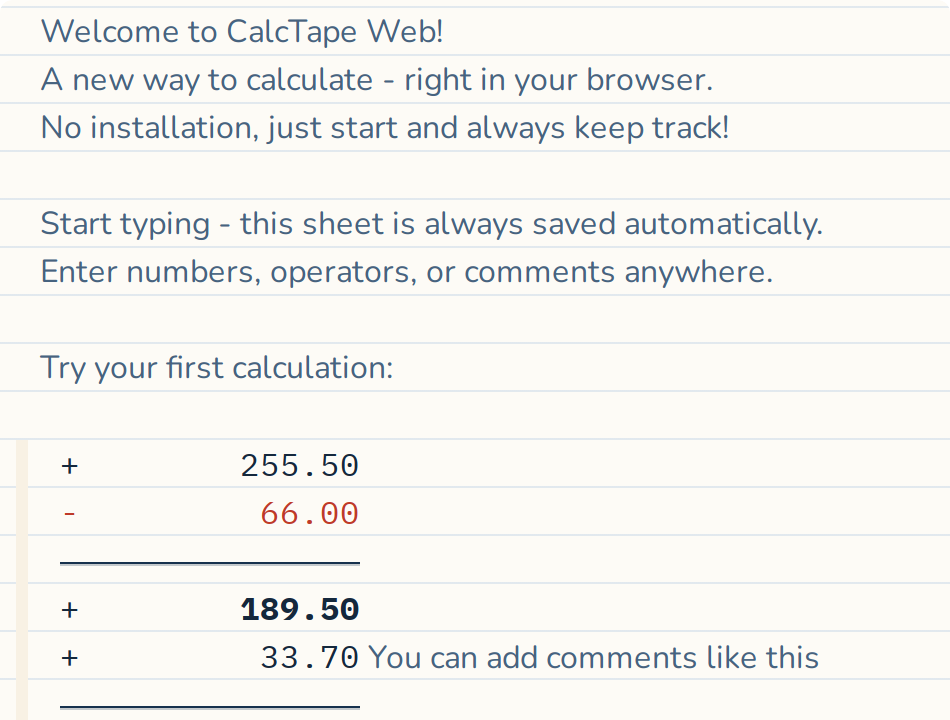
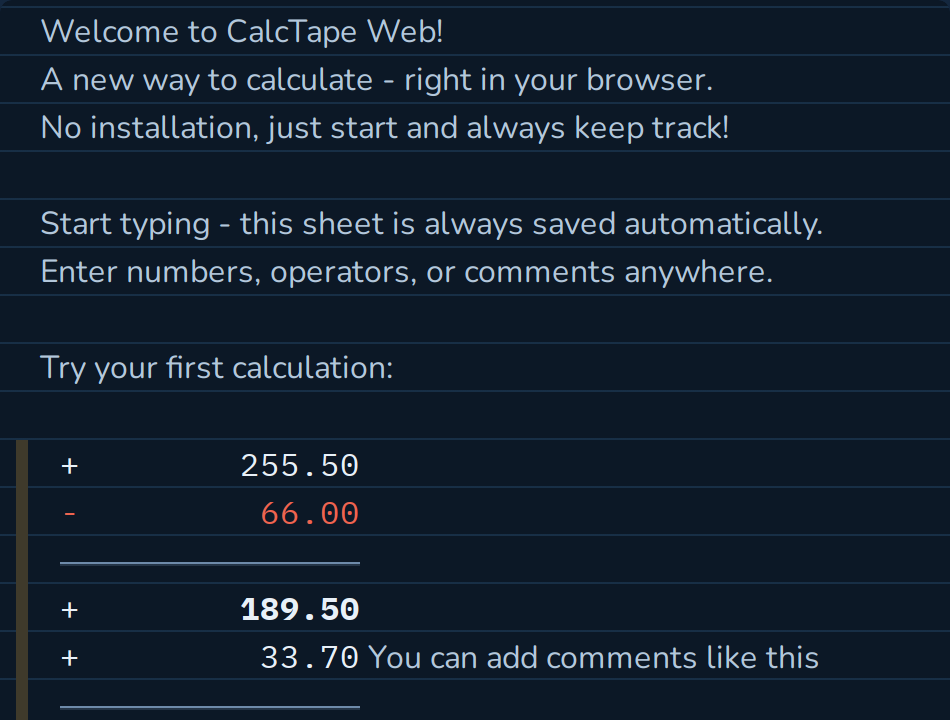
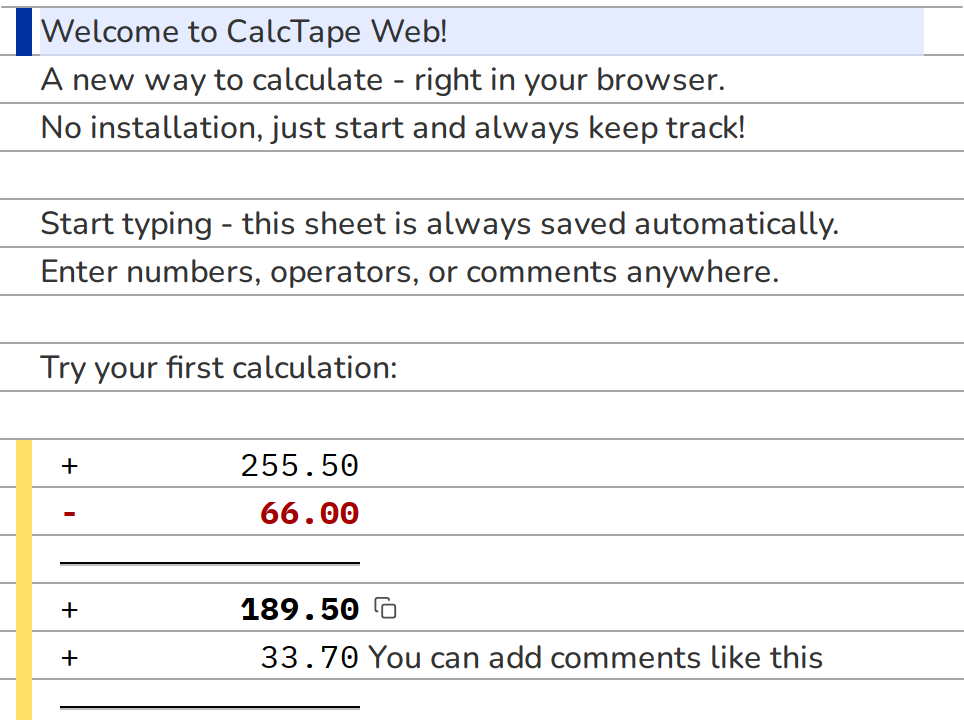
The tape looks like a lined notepad (the lines can be turned off via the toolbar or Ctrl+Shift+L). For orientation, the line containing the cursor is subtly highlighted and marked on the left with a bar in the accent color (blue by default); all lines that are part of a calculation (values, variables, sum lines) have a continuous stripe on the left in the color of the user keys. Totals are displayed in bold, so the result of every calculation is easy to spot at a glance.




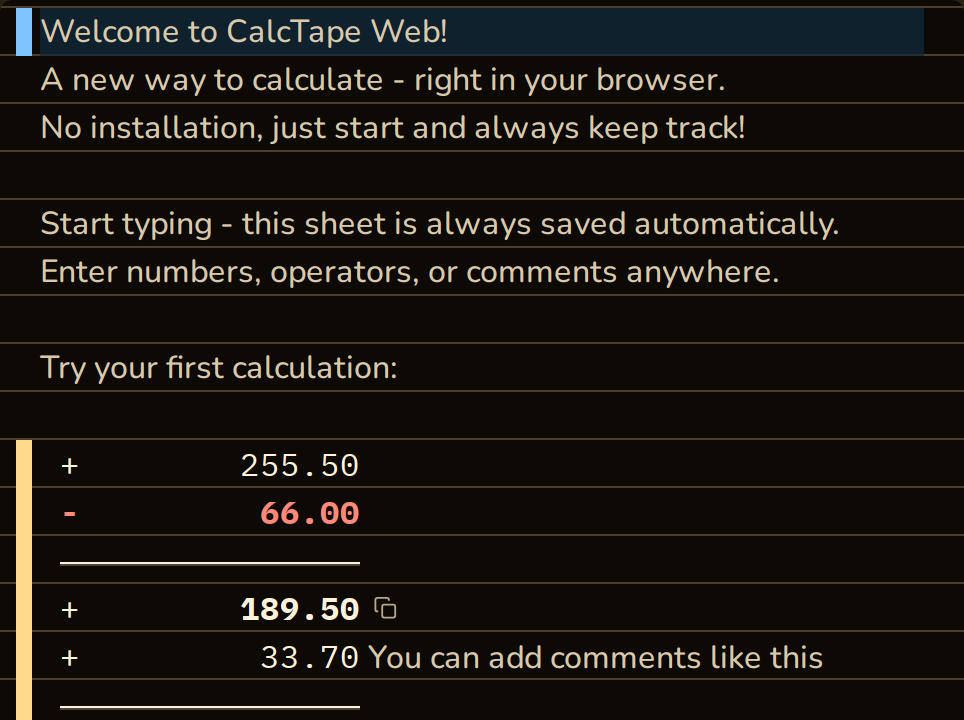
Line structure
<Operator> <Number> <optional comment text>Example: + 1,234.50 income March
- Every calculation must start with a number or a sign (
+/−). - Available operators are addition, subtraction, multiplication, division, and exponentiation.
- An operator behind a number starts the next calculation line, even in the middle of the comment. To put it into the comment, type it with Alt, on a Mac with ⌥ (see section 10).
- The decimal and thousands separators are set automatically according to your browser's language (in English: period as decimal separator, comma as thousands separator). The menu also offers Indian digit grouping (lakh/crore, e.g.
10,00,000.00; see section 6).
Calculation rules at a glance
| Input | Meaning |
|---|---|
+, - | Addition, subtraction |
*, / | Multiplication, division |
^ | Power - ^ 0.5 is the square root (9 becomes 3) |
% | Percentage of the running subtotal |
= / Enter | Close the block, draw a subtotal |
| Empty line | New, independent calculation |
( behind the operator | opens a bracket across lines (see "Brackets across lines") |
) | closes the bracket and shows its value |
Multiplication binds before addition, across lines too. + 10, + 2, * 3 gives 16, not 36: the multiplication is calculated first, even though it comes later. If the lines are to be worked through in their own order, close the block with = before the multiplication.
Precision. Internally CalcTape calculates far more precisely than it displays: 1 / 3 times 3 gives exactly 1.00. Two decimal places are shown, so very small results appear as 0.00 (e.g. 1 / 100,000). Up to 32 digits before the decimal separator are possible; longer numbers cannot be shown. The two decimal places apply as long as CalcTape rounds (menu, Rounding). With Round nothing, CalcTape keeps calculating with all 34 digits and shows results with up to 30 of them: 1 / 100,000 then appears as 0.00001, and 1 / 3 times 3 stays 1.00. Where a sum goes on beyond the 30 digits, the tape shows … behind it.
Pasted numbers must match your separators: 1.234,56 from a German spreadsheet is read as 1.23 in an English environment - the rest is dropped, without an error message. So check pasted values before you rely on them.
Percentage calculations
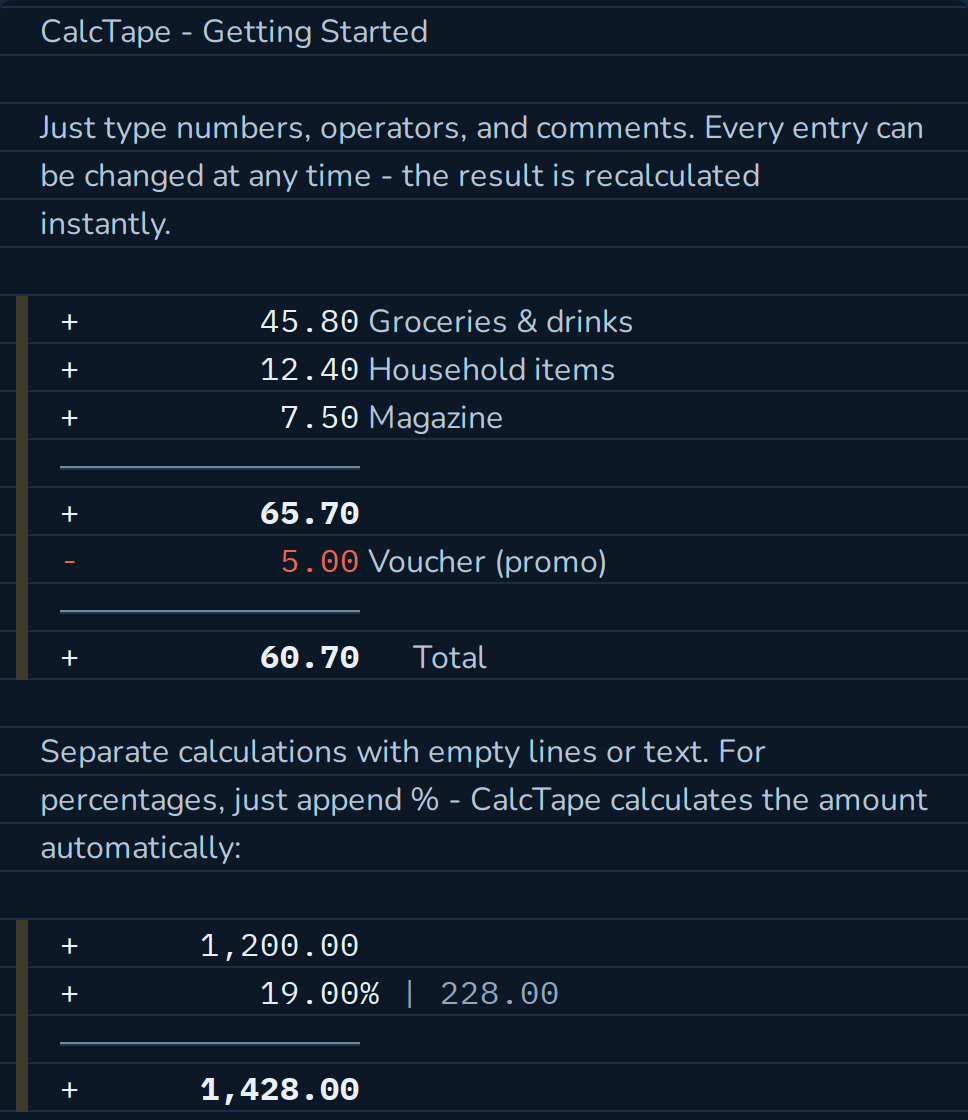
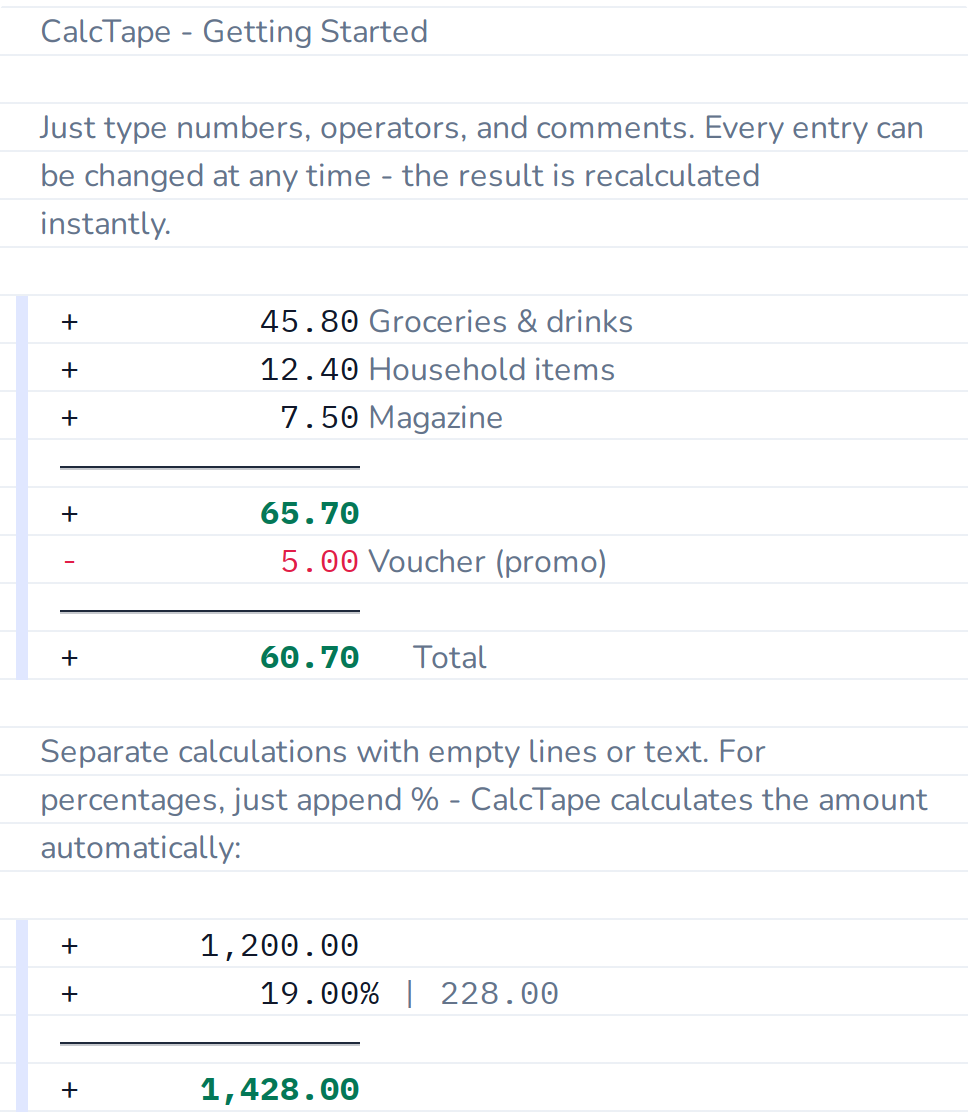
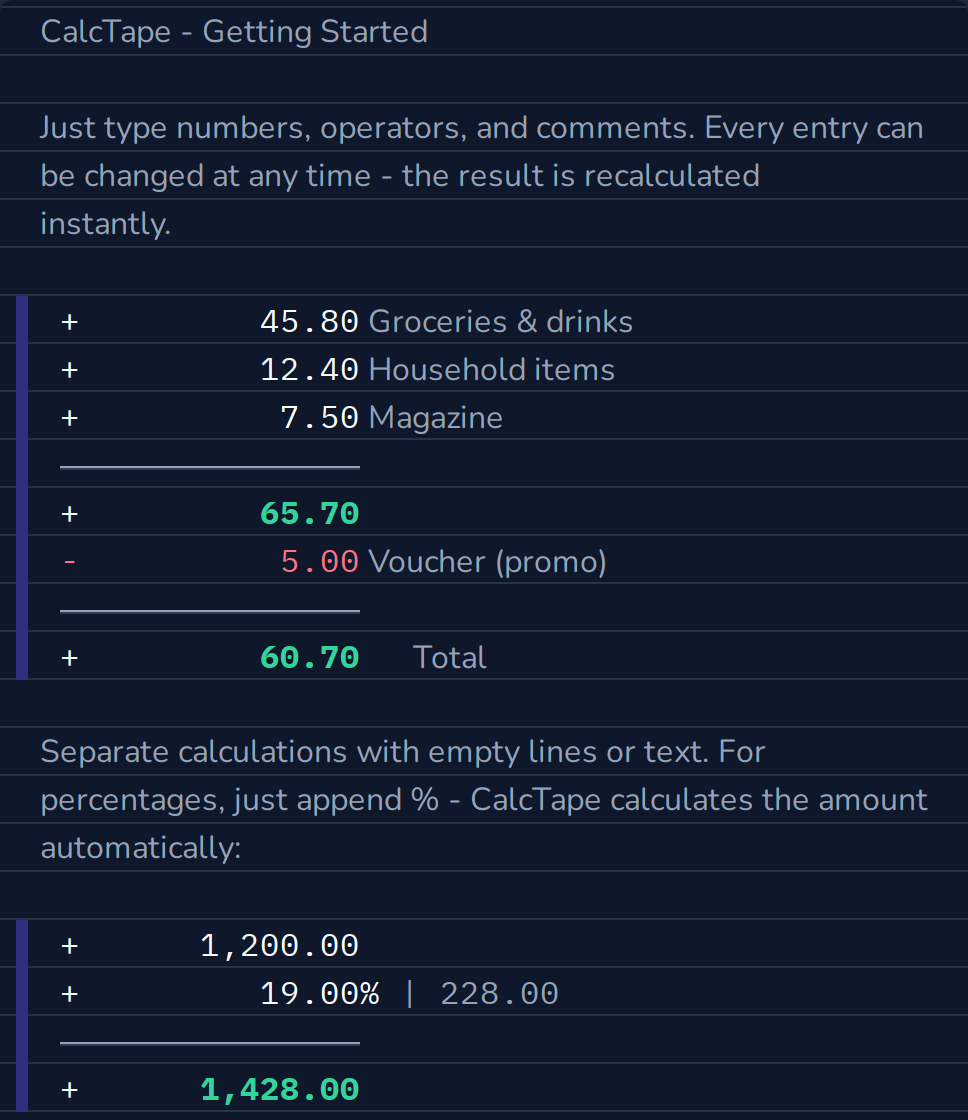
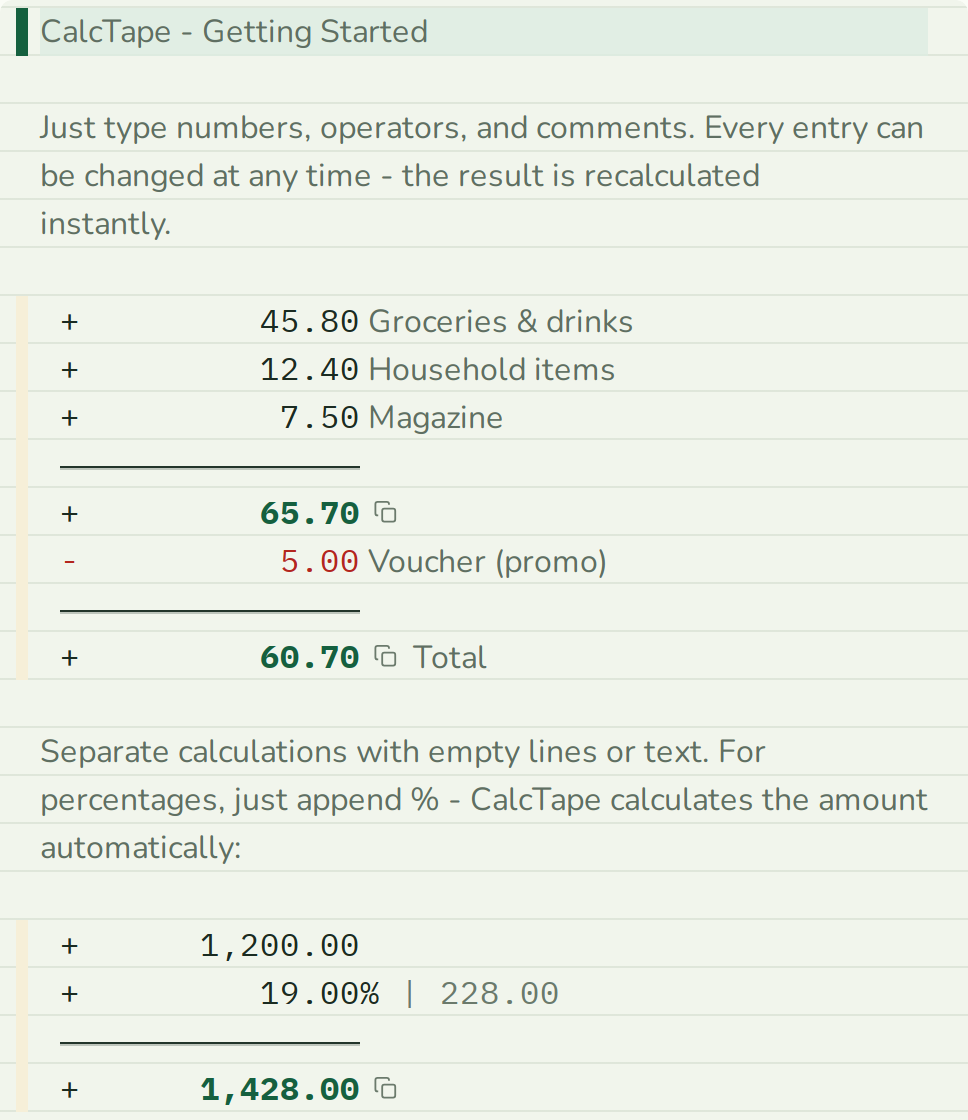
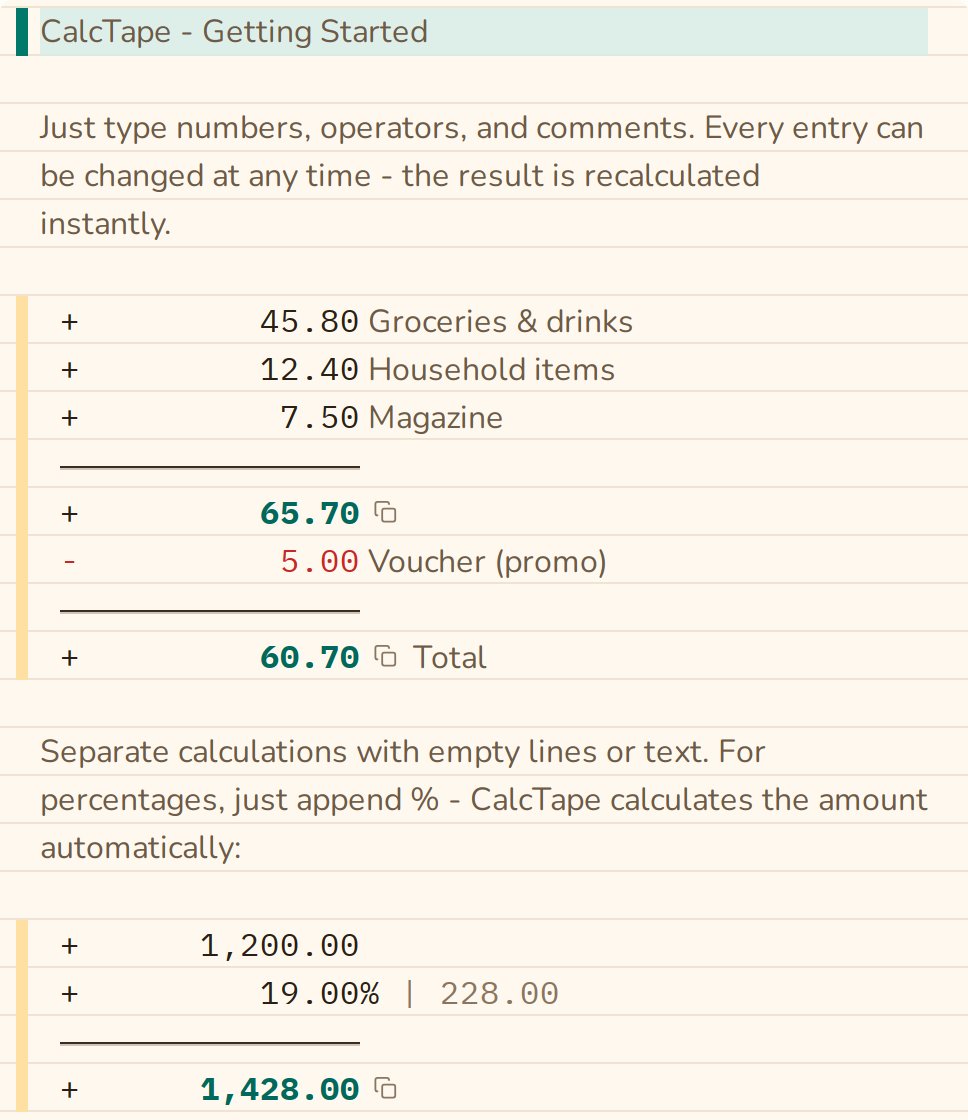
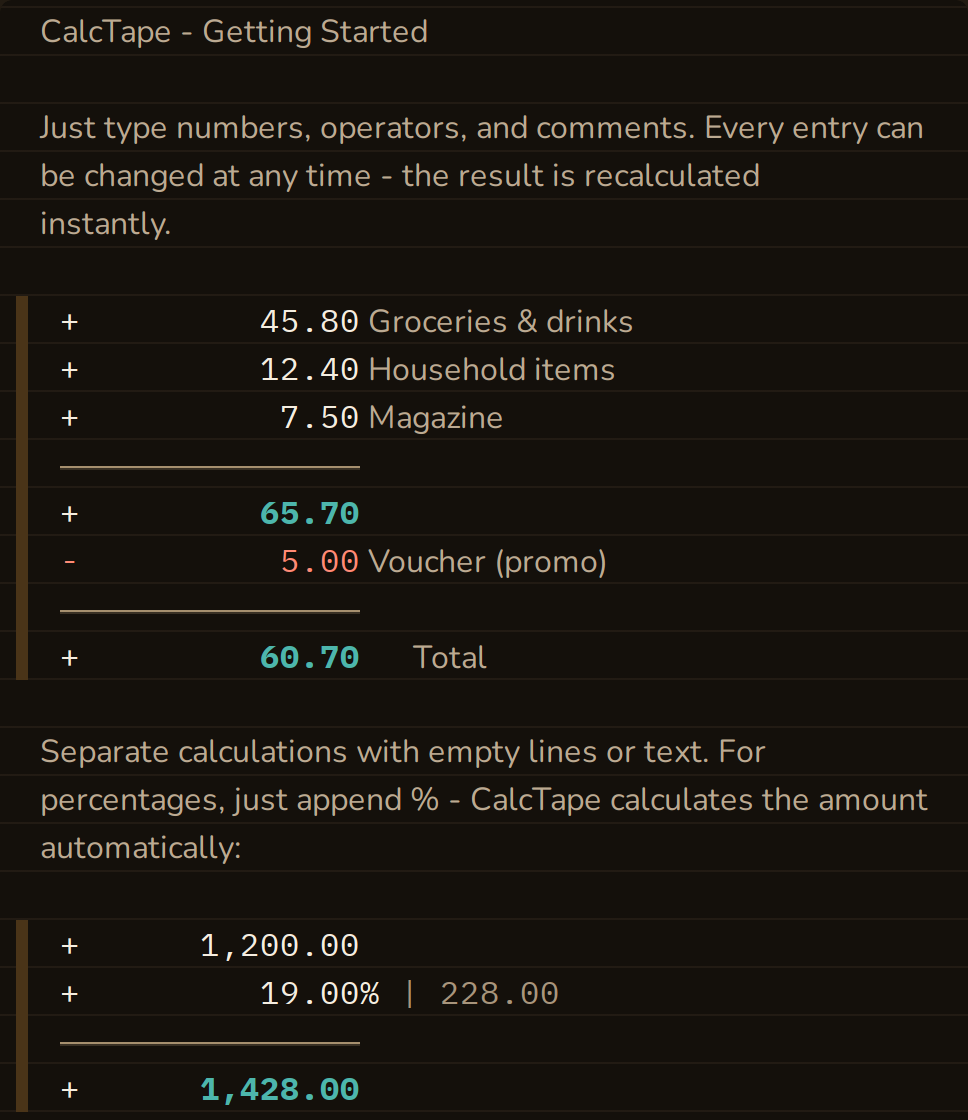
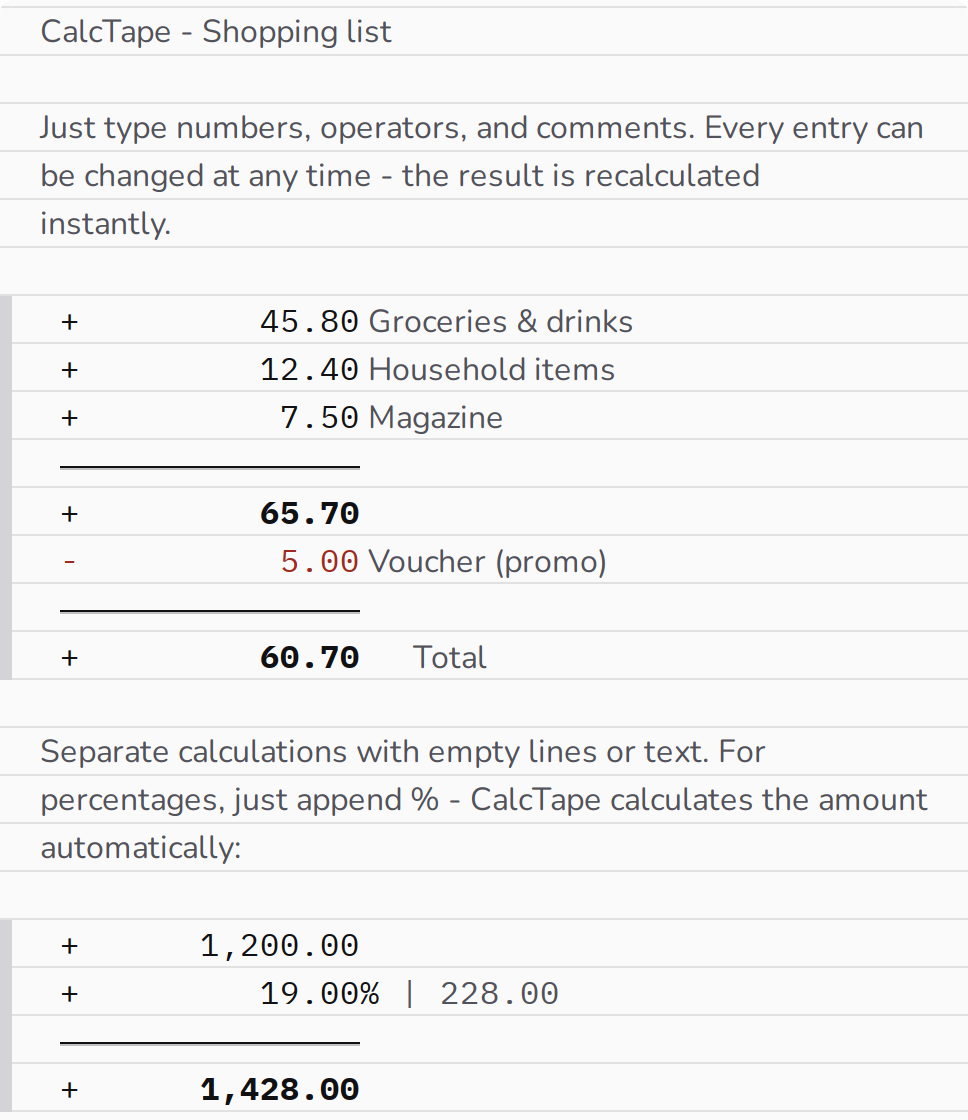
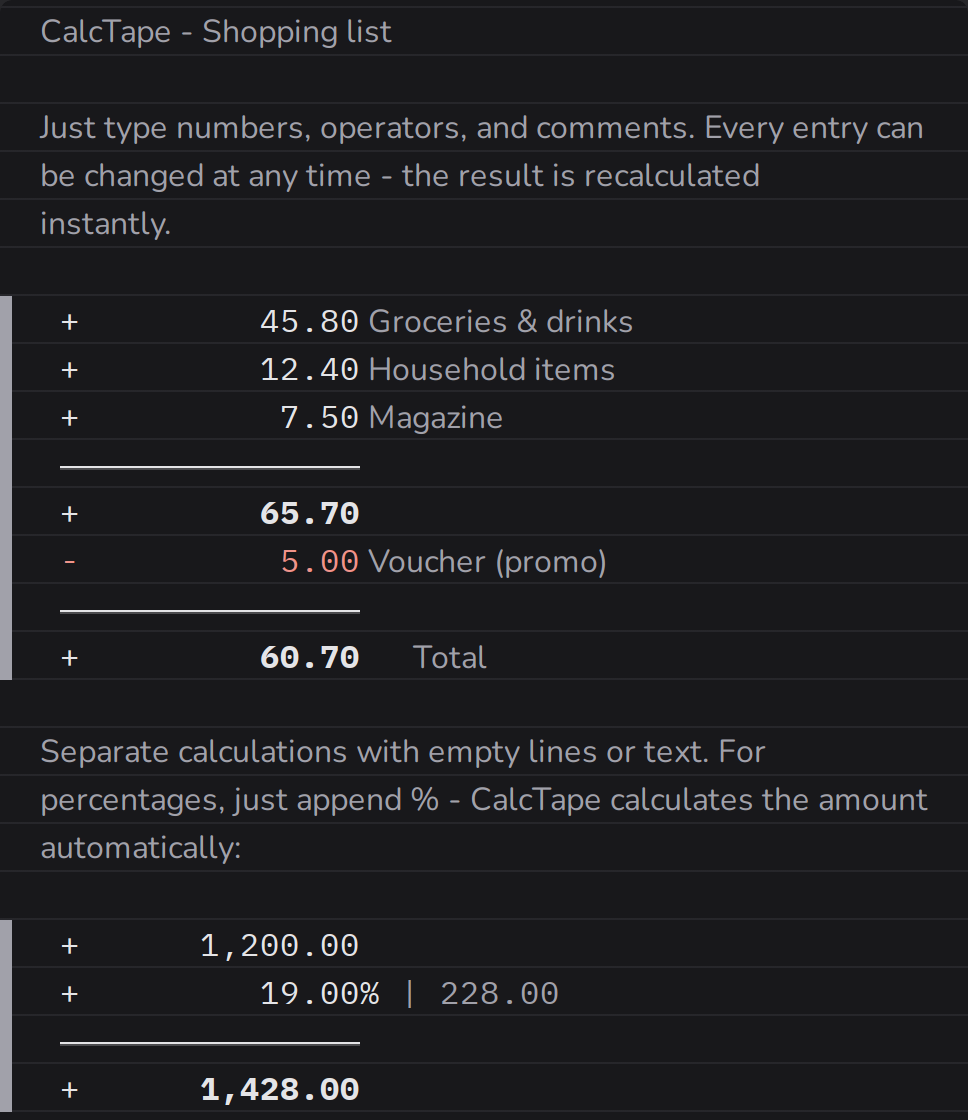
A percentage value is placed after a number, e.g. - 40.00%. It refers to the current running subtotal. Example:
 +        910.50 Available budget
 -         40.00% | -364.20  Reserves
 ---------------
 +        546.30 Available
CalcTape automatically displays the amount calculated from the percentage right after it. On the tape it appears slightly smaller with an arrow in front of it (→ -364.20); in the line containing the cursor and when copying, it appears as in the text, with | (in the example | -364.20).
Note: The operator immediately following a percentage value must not have a higher precedence than the percentage operator. If a corresponding error message appears, insert a subtotal after the percentage value.
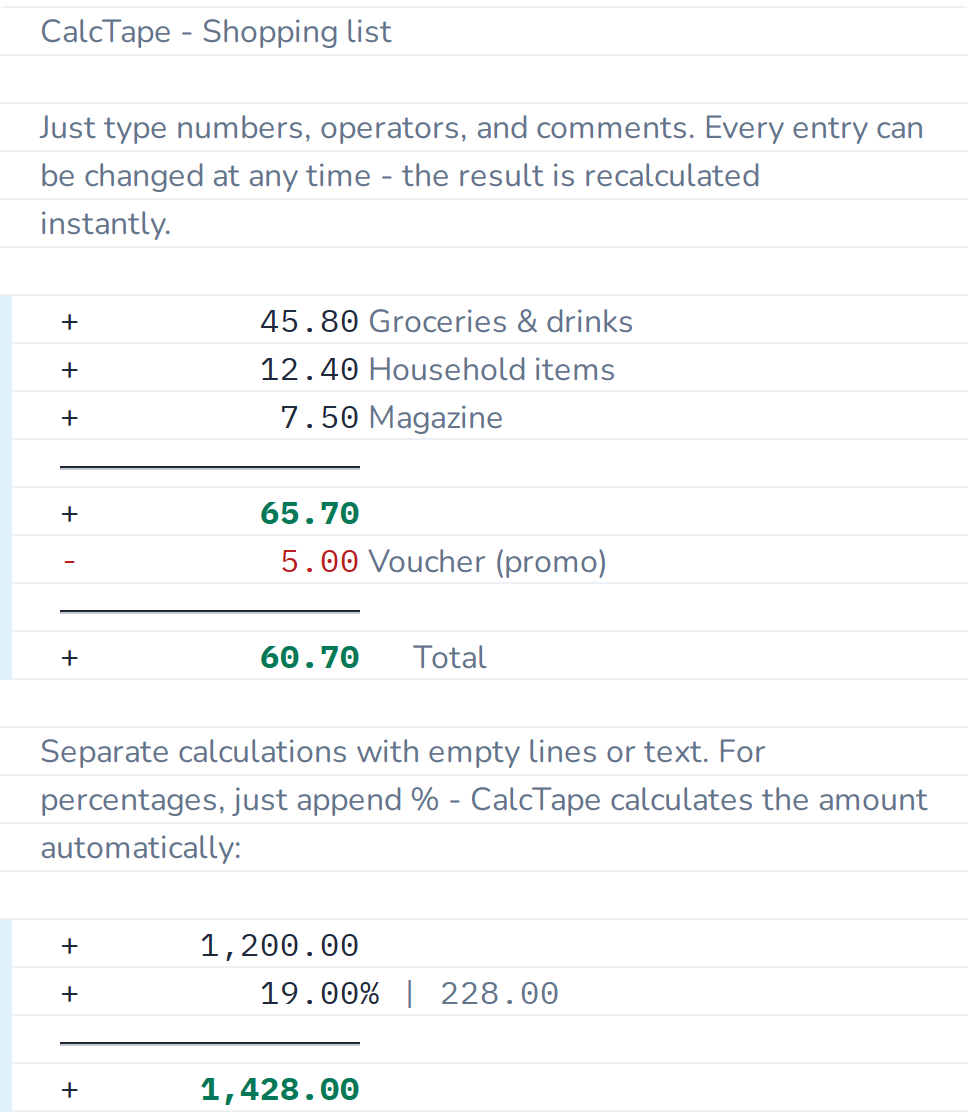
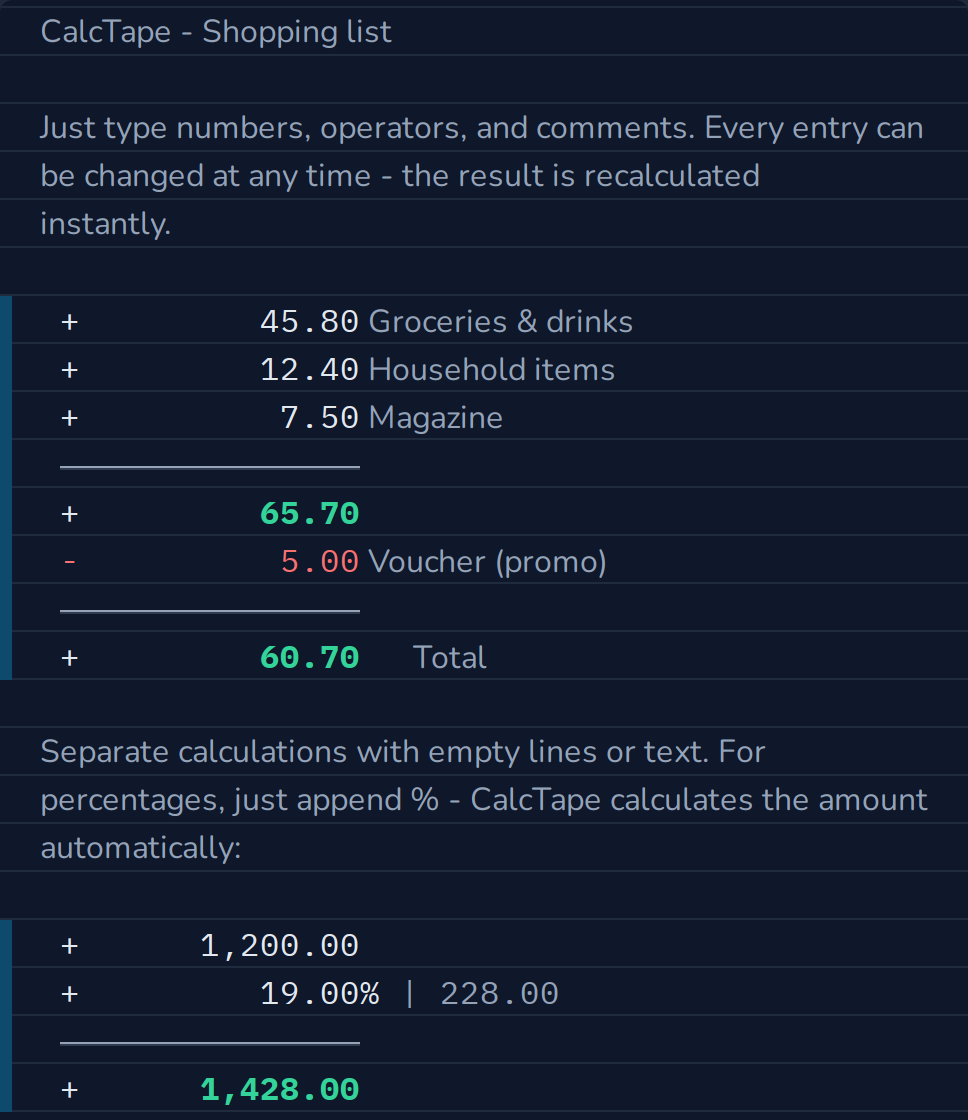
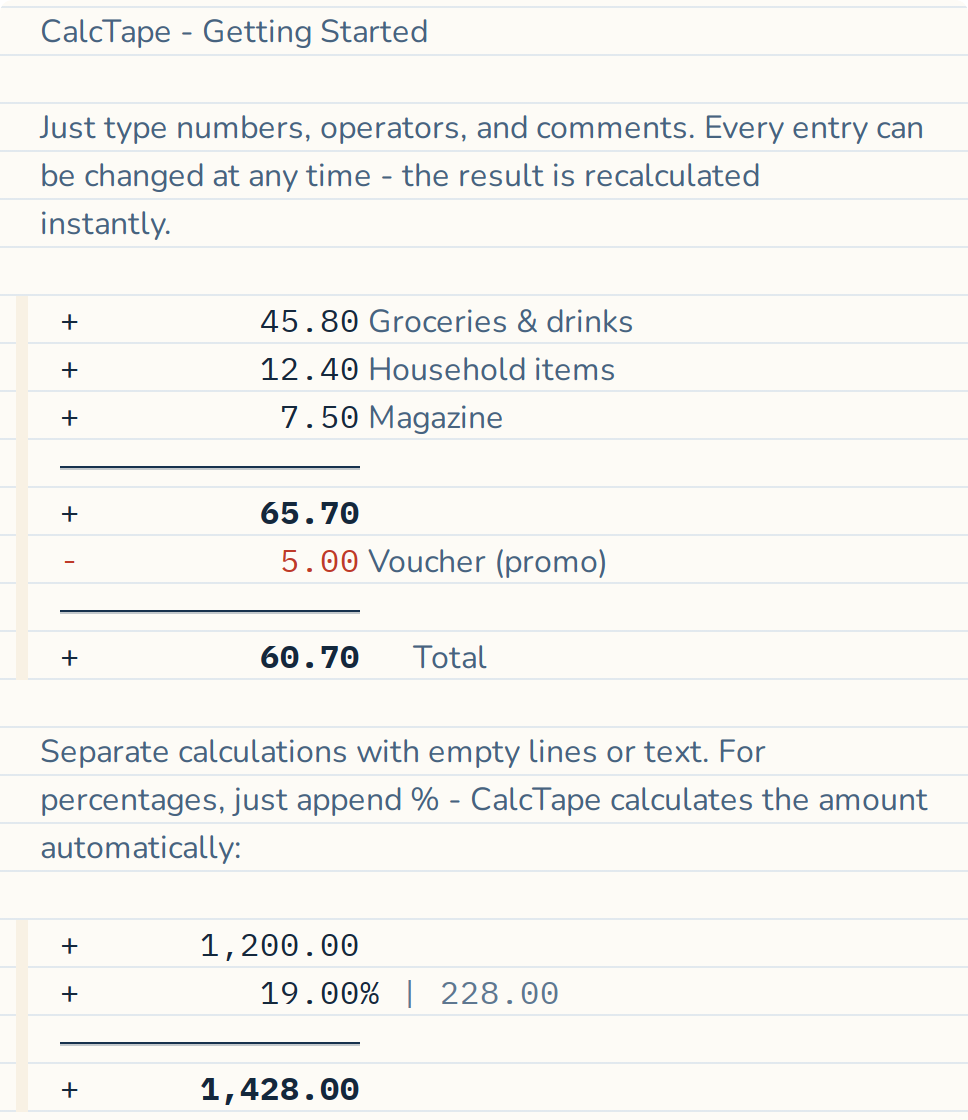



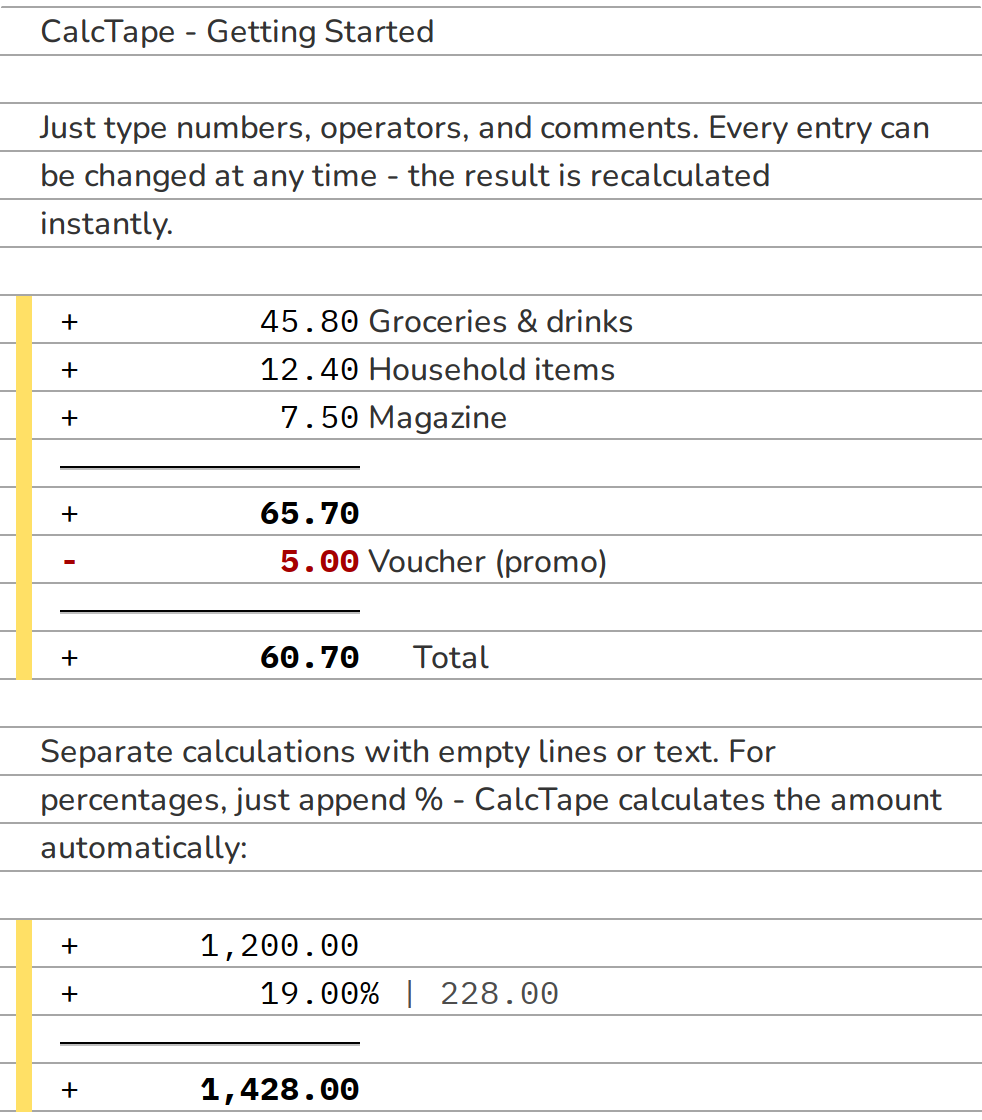
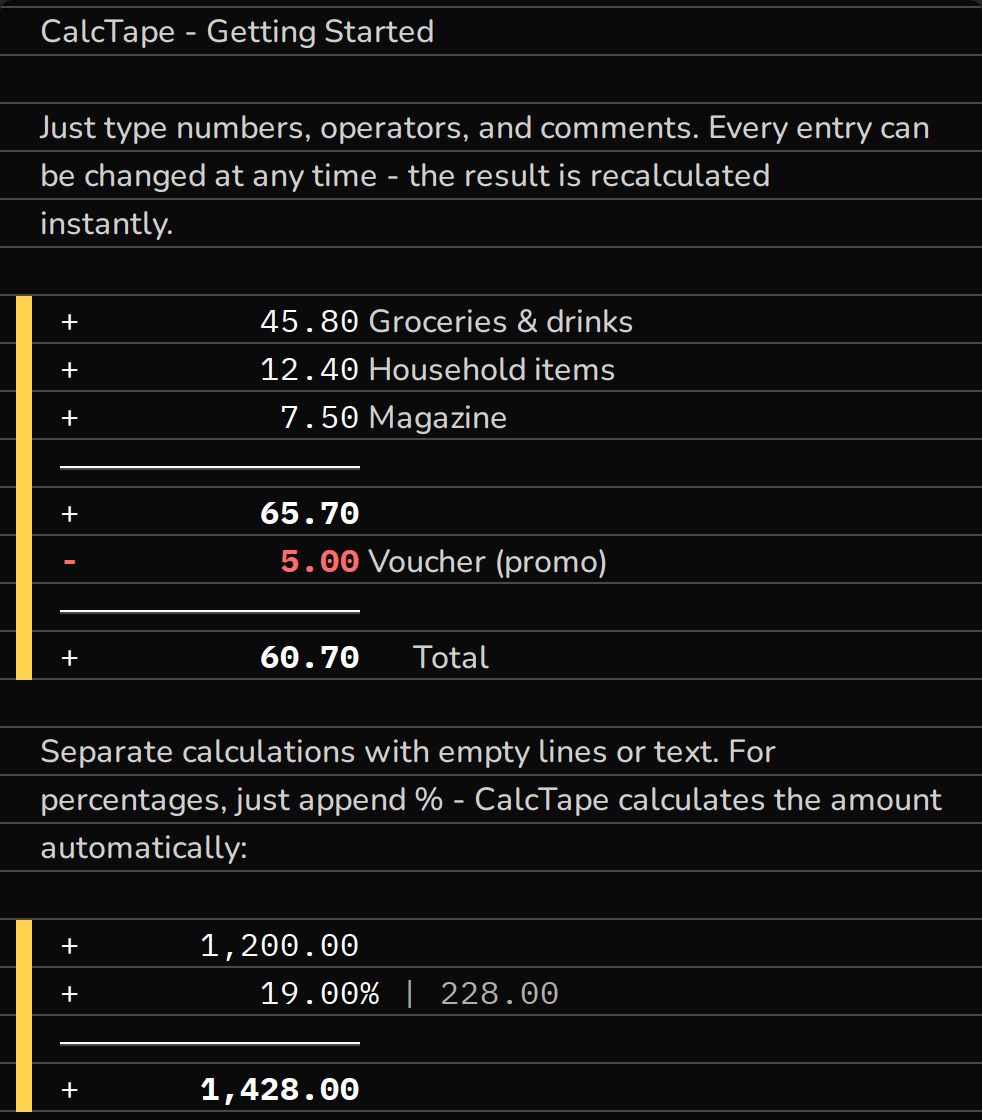
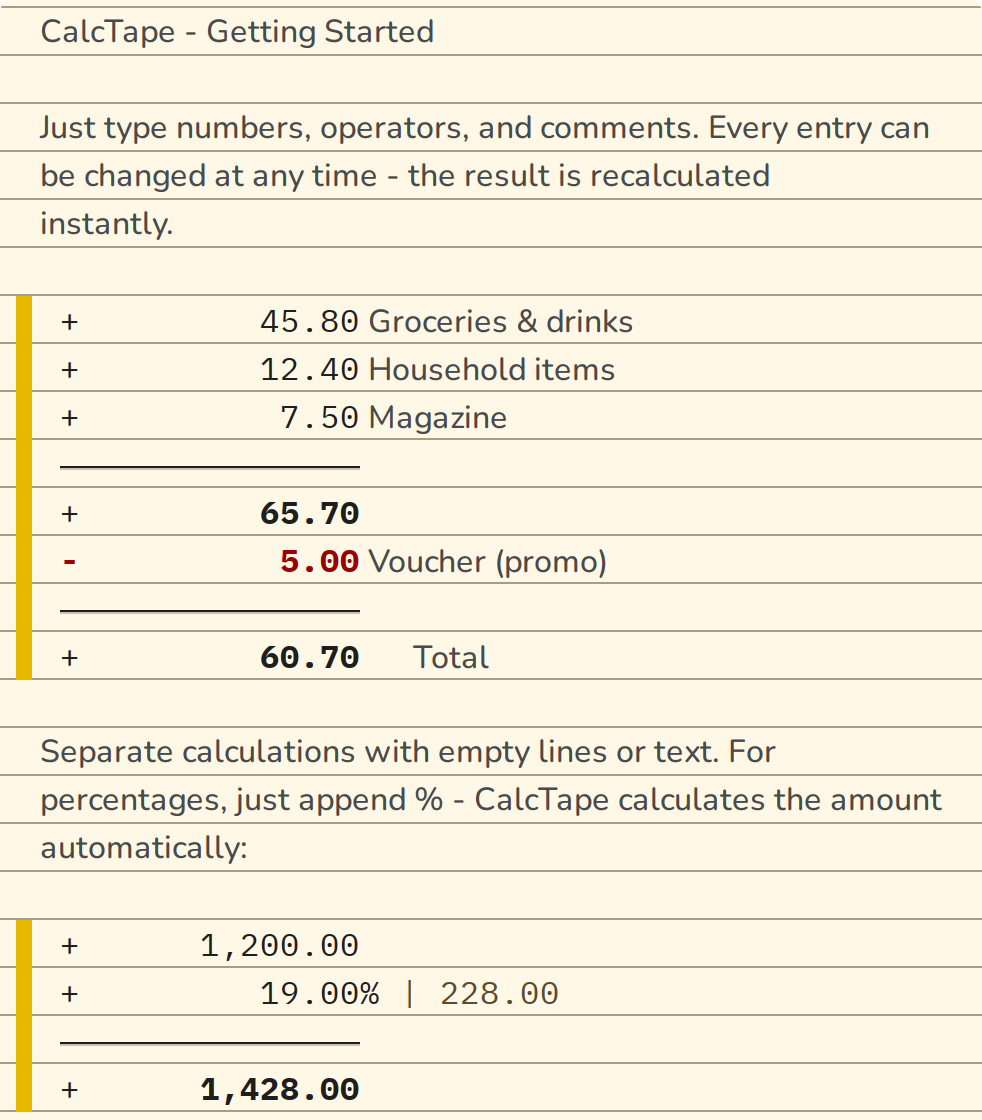
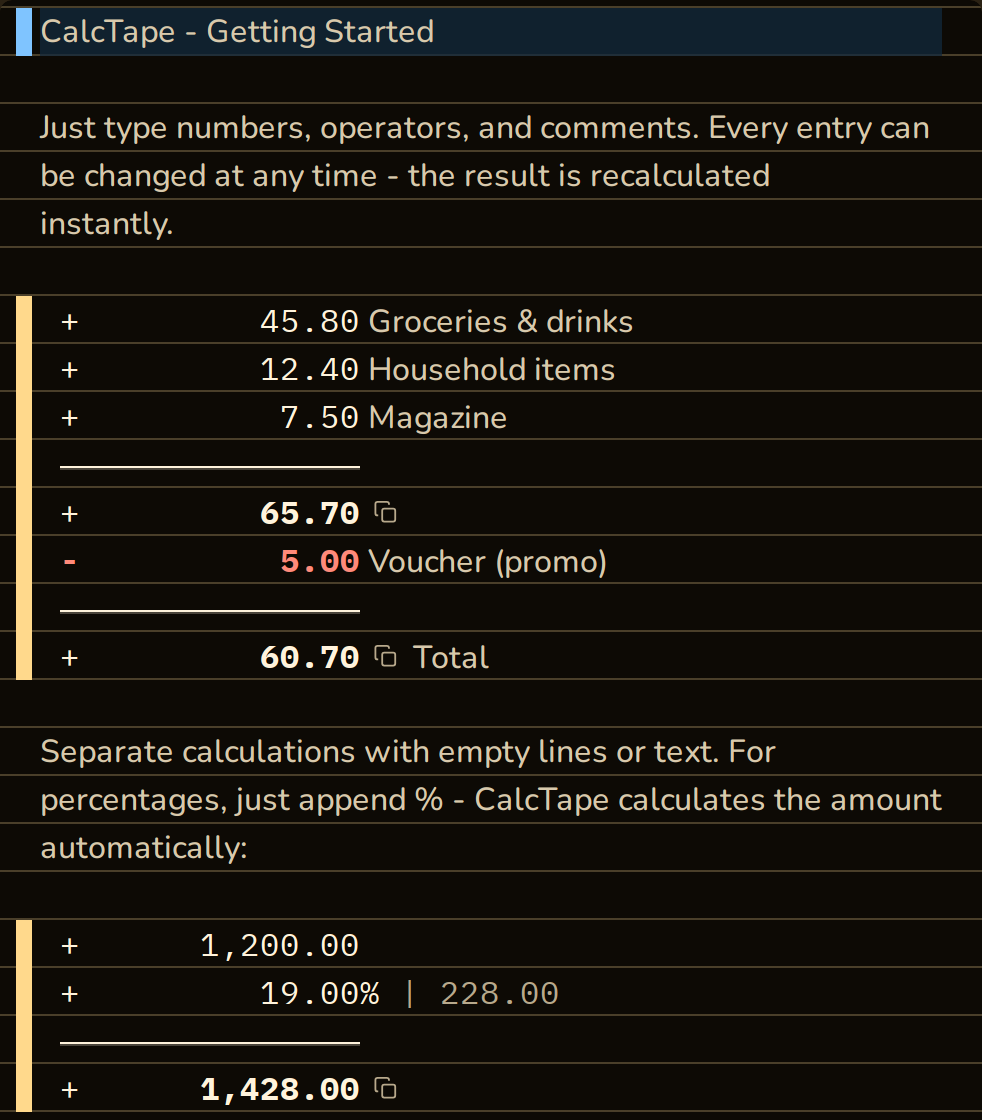
The three most common cases:
| Task | Input | Result |
|---|---|---|
| Add 19% VAT | + 100.00, then + 19.00% | 119.00 |
| Deduct a 20% discount | + 100.00, then - 20.00% | 80.00 |
| Extract the 19% VAT contained | + 119.00, then / 1.19 | 100.00 |
Careful when extracting:
- 19.00%is wrong for this. It turns 119.00 into 96.39, because the 19% are deducted from the gross amount, not from the net one. Contained VAT is always extracted by dividing by1.19.
Brackets across lines
Just as in a formula, you can put lines of a calculation in brackets. Type ( directly behind an operator: the line becomes the opening line + (, and the bracket's first line begins below it. ) closes the bracket on its own line and shows its value. 12+14+(25-13)*11 and Enter gives:
 +         12.00
 +         14.00
 + (
 +         25.00
 -         13.00
 ) | 12.00
 *         11.00
 ---------------
+ 158.00- On the tape, a bracket's lines are indented, with a thin line in front of them and a subtly tinted area behind them. The value behind the closing bracket appears like a percentage amount, as
→ 12.00. - Brackets can be nested:
10+(44-12+(3+4)*3)*3gives 169.00. Each level indents further and has its own line; the line of the bracket containing the cursor is colored. - The operator on the opening line applies to the whole bracket:
- (subtracts its value,* (multiplies by it. Multiplication binds before addition inside a bracket just as it does outside one. - Enter or = at the end of the calculation closes any brackets still open and then draws the total. As long as a bracket is open, its line is dashed.
- Clicking the value behind the closing bracket highlights the whole bracket (see "Highlighting & Copying a Calculation").
- You type brackets using your device's keyboard; the on-screen keyboard has no bracket keys.
- A bracket in a note (
(3 nights, see receipt) stays text. Pasted text only calculates a bracket if an operator precedes the(and the bracket is closed within the same block.
Comments
Everything after the number is treated as a comment and does not affect the calculation. This lets you document what a value represents.
A line made of text alone is a pure comment line. Starting it with a hash (# Travel expenses, March) makes it a heading, shown in bold; several hashes (##, ###) work the same way. On top of that, **bold** and *italic* apply in text lines and in the comment behind a number, and the underscore spelling __bold__ / _italic_ does the same, except inside a word, so names like net_total are left alone. The characters themselves disappear from view while the caret is in another line; they are in the document either way, and selecting or copying takes them along.
Variables (named values)
CalcTape lets you name values and reuse them later. Variable names start with a letter and consist of letters, digits and the underscore (net_2); other special characters are not allowed. Upper and lower case make no difference: Rent and rent are the same name. There are two ways to define a variable:
1. Direct assignment: var = 123 The variable name goes to the left of the equals sign, the value to the right:
 vat = 19
 +      1,000.00 Net
 +           vat% | 190.00  VAT
2. Naming a sum line: ... = var In a sum line (subtotal), the name goes to the right of the equals sign and takes on the result of that line:
 +      3,230.00 Salary
 -      1,350.00 Rent
 ---------------
 +      1,880.00 = budget

 +        budget
 -         25.00% | -470.00  Savings rate
 ---------------
 +      1,410.00 Available
The defined variable (budget) can be reused afterwards. In the example, a new calculation starts after the blank line, takes over the budget and subtracts a 25 % savings rate. This second form is only allowed in sum lines; in all other lines the variable name must go to the left of =.
Formulas. The right side of a definition may hold a whole calculation: with multiplication before addition, brackets, other named values and functions such as sqrt(x) (square root), round(x; places) (commercial rounding), abs(x) or mod(x; y) (remainder of a division):
 price = 12.50
 quantity = 3
 vat = 19
 gross = round(price * quantity * (1 + vat / 100); 2)
A semicolon separates the arguments of a function. Brackets and functions work only in such definitions; on an ordinary calculation line CalcTape does not calculate with them.
Where a name applies. A named value applies throughout the document, including the lines above its definition: + rent at the very top calculates with rent = 750 further down. Above the definition, however, a line that starts with the name stays text, so a heading Rent above rent = 750 remains a heading. Behind an operator and in definitions the name always applies. A value must not depend on itself: a = a + 1, or two definitions that use each other, report a circular reference (section 11).
Further background on variables and advanced calculation rules can be found at calctape.com.
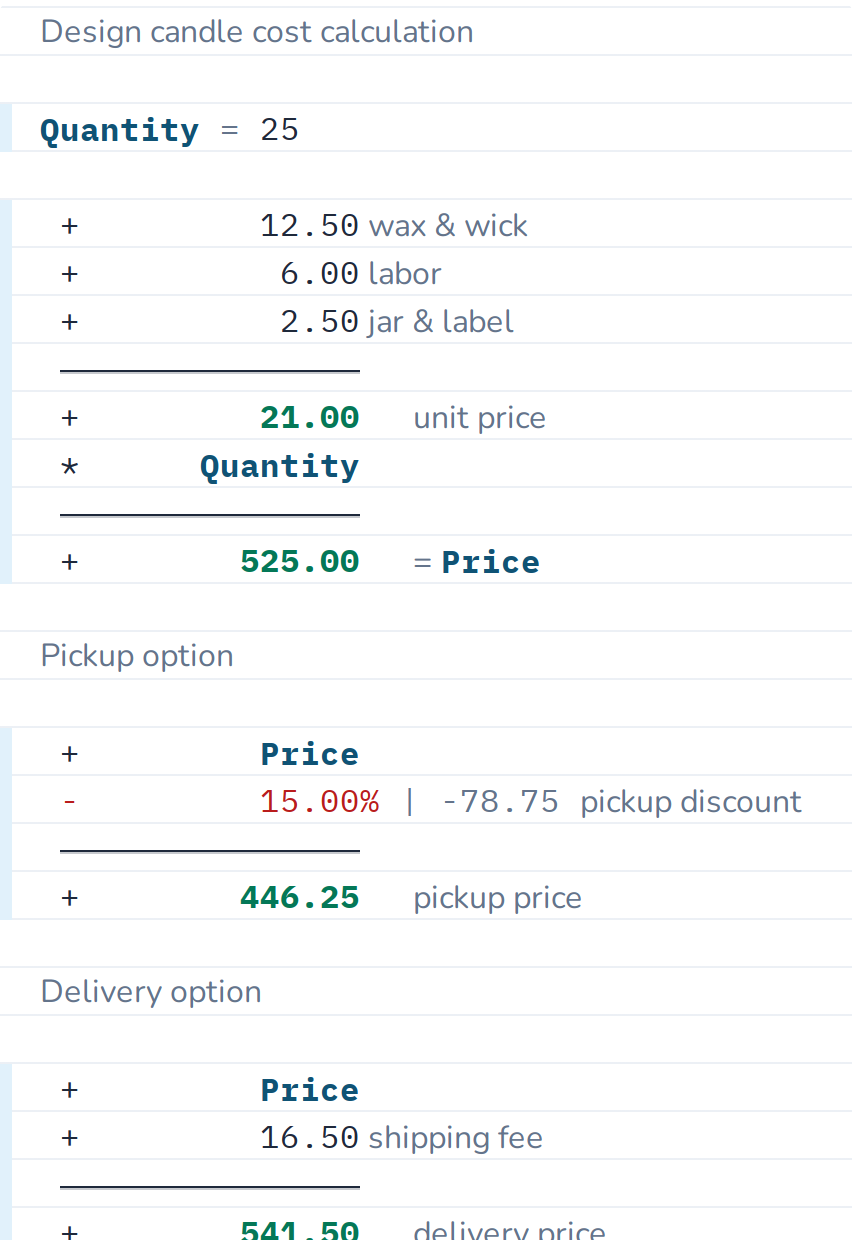
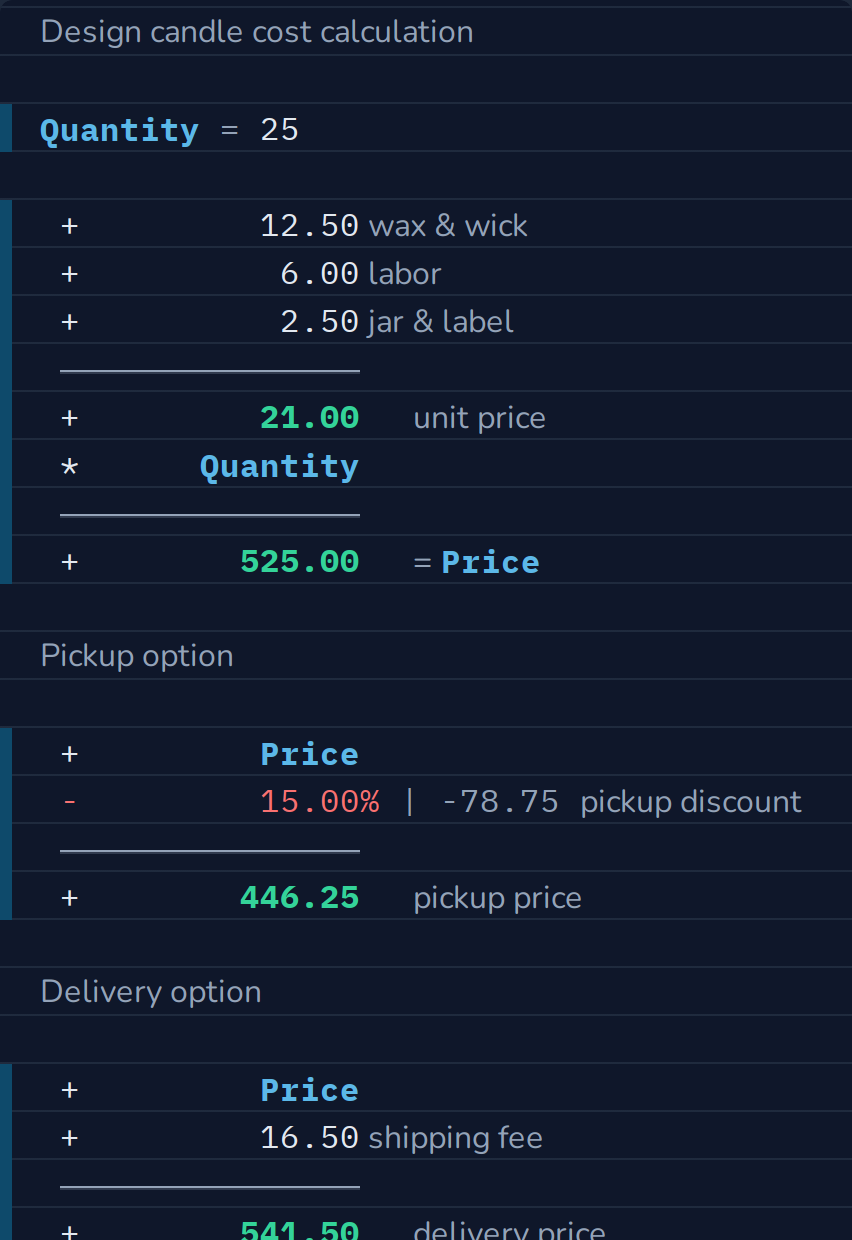
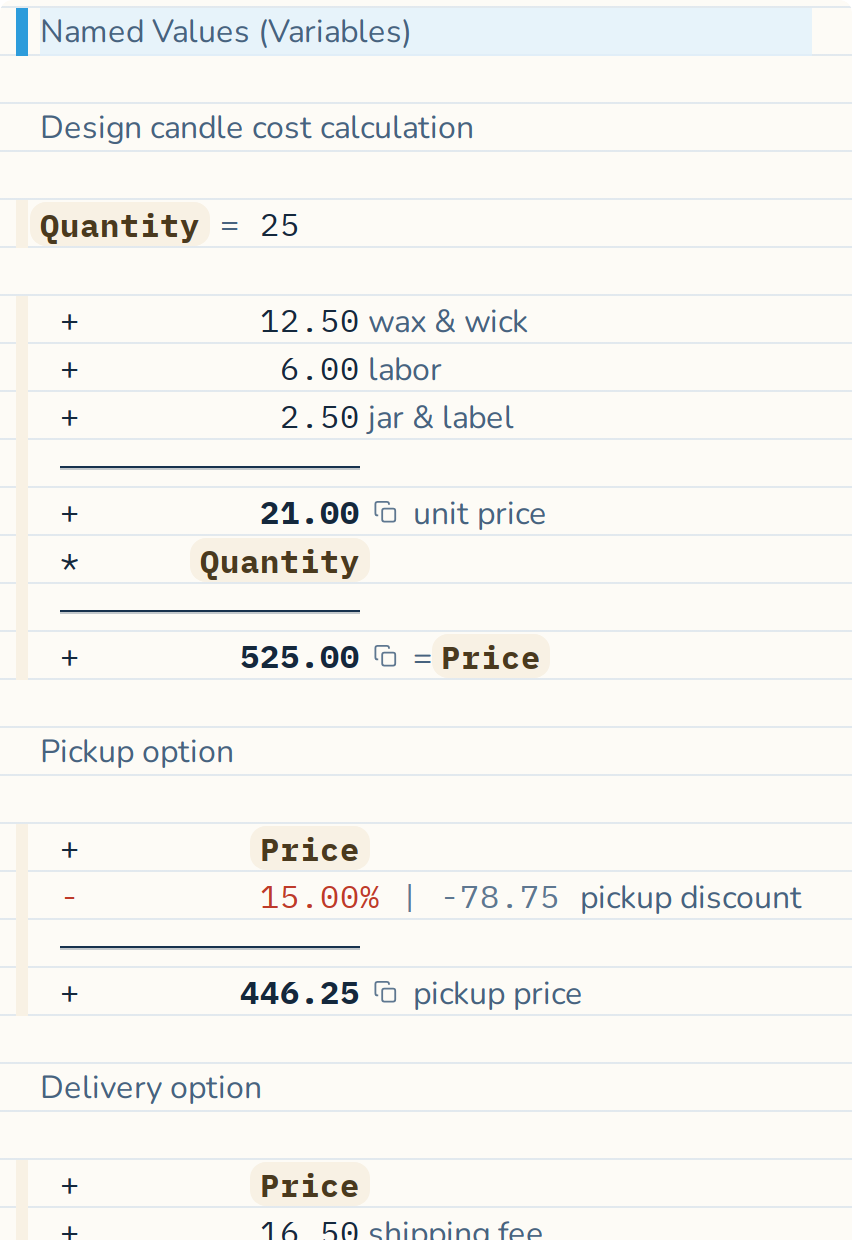


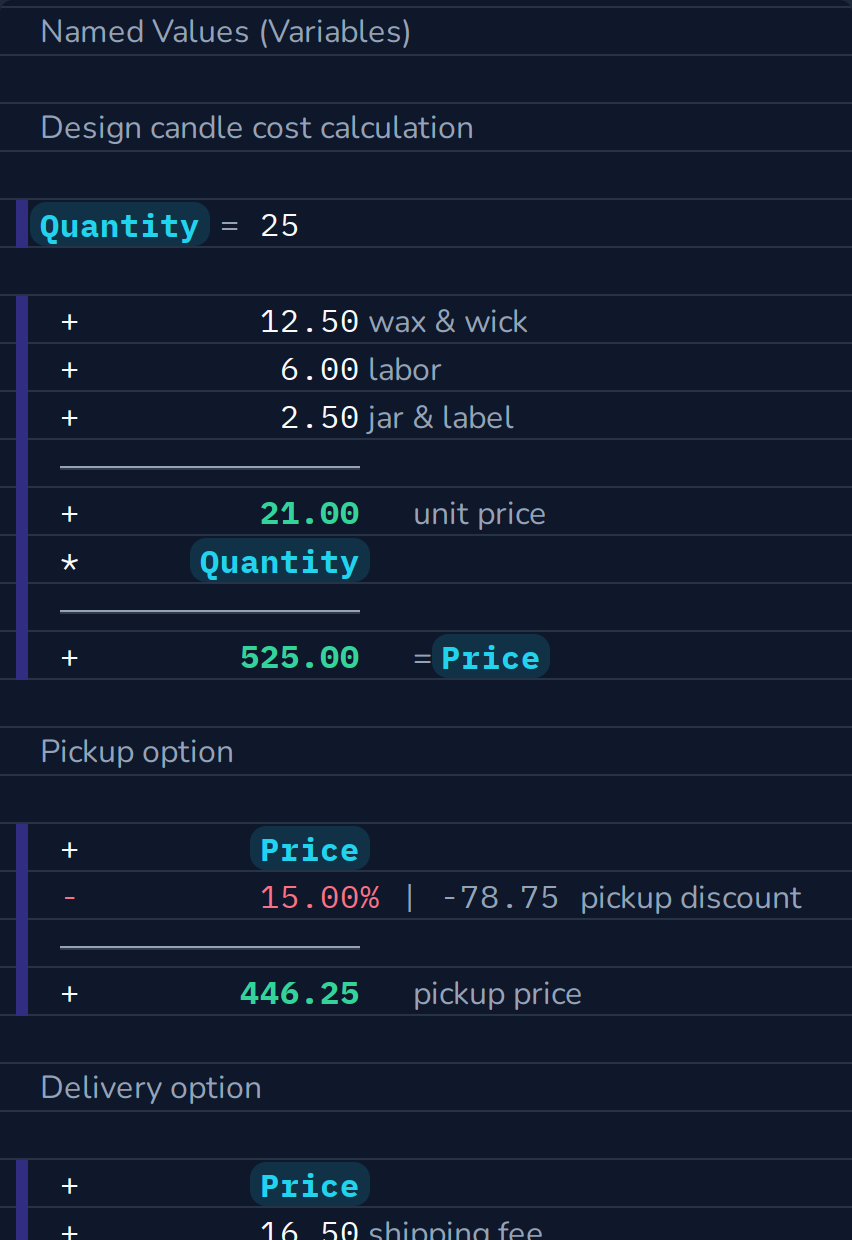


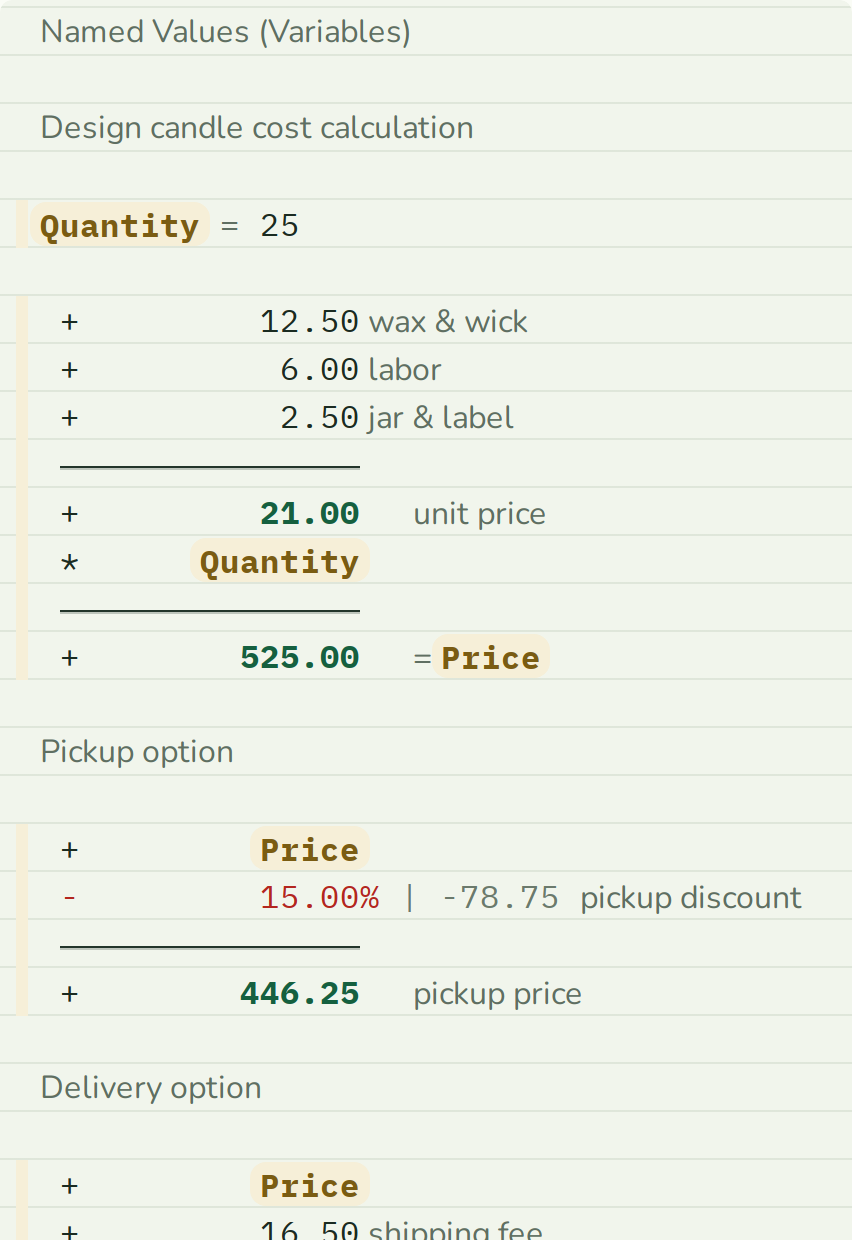

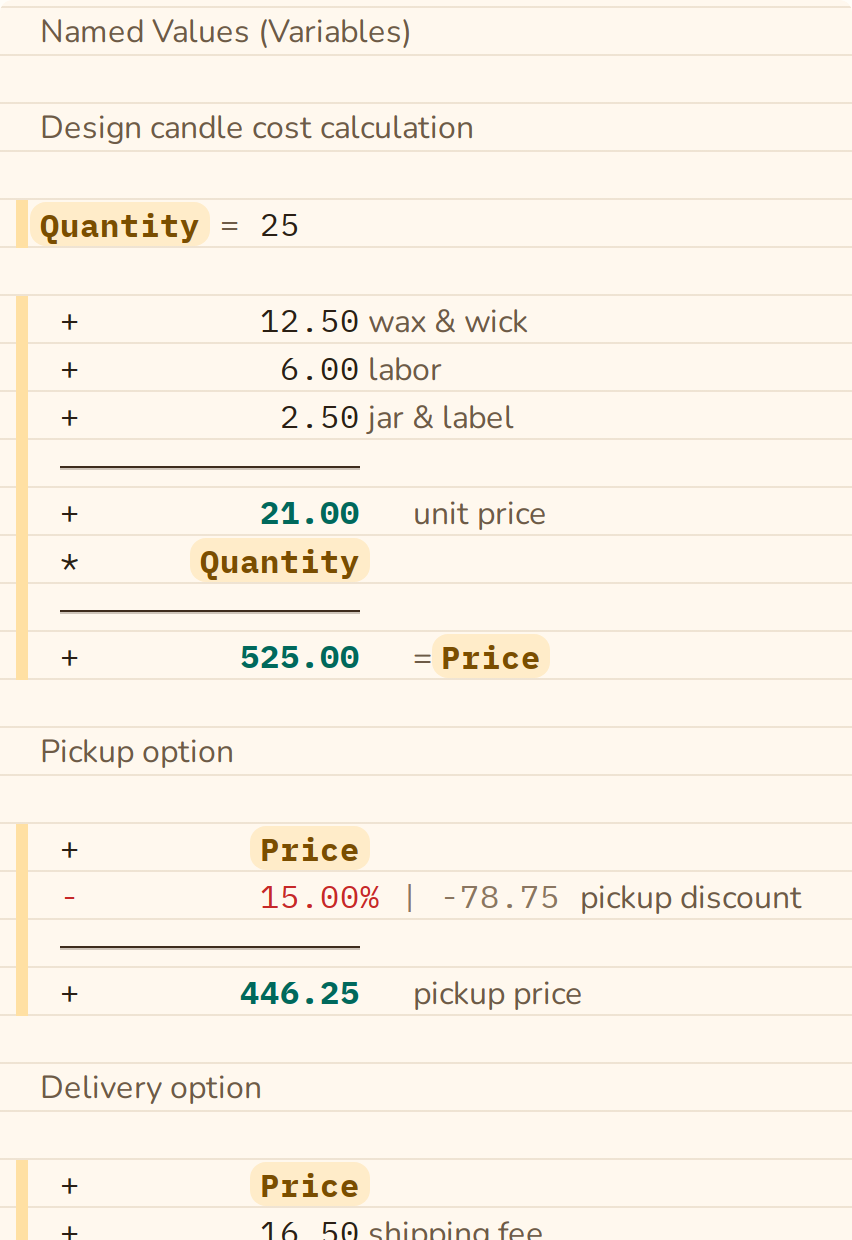
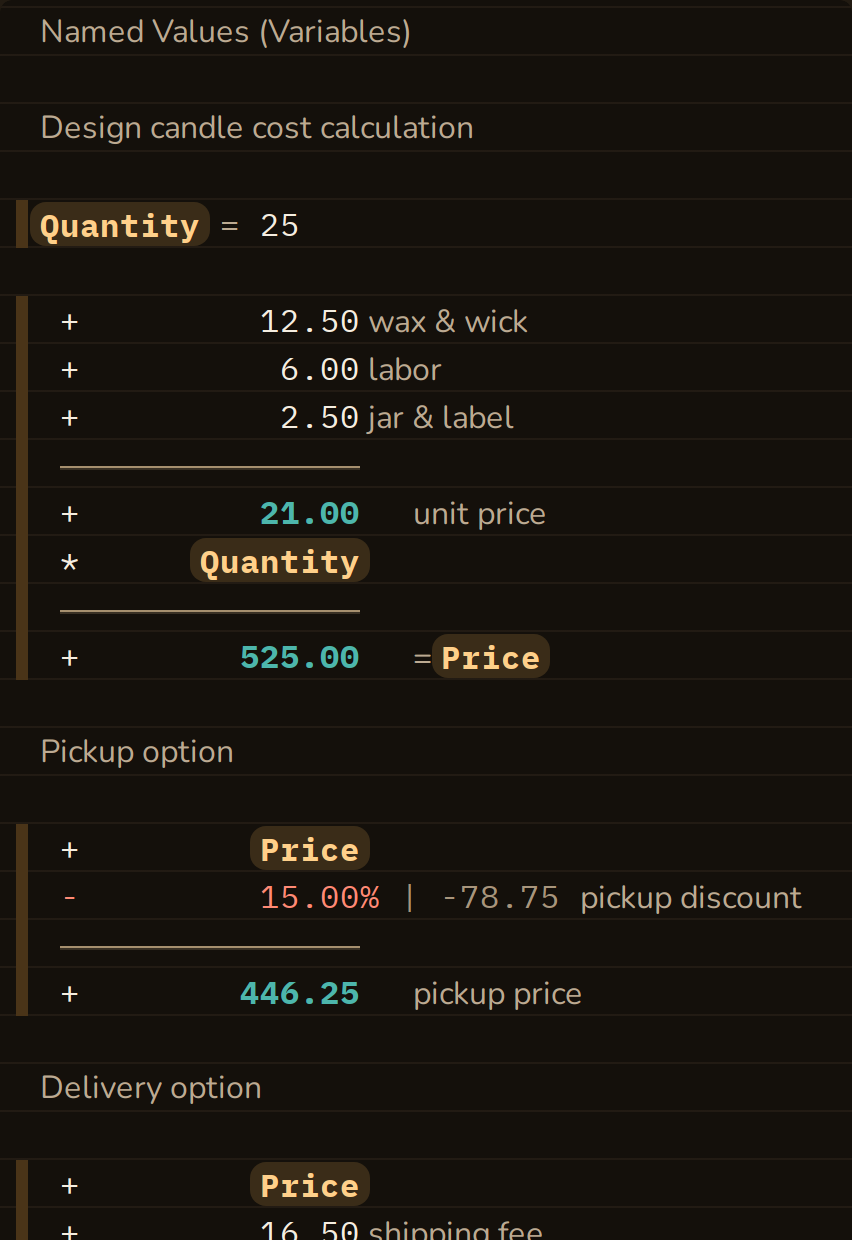
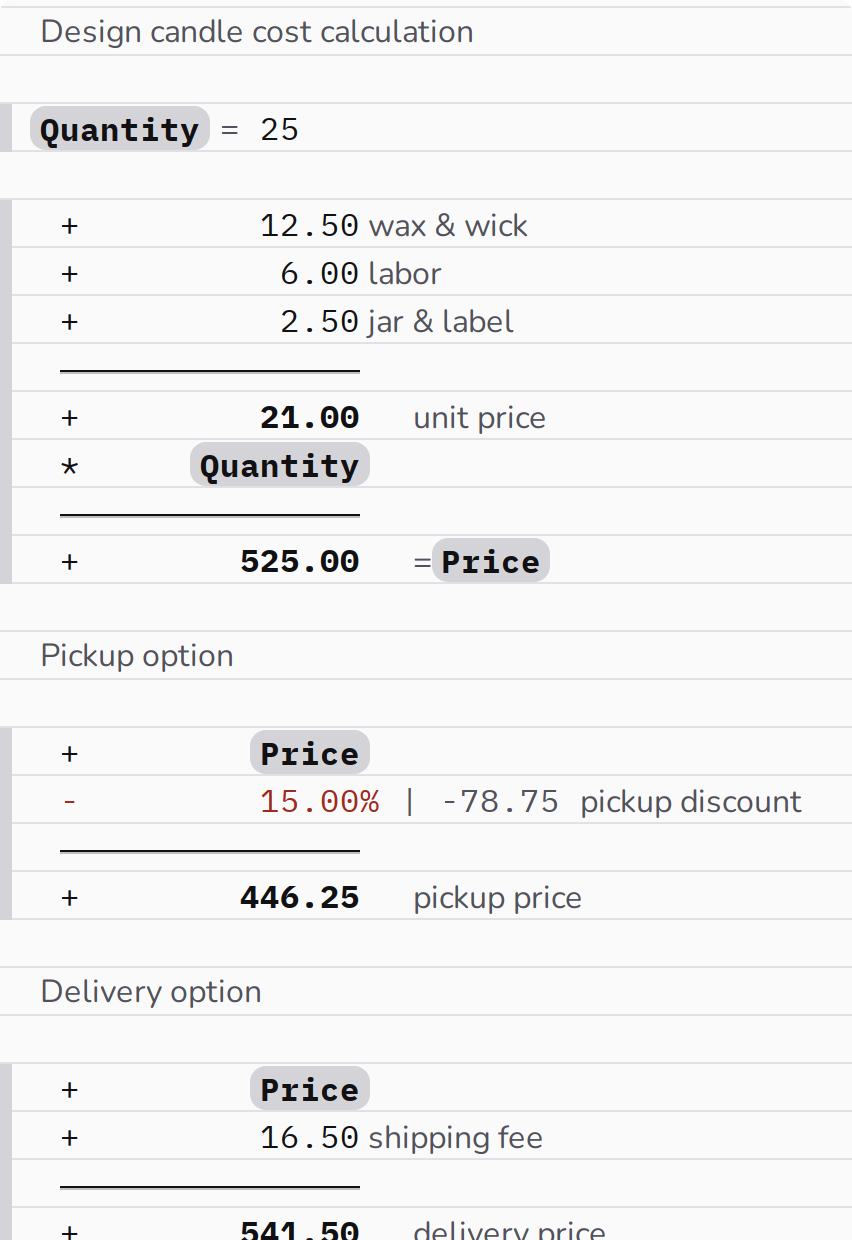
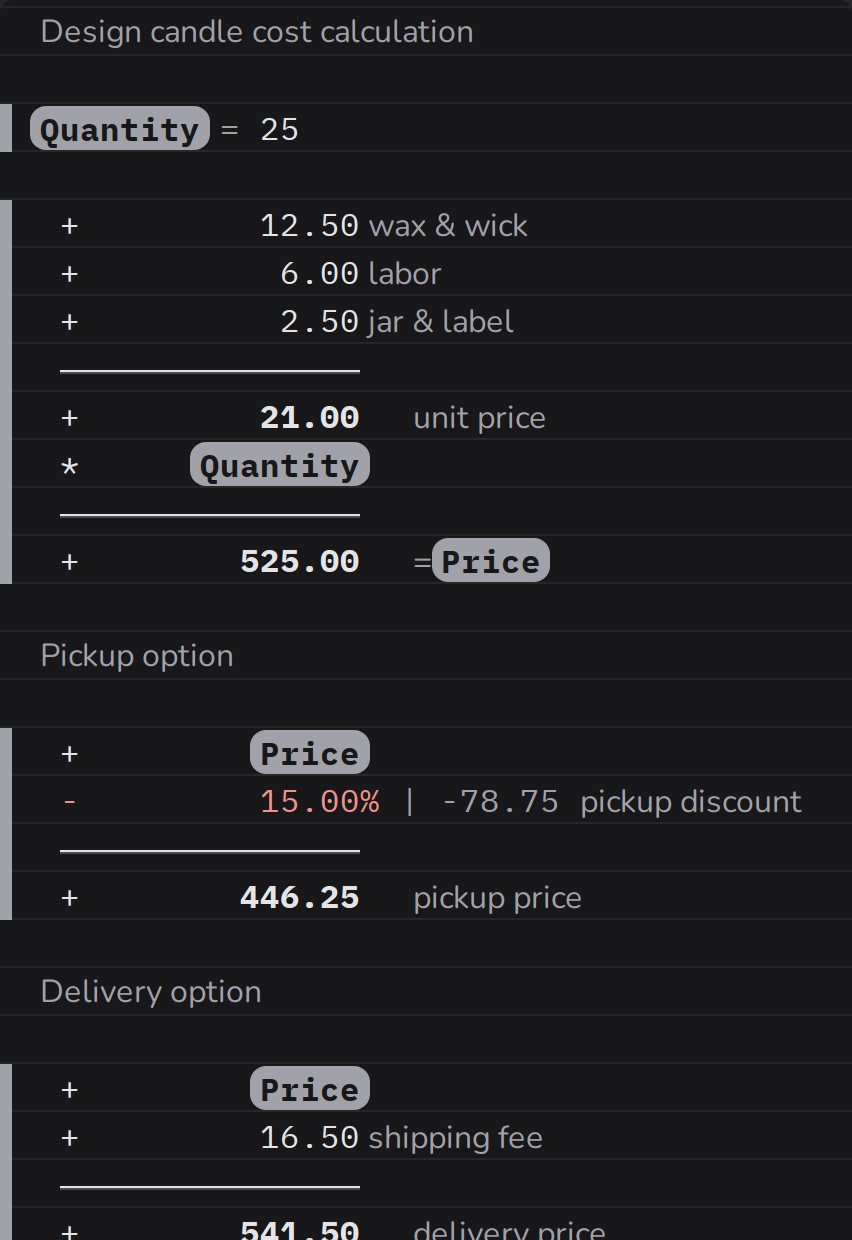
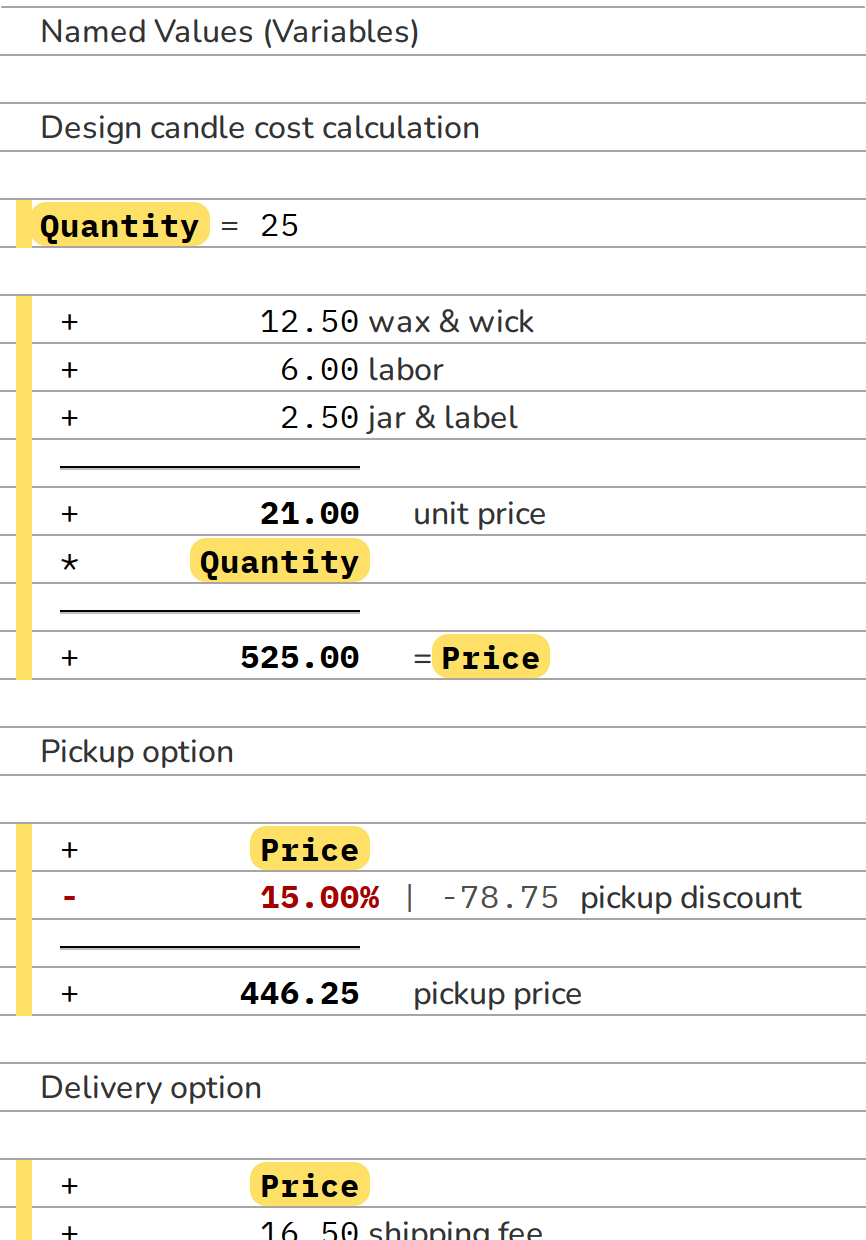
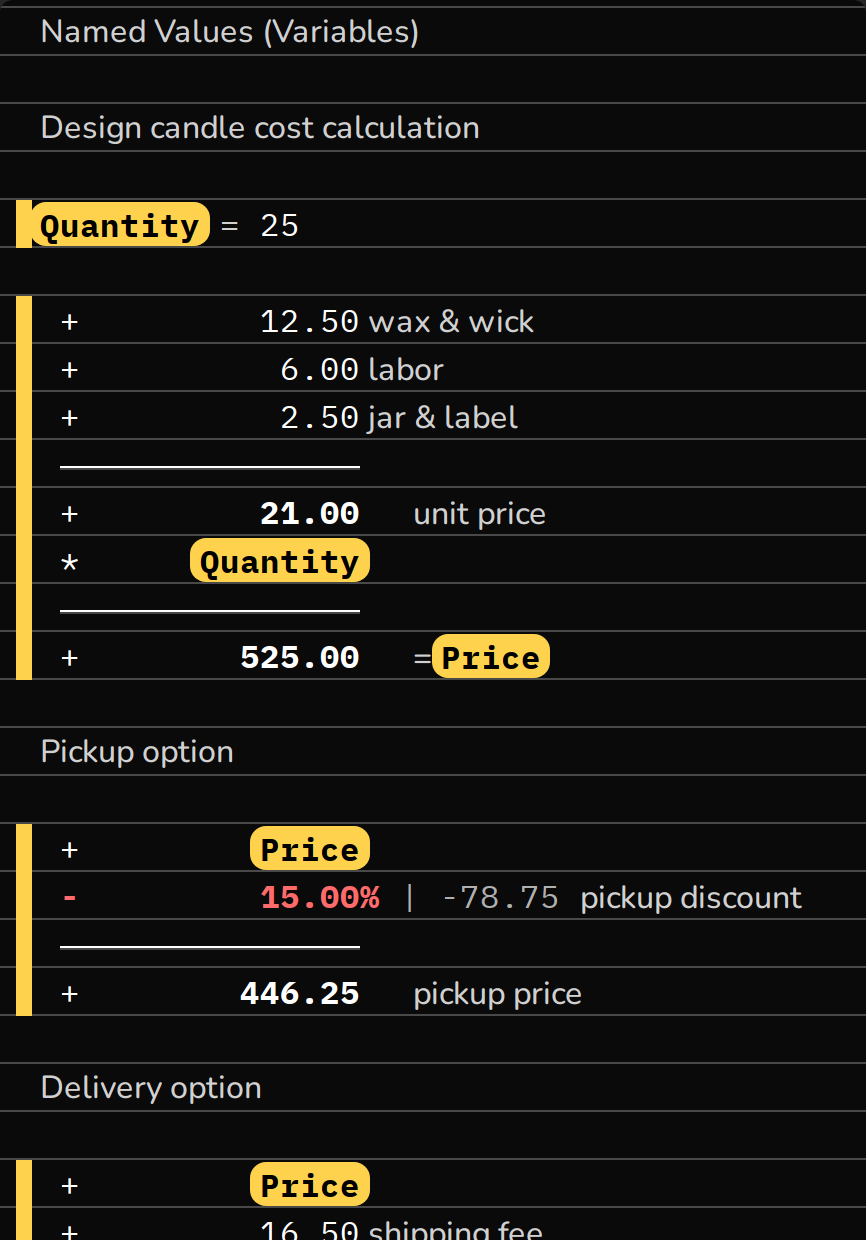
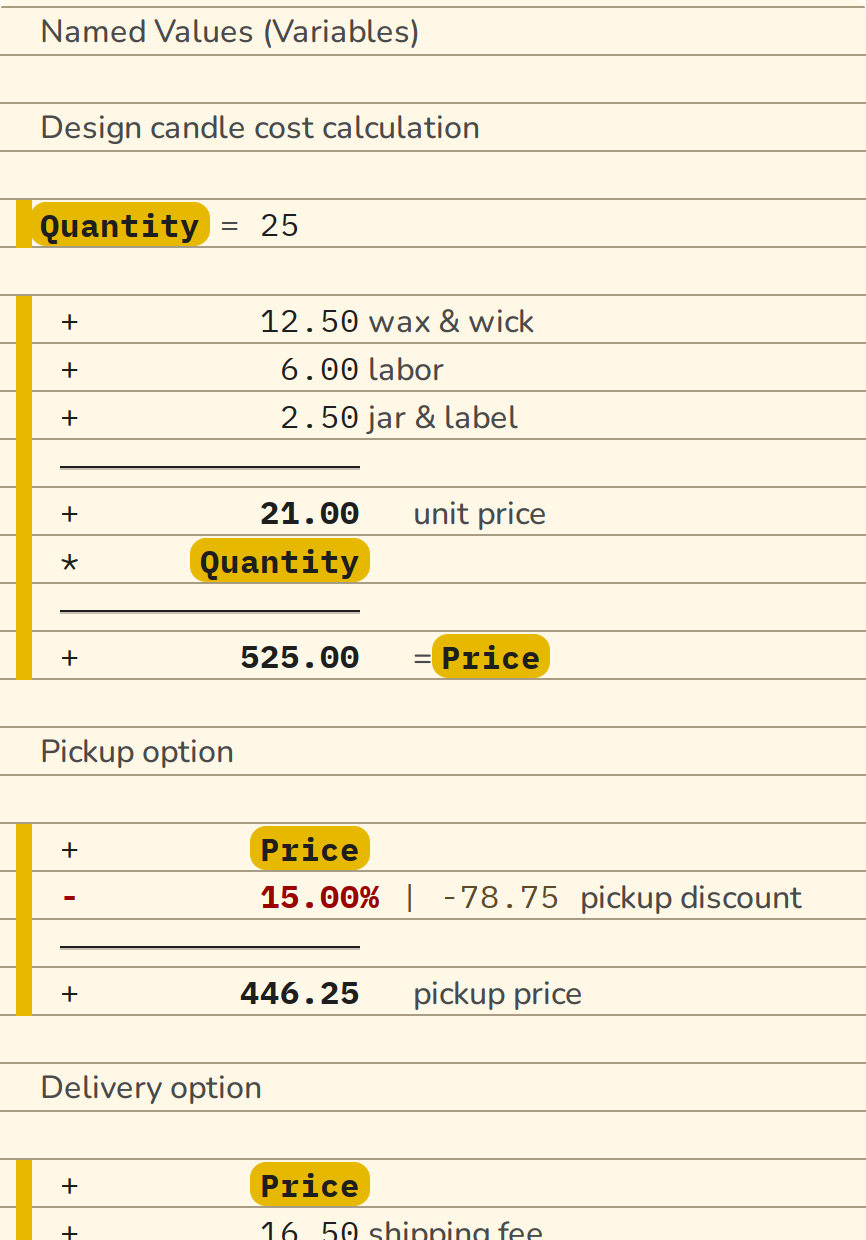
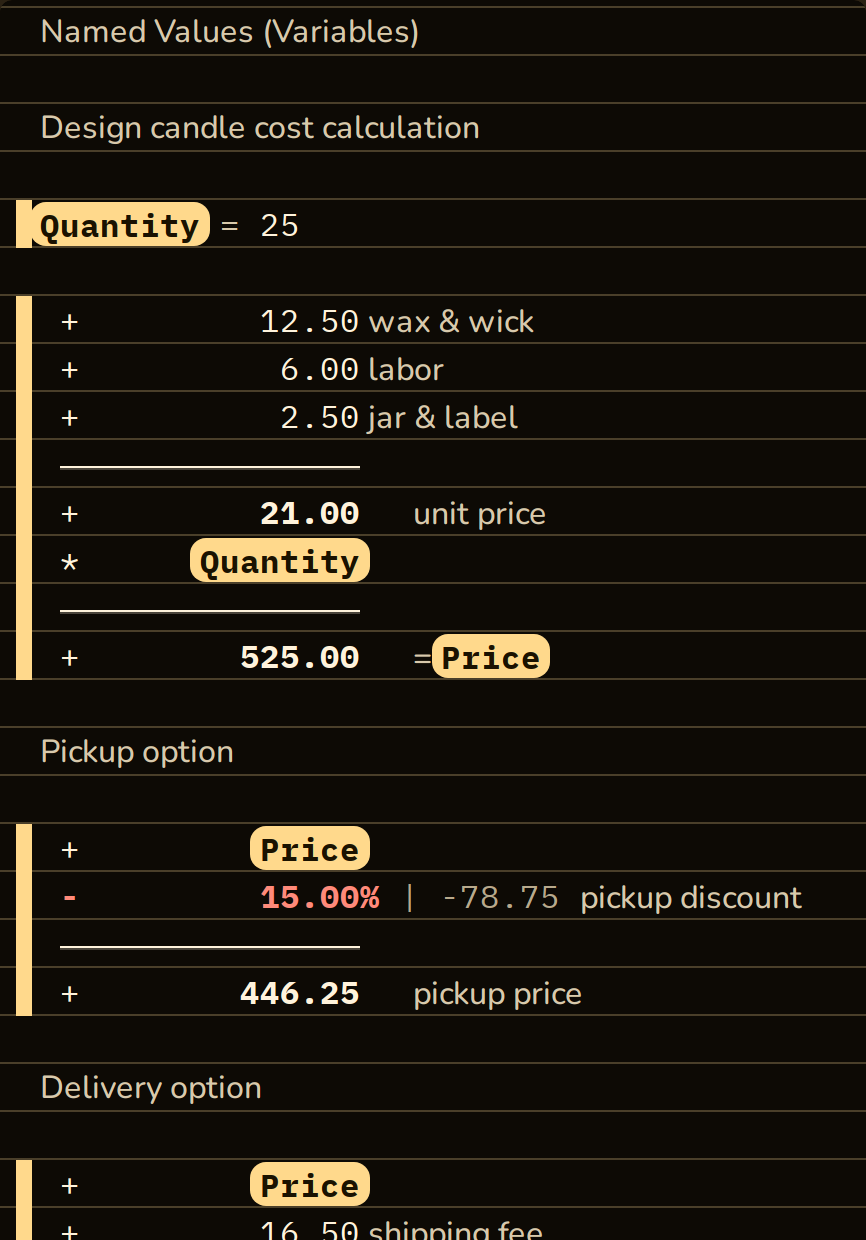
Offer when a value repeats. When the same amount of 100 or more appears three times on the tape, CalcTape asks whether it should become a named value. After OK, var = <value> sits at the very top and every occurrence is replaced by var; change the value up there and everything below recalculates. Undo takes the whole step back in one go. Decline twice and CalcTape stops asking.
Highlighting & copying a calculation
Click a sum (shown in bold) to highlight the whole calculation it belongs to with a subtle background, and reveal a copy icon top-right. Click the icon to copy the complete calculation — including all computed values — to the clipboard. The highlight disappears automatically after 10 seconds, or as soon as you type or click elsewhere. Scrolling keeps it — so you can go through a long calculation without losing the highlight.
Likewise, clicking the value of a bracket (→ 12.00 behind the closing bracket) highlights the whole bracket, from the opening to the closing line, with the same copy icon.
In addition, every subtotal and final total has its own small copy icon right next to it: a quick tap copies just that value, a long press opens a menu to copy it or add/subtract it to/from memory (M+/M−).
Editing, inserting, deleting
- Click anywhere and overwrite the value; CalcTape recalculates immediately.
- Paste from clipboard (Ctrl+V) is supported; if the content no longer fits completely, CalcTape offers to insert only the part that still fits (line limit, see Section 12).
- Delete using the ⌫ (Backspace) or Delete key.
Error display
If a line contains an error, it is marked directly on the tape (red left border, reddish tint, wavy underline); the plain-text description appears as a tooltip on the line and as a red chip in the status bar (see Section 11).
4. The keyboard: all keys explained
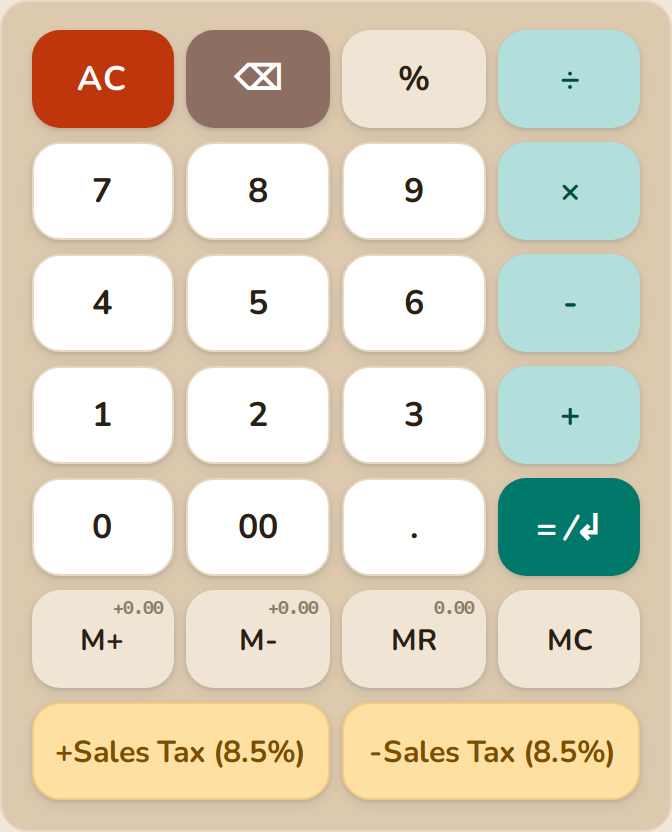
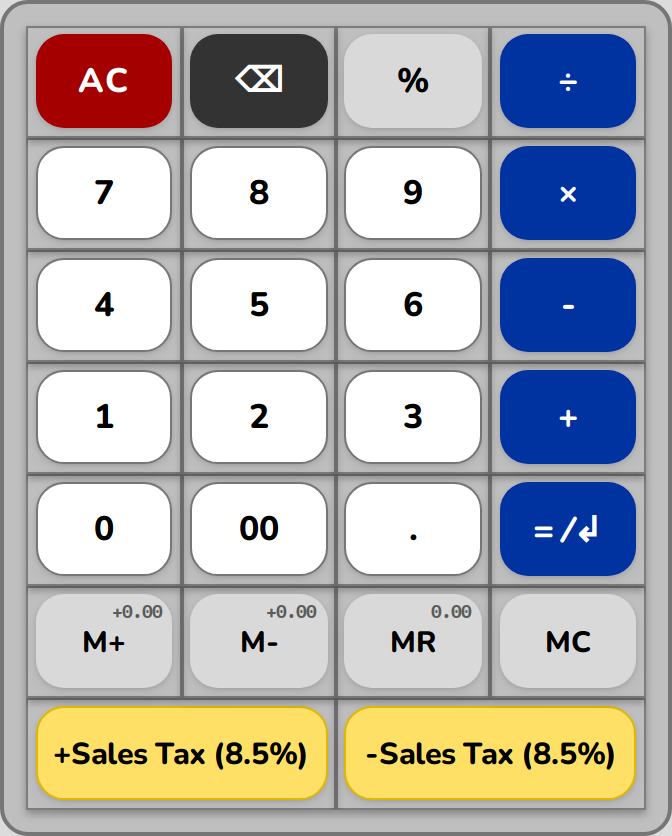
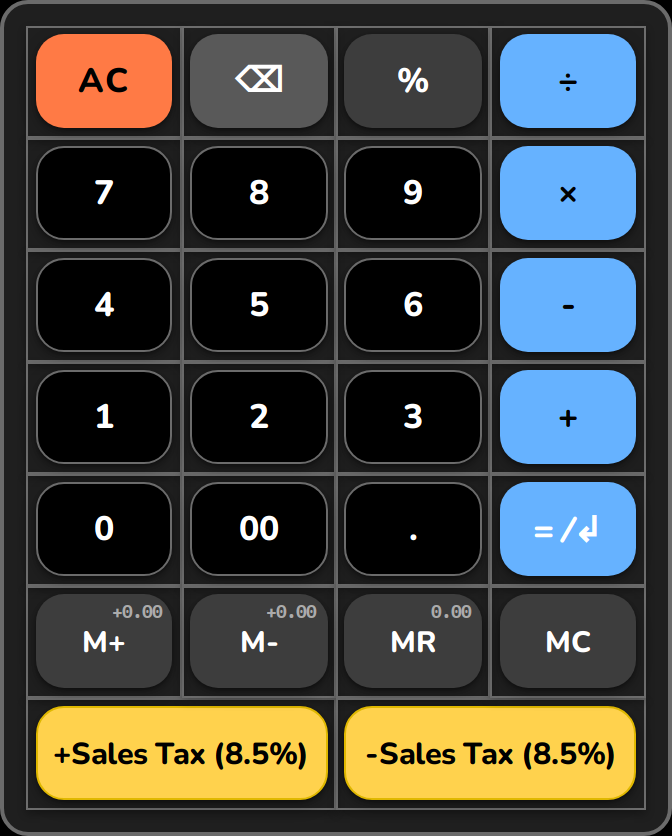
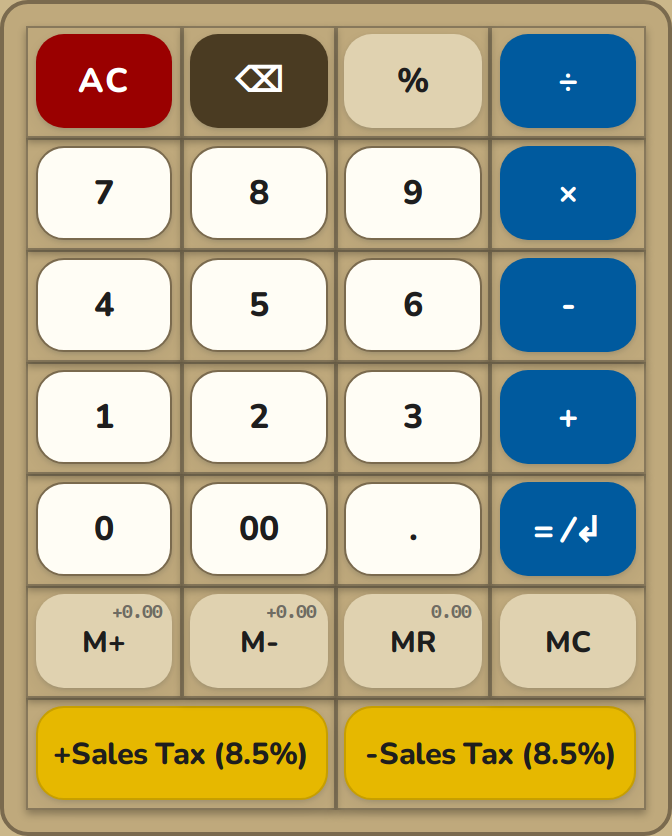
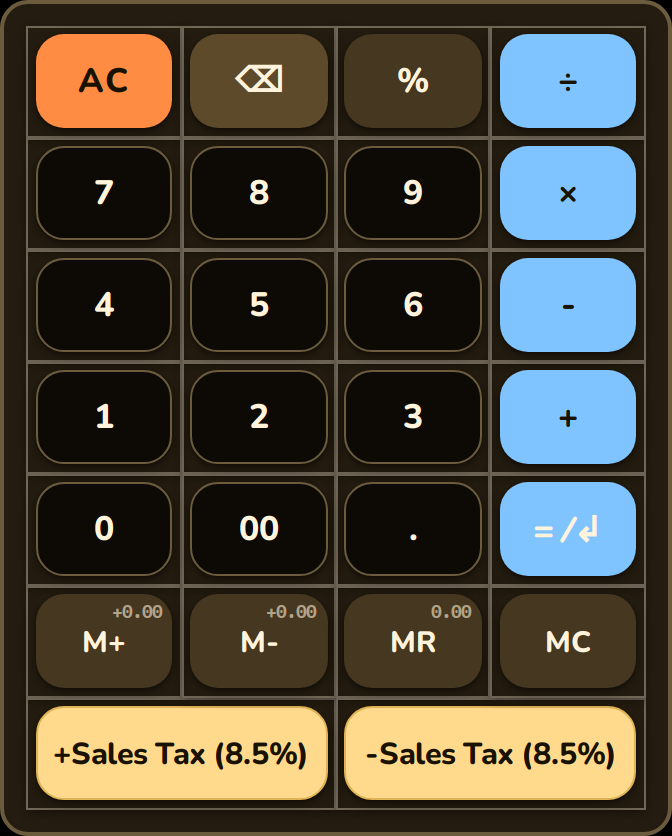
There are two slightly different layouts: the desktop keyboard (portrait, right side) additionally has the four memory keys and a row of arrow keys; the mobile keyboard (landscape bottom sheet) omits them for space. The keys are color-coded by function:
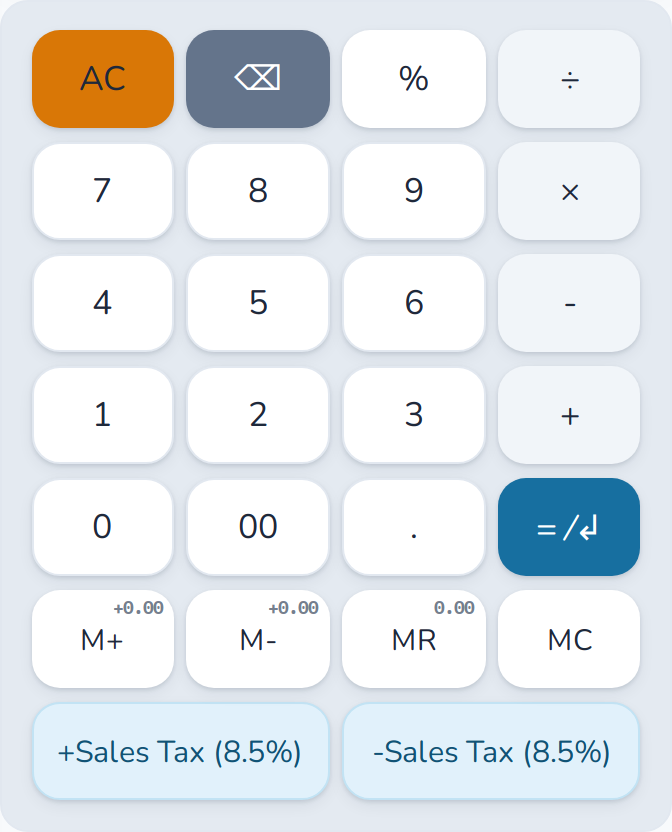
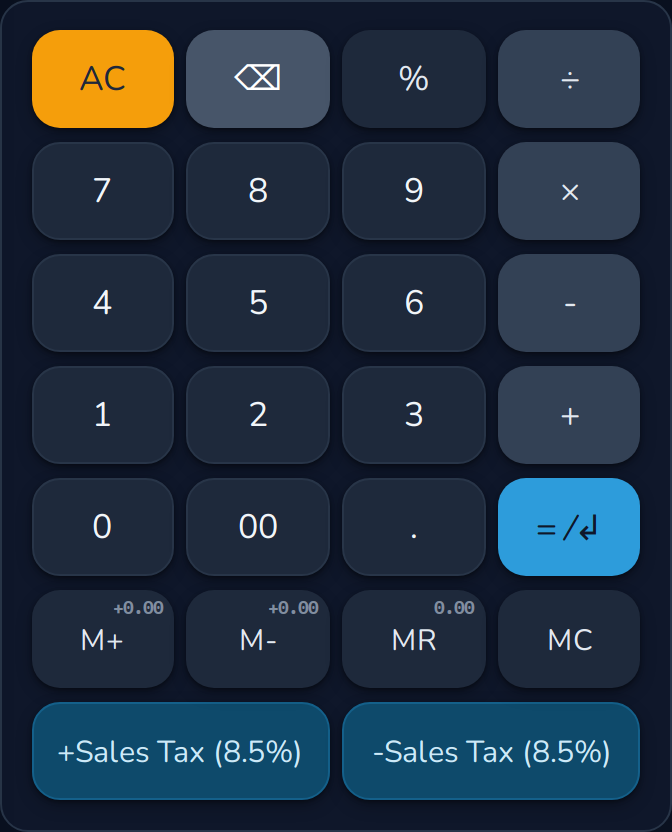

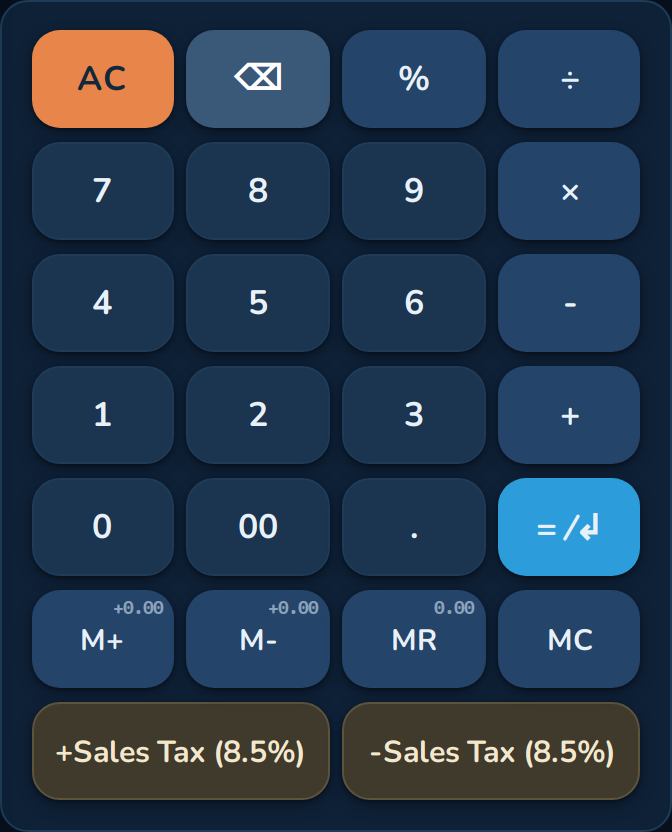
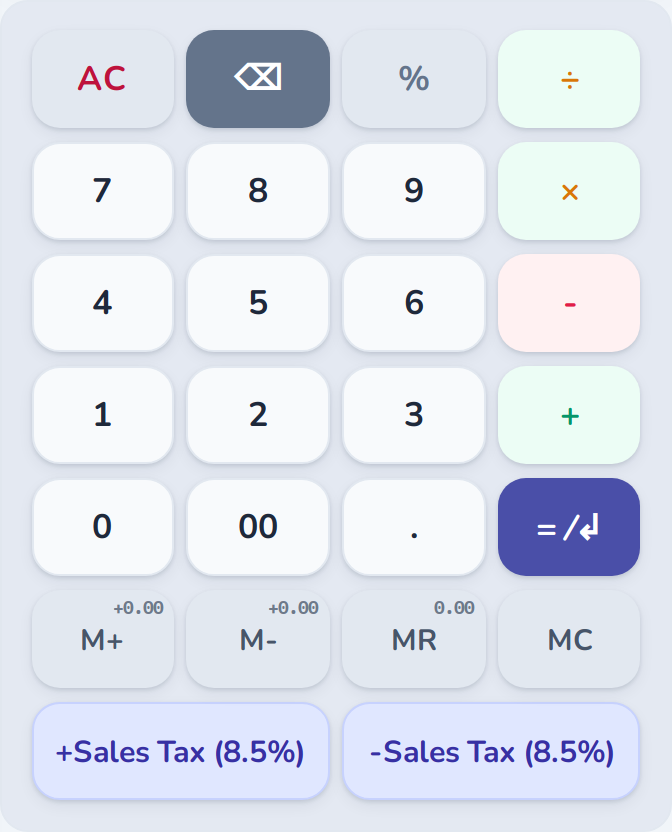
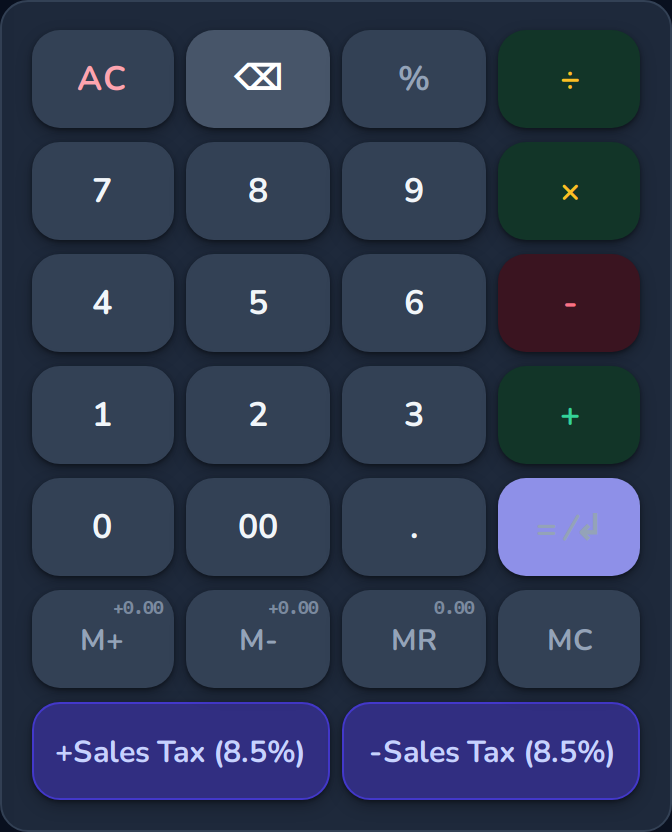


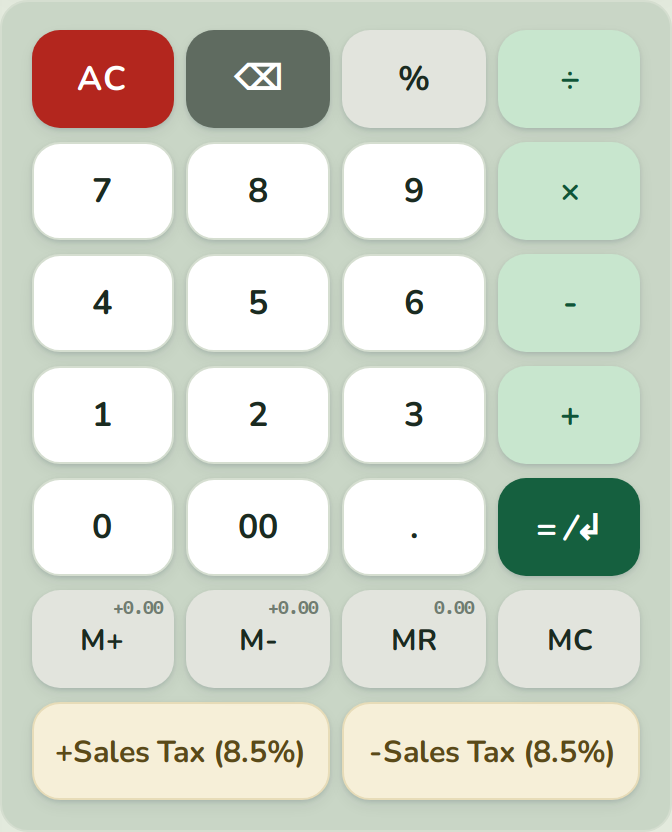
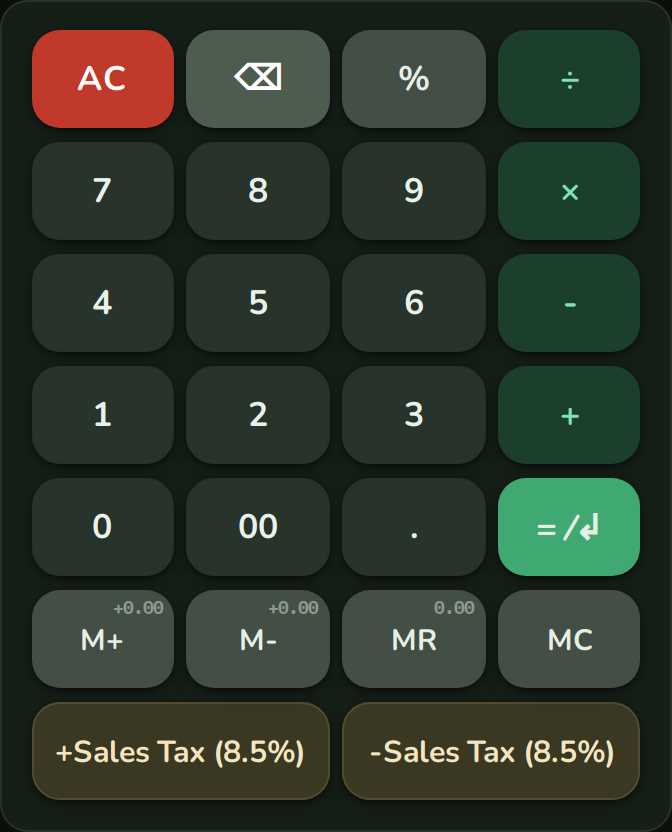
Number keys
0-9, the double zero 00, and the decimal separator (period). Use these to enter values.
Operator keys
| Key | Meaning |
|---|---|
+ | Addition |
− | Subtraction |
× | Multiplication |
÷ | Division |
Function keys
| Key | Meaning |
|---|---|
= ⁄↲ (Enter) | Close block → calculate result, draw subtotal, new line |
% | Percentage calculation |
Memory keys
The four memory keys exist only on the desktop keyboard:
| Key | Meaning |
|---|---|
MR | Memory Recall: retrieve/insert the stored value |
M+ | Add the current value to memory |
M− | Subtract the current value from memory |
MC | Clear memory |
The MR, M+, and M− keys also show a small preview of the affected memory value, so you can see what the key will do before pressing it.
Arrow keys
Above the two user keys, the desktop keyboard has a row of four arrow keys. They move the cursor:
| Key | Meaning |
|---|---|
▲ | One line up |
▼ | One line down |
◀ | One character left |
▶ | One character right |
Control keys
| Key | Meaning |
|---|---|
AC | All Clear: discard the entire calculation and start over |
⌫ | Backspace: delete the last character |
Tip: Accidentally pressed
AC? Use Undo (the icon in the toolbar or Ctrl+Z) to restore the previous content, as long as the tab stays open and is not reloaded.
User keys (VAT)
On the right there are two customizable keys for VAT, labeled +VAT and −VAT by default. They insert a pre-configured calculation step; the VAT rate is set automatically based on your locale (in Germany 19 %). These keys can be freely reconfigured (see the next section).
5. Customizing user keys (VAT)
Each of the two VAT keys has a gear icon ⚙ in its bottom right corner, which appears when you hover over the key with your mouse (on touch devices it is always visible). Clicking it opens the "Edit user key" dialog.
Fields in the dialog
| Element | Function |
|---|---|
| Label | Text displayed on the key (max. 16 characters) |
| Formula / text | What is inserted when the key is pressed, e.g. + 19% or * 0.8 |
| Calculate / Enter [= ↵] | Toggle switch (see below) |
| Default | Resets all fields to the factory defaults; the button also names the country whose values apply (if country-specific VAT values exist) |
The "Calculate / Enter" toggle
This switch controls whether a line break (equivalent to the =/Enter key) is triggered automatically after the content is inserted:
- On (default): The result is calculated immediately after insertion and a subtotal is drawn.
- Off: Only the formula is inserted; the line stays open so you can keep typing.
"\n" for a line break in the formula
You can write the character sequence \n in the Formula / text field; it will be replaced by a real line break when inserted. This lets you store multi-line snippets on a single key.
Saving & resetting
- OK applies the changes; the new label appears on the key immediately. The setting is saved locally and persists.
- Cancel discards the changes.
- Default refills the fields with the factory values; if country-specific VAT values exist for your region, the button also names that country. This only takes effect after clicking OK; nothing is permanently deleted until then.
6. The menu
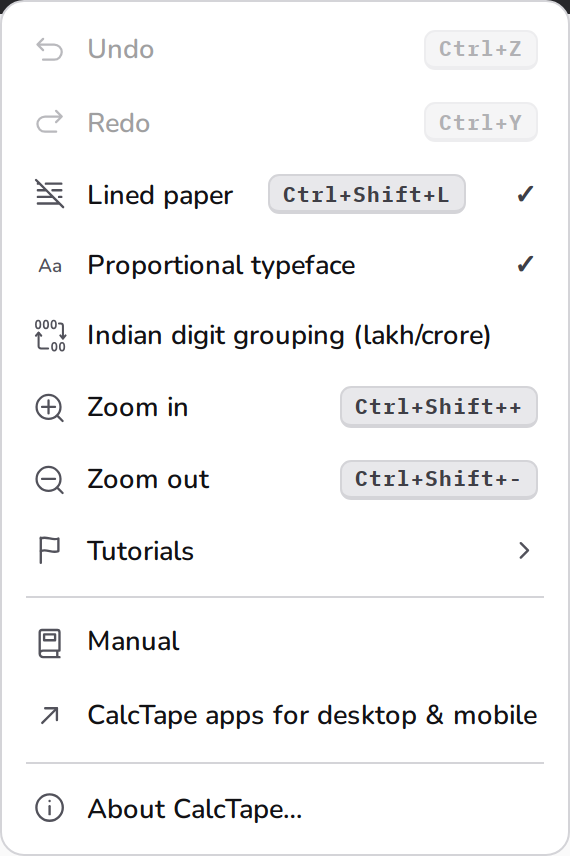
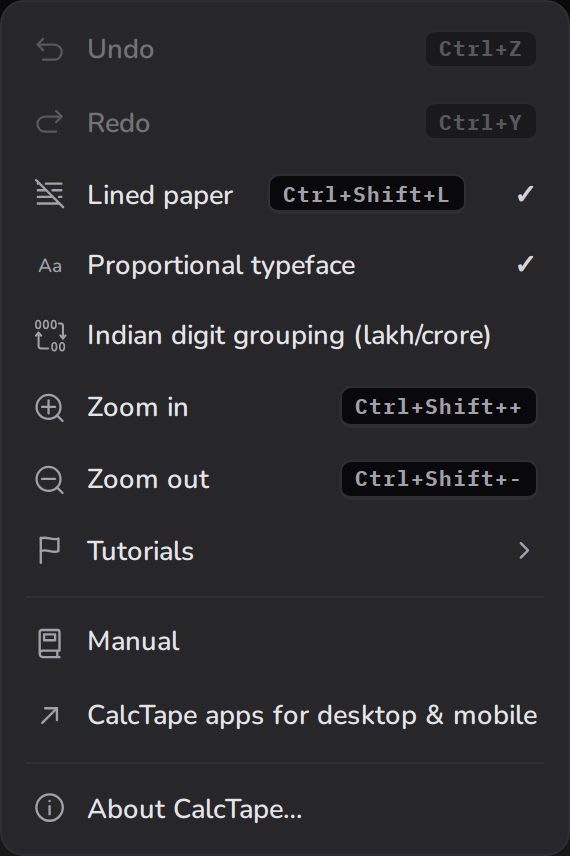
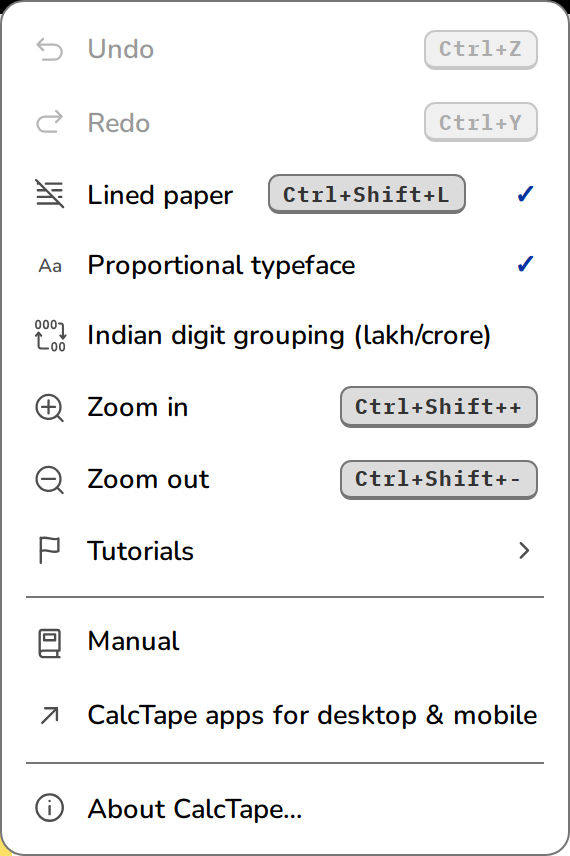
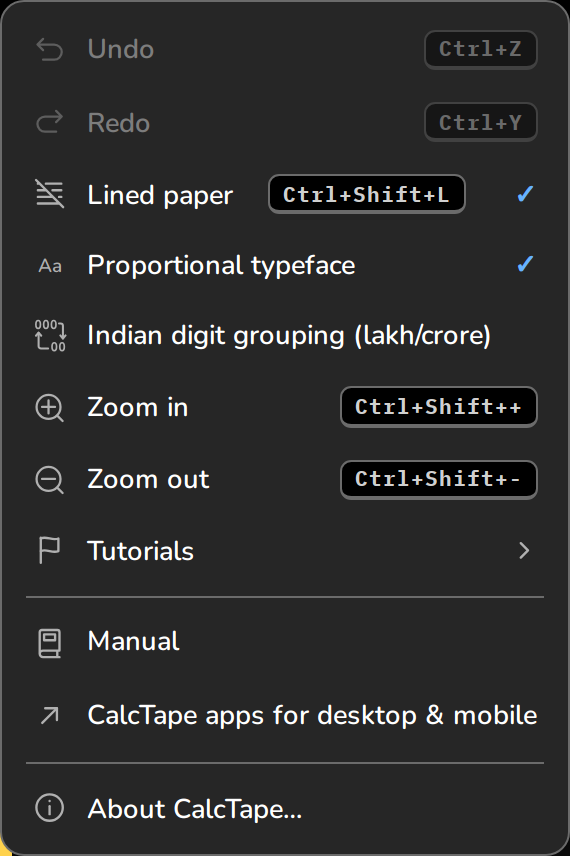
Click the hamburger icon ☰ (top left) to open the main menu. It shows the corresponding keyboard shortcut next to each entry and contains:
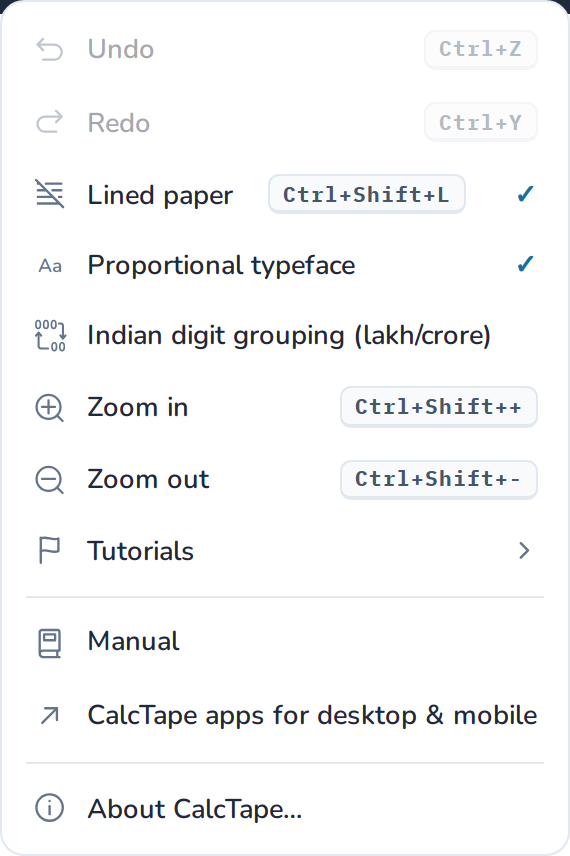
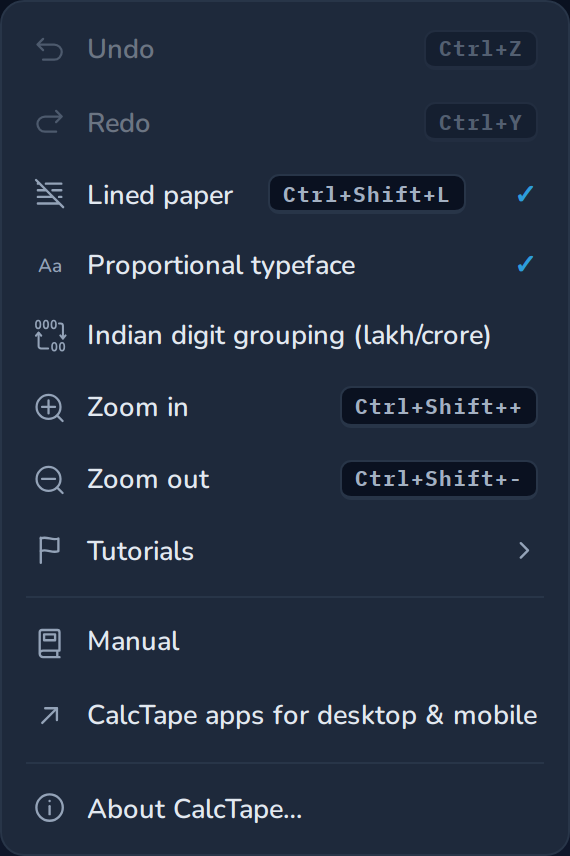
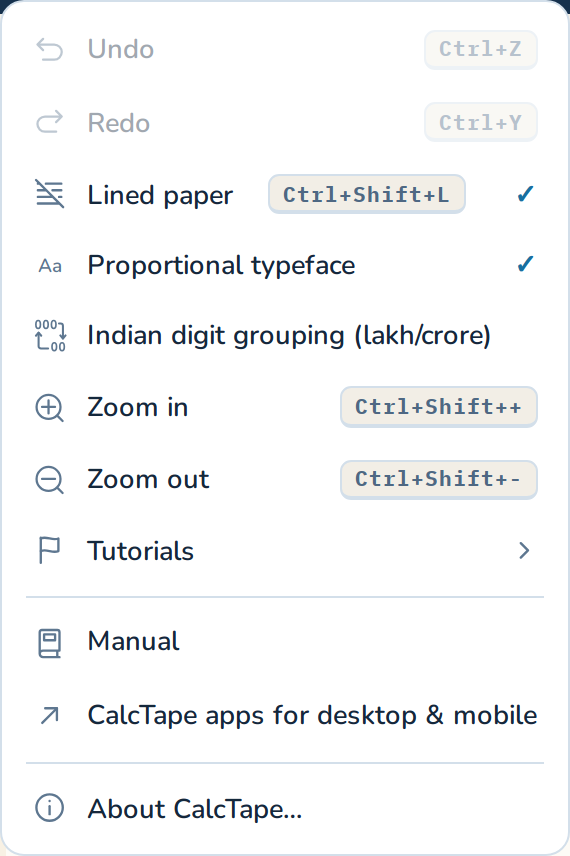
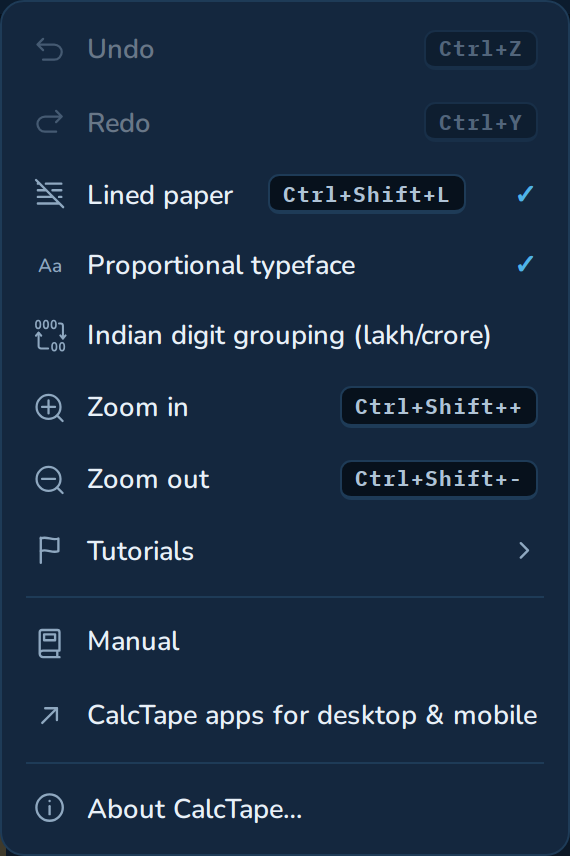
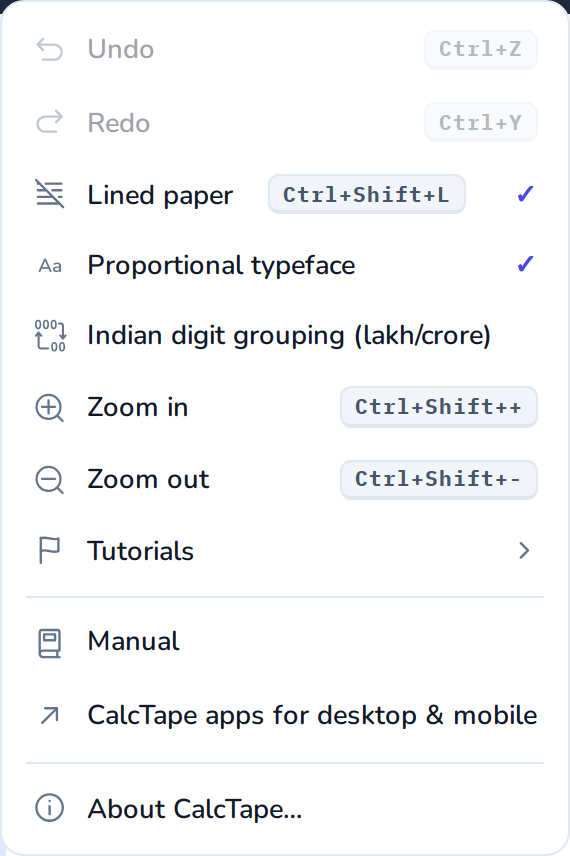
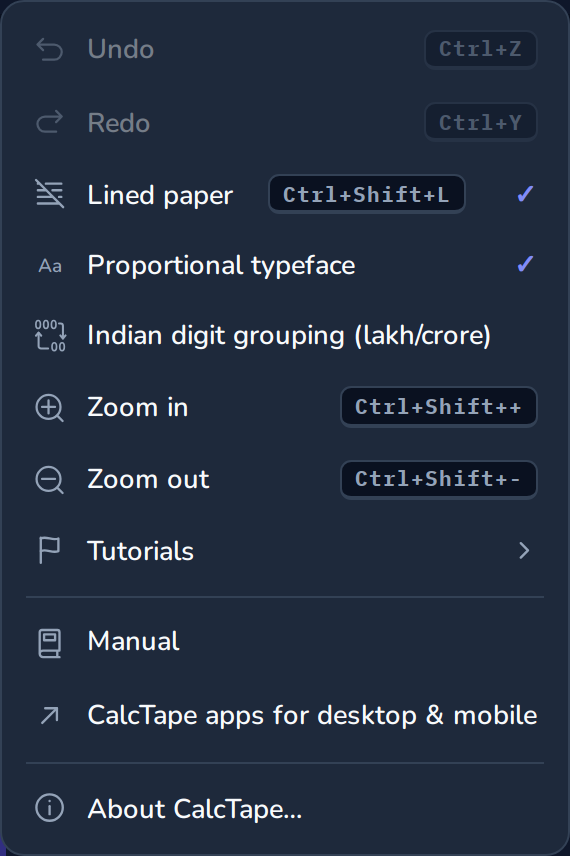


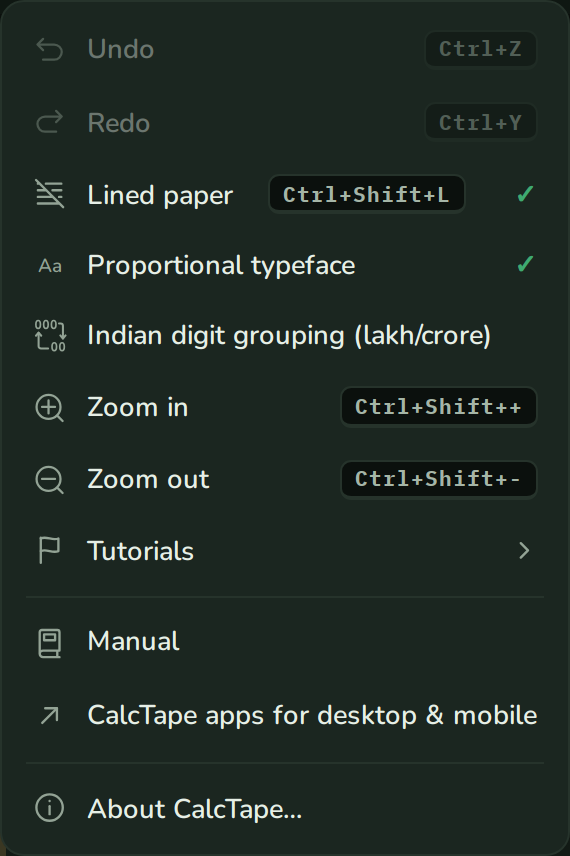

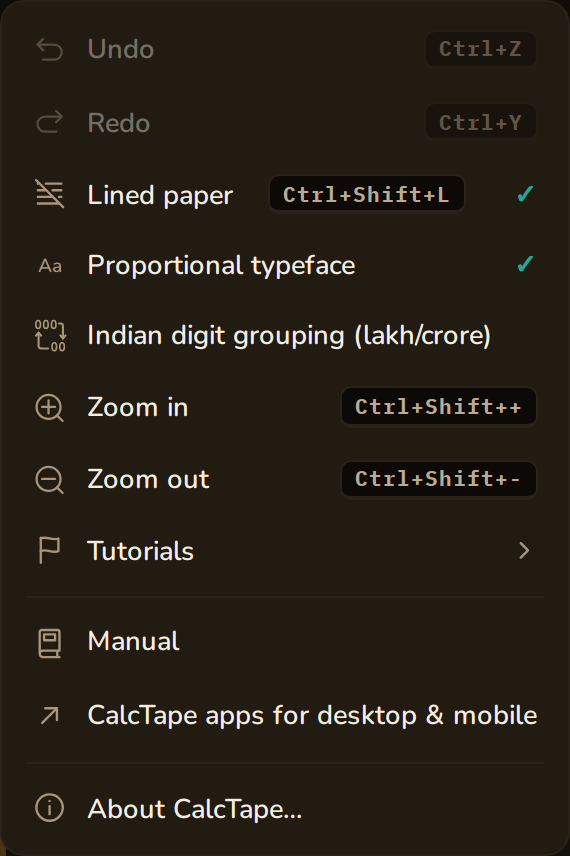
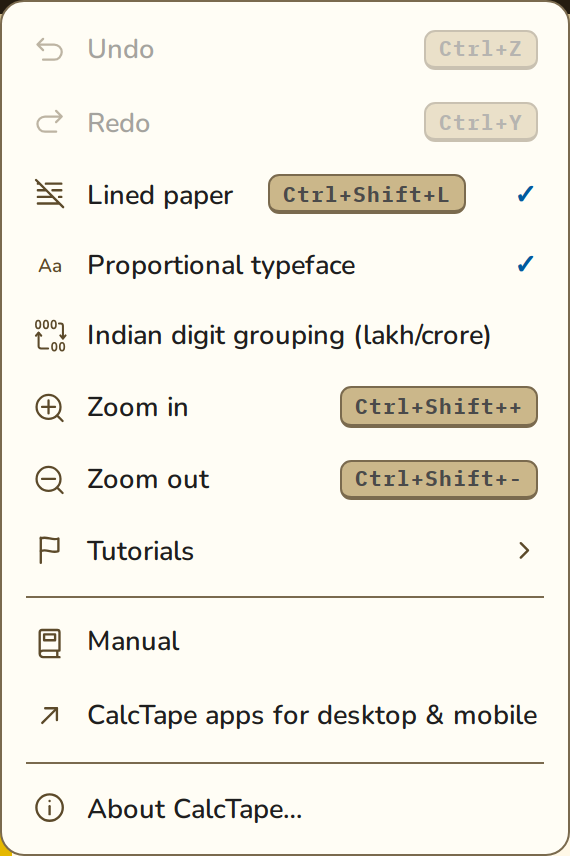

| Entry | Shortcut | Function |
|---|---|---|
| Undo | Ctrl+Z | Undo the last change |
| Redo | Ctrl+Y | Redo the undone change |
| Show lines | Ctrl+Shift+L | Toggle the lined "paper" on/off (on by default) |
| Proportional typeface | — | Sets text lines and comments in a proportional typeface; numbers keep a fixed width so the columns line up (on by default) |
| Indian digit grouping (lakh/crore) | — | Thousands grouping in Indian style (e.g. 10,00,000.00) instead of groups of three; applies immediately to all values |
| Detect number format when pasting | — | Adapts pasted numbers to your number format, e.g. 1.234,50 becomes 1234.50; ambiguous cases such as a lone 1,234 stay as they are. The first conversion is pointed out by a hint (on by default) |
| Rounding | - | Sets how CalcTape rounds. The entry shows the active choice and expands the four options: Round nothing (the calculation keeps all 34 digits of its precision and results show up to 30 of them, so a rest in the last places stays out of sight: 1 / 3 times 3 gives 1.00; where a sum or a note behind a number goes on beyond that, the tape shows 30 digits and …, e.g. 10 / 1.5 as 6.66666666666666666666666666666…), Round final sums only (subtotals that are carried on stay exact and show two more decimal places, "…" hints at further ones, and the notes behind numbers show the same; only the final sum is rounded), Round results (every sum is rounded and carried on as rounded; default), Round everything (the value of every line as well). Applies immediately to all sums |
| Zoom in | Ctrl+Shift++ | Increase text/key size (zoom) |
| Zoom out | Ctrl+Shift+− | Decrease text/key size (zoom) |
| Tutorials | — | Opens a list of eight short interactive tutorials (also reachable via the help icon in the toolbar) |
| Show News | — | Re-opens the latest release news message (desktop layout only) |
| Manual | — | Opens this manual (new tab) |
| CalcTape Apps for Desktop & Mobile | — | Overview of all CalcTape apps (new tab) |
| About CalcTape… | — | Opens a dialog with version information (app and calculation engine), a link to calctape.com and a button showing the third-party software licenses |
The Undo and Redo entries appear grayed out when there is nothing to undo or redo. Save calculation is found in the Share popover (section 8); Ctrl+S keeps working everywhere. The memory value and result are no longer shown in the menu. They have moved to the result panel (top right), where they can be copied with a click.
The Tutorials are the fastest way to get to know CalcTape: Getting started, Named values (variables), Percentages, Subtotals and totals, Comments, Rounding, Order of operations and Formulas in named values each explain one feature using a small example calculation. Highlighted numbers ("pills") can be tapped and edited directly to see live how the result adjusts. Rounding is about the setting: Open setting in the tutorial bar opens the rounding choices in the menu. On your very first visit, CalcTape starts with a short welcome calculation; the tutorials are in the menu. If you start a tutorial from the menu, the existing tape content is preserved and restored when you finish.
7. The status bar
Directly below the editor, the status bar continuously shows the current state as clickable chips:


















| Chip | Meaning |
|---|---|
| <%> | Current zoom level (100 % = default). Click to reset the zoom. |
| L <line>:<col> | Position of the input cursor |
| Error (red) | When there is an error in the current line, the plain-text description appears here |
| ✓ Automatically saved | Confirmation that the calculation is continuously saved locally |
The grand total (sum of all completed blocks) now lives in the result panel (top right), not in the status bar.
A warning banner also appears above the chips when the calculation approaches the maximum length of 500 lines: from about 95 % it shows a counter ("… of 500 lines"); when the limit is reached it turns red. If a new line is then rejected, the banner briefly shakes as feedback (details in Section 12).
8. Sharing calculations
CalcTape can share a complete calculation as a link. The entire content is compressed and written into the link itself; nothing is stored on a server.
The Share button
The "Share" button is in the top right of the header. It opens a small menu:
- Save calculation: Saves the current calculation to a file that can be opened with the CalcTape apps (see section 9).
- Copy link: Copies a link to the clipboard that contains both the web address and the complete current calculation (brief confirmation "Link copied!"). Paste it into an email, for example.
- Copy as text: Copies the tape the way it reads on screen - values, comments and the total line. For mail and chat, where a link would feel out of place.
- QR code: Shows the share link as a scannable code - the quickest way from the desktop to your phone. The code is generated locally; the calculation is not handed to any service.
- Save as PDF: Exports the calculation as a PDF file - the replacement for the screenshot you would otherwise take.
- System share … (if supported by the browser, mainly on mobile devices): opens the native share menu of the operating system.
When someone opens your link, they see the calculation right away and can keep calculating in it: it is their own copy from then on, your version stays untouched. Once a calculation has several commented items and a total, a "Share this calculation" hint also appears below the result - the same menu, just where one usually thinks of passing something on.
Opening a shared link
Anyone who opens the link sees your calculation exactly as it was. The following rules apply:
- Number format: Amounts appear in the recipient's notation.
1,250.00becomes1.250,00in a German-language browser; the value stays the same. - Replace or append: If the editor already contains something, CalcTape asks what should happen to it before loading: Replace puts the calculation from the link in its place, Append adds it below, separated by an empty line so both calculations keep their own totals. Clicking "Cancel" leaves the existing content unchanged.
- The address bar is cleaned up: After loading, CalcTape removes the data from the URL. Reloading the page (F5) does not re-import the calculation. If you want to keep the link, save it somewhere (for example in a note), not as a bookmark of the already-opened tab.
- Checksum: Every link contains a checksum. If the link was damaged in transit (for example, broken across lines or truncated by an email client), CalcTape detects this and shows an error message instead of loading a corrupted calculation.
Note: There is no length limit when sharing: any calculation that the editor allows (max. 500 lines, Section 12) can also be shared as a link. The calculation is stored on no server: it sits after the
#in the address, and browsers do not send that part when the link is opened. Anyone who has the link can read the calculation, though (Section 13).
9. Saving and automatic backup
Automatic local backup
Your current calculation is continuously and automatically saved in your browser's local storage. Close the tab and come back later; your content will still be there. Settings (zoom, lines, user keys) are also retained.
Save as a file
Save calculation (Share popover or Ctrl+S) downloads the calculation as a CalcTape file. You can open this file with the CalcTape apps (Windows, macOS, Android, iOS) and continue working on it there. Older app versions cannot read a calculation that has brackets across lines.
The file carries the extension .calc. The web version cannot open it again - that needs one of the apps. To pass a calculation on within the browser, or move it to another device, use the share link (section 8).
10. Keyboard shortcuts
| Shortcut | Function |
|---|---|
| Ctrl + S | Save calculation (download file) |
| Ctrl + Z | Undo |
| Ctrl + Y | Redo |
| Ctrl + Shift + L | Toggle show lines on/off |
| Ctrl + Shift + + | Zoom in |
| Ctrl + Shift + − | Zoom out |
| Ctrl + Shift + 0 | Reset zoom to 100% |
| Alt + plus / minus / asterisk / slash | Type an operator as text, e.g. in the comment behind a number (see below) |
| Enter / = | Close block, calculate result/subtotal |
| Backspace ⌫ | Delete character to the left |
| Delete | Delete character to the right |
On a Mac, use ⌘ (Command) instead of Ctrl and ⌥ (Option) instead of Alt.
When do the shortcuts work? They work anywhere in the app - the tape does not need to have the focus. All that is required is that the page itself receives the keyboard (not the browser's address bar) and that the cursor is not sitting in an input field. While a dialog is open they are switched off, so that Tab, Esc and Enter belong to the dialog.
Browsers come first. Some combinations are caught by the browser before the page ever sees them - in Chrome, Edge and Firefox, for example, Ctrl+L (address bar) and Ctrl+1 to Ctrl+8 (switch tabs). That is why CalcTape uses combinations with Shift for "show lines" and zoom. In the installed app (PWA), which has neither address bar nor tabs, all shortcuts work anyway.
Zoom: app or page? Ctrl + Shift + +/- only enlarges CalcTape's text and keys. The browser's familiar Ctrl + +/- is unaffected and still zooms the whole page. Ctrl + Shift + 0 restores 100%.
Operators as text. An operator typed behind a number starts the next calculation line, even with the cursor in the middle of the comment. To put it into the comment (+ 100.00 Rent + heating), type it with Alt, on a Mac with ⌥ (Option). That works on the numeric keypad everywhere and on the main keyboard under Windows and Linux; on a Mac the browser reports the special character ⌥ types on a key, so there it is the keypad.
Every one of these functions is also available in the toolbar and the menu. If your browser or an extension does intercept a shortcut, that is the reliable route.
You can also type freely in the editor at any time using a physical keyboard including digits, operators, and text.
11. Error messages
When CalcTape detects an error in a line, it is marked on the line and explained in the status bar. The most important messages:
| Message | Cause / Remedy |
|---|---|
| Division by zero | A division by 0 was attempted. |
| Too many operators | Multiple operators without a value in between. |
| Invalid calculation | General calculation error in the line. |
| Syntax error | The line is not formally valid. |
| Calculations must start with a number or a sign | Start the line with a valid input (number, +, −). |
| Percentage needs a subtotal | Insert a subtotal after the percentage value (operator precedence). |
| Percentage only with a simple value | The % sign must immediately follow a number. |
| Percentage not at the start | A percentage value cannot be the first entry in a calculation. |
| Unknown function | Function name in a formula not recognized (section 3, "Formulas"). |
| The number is too large | A value or a result has more than 32 digits before the decimal point. |
| Invalid variable name | Names must start with a letter and contain no special characters. |
| Variable name already in use | The name has been assigned more than once. |
| Invalid variable definition | The right side of a definition cannot be calculated. |
| Variable undefined | The name's definition was deleted; lines that still use it report this. |
| Value of variable is undefined | The definition has no valid value, such as x = without a number, or calculates with such a variable. |
| Circular reference - the value depends on itself | A definition uses itself, directly (a = a + 1) or through other definitions. Once the loop is broken, every affected line calculates again. |
| Variable definitions only in sum lines | This definition form is only allowed in sum lines; otherwise put the name to the left of =. |
| This closing bracket has no opening bracket | Above the line with ), the opening line is missing in the same block, or the bracket's first line does not have a value yet. |
| The bracket is not closed | There is a separator line under an open bracket. Enter at the end of the calculation closes open brackets before the total. |
12. Limits & notes
- Maximum 500 lines per calculation. From about 95 % a banner above the status bar shows how many lines are used; at 500 lines it turns red.
- At the limit only new lines are rejected (Enter, keys with an automatic line break) - the banner then shakes briefly. Typing within existing lines, deleting and undo keep working.
- Paste from clipboard: if the content no longer fits completely, a dialog asks whether to insert only the beginning that still fits - with a note that a truncated calculation may yield different results.
- Longer calculations from earlier versions are loaded in full and never truncated; they just cannot grow further. For more extensive calculations, the CalcTape apps are recommended.
- Undo only works as long as the tab is open and has not been reloaded. The undo history is also limited to a fixed amount of memory; with very large calculations the oldest steps are dropped first.
- Internal error: should the calculation engine unexpectedly stop (e.g. due to memory exhaustion), a dialog with a Reload page button appears. After reloading, the calculation is restored from the last automatic save (section 9).
- CalcTape Web uses WebAssembly; in very old browsers without WebAssembly support, a fallback version is used automatically.
- On a phone or tablet: The web app is made for the browser on a computer; on small screens it works only to a limited extent - the on-screen keyboard interferes with input, among other things. There, our CalcTape apps for iOS and Android, designed specifically for mobile, are the better choice.
13. Privacy
CalcTape Web stores your settings and calculations exclusively locally on your device. The content of your calculation is not transmitted to our servers - not even when sharing: the link contains the calculation itself, it is not held on a server.
But that also means: whoever has the link can read the calculation. And as soon as you send it by e-mail, messenger or through a cloud service, the content passes through that service and may be processed or stored there. So treat a share link like the document itself.
The flip side of purely local storage: calculations are lost when browser data is cleared or in private/incognito mode. A one-time notice on first start points this out - save important calculations as a file or share them as a link from time to time (Sections 8 and 9). No liability is accepted for lost data.
Usage statistics: CalcTape Web sends no usage data. How the app is used is determined from the web server's access log, which is created whenever a website is visited. For the statistics we keep only daily counters, among them: visits and loads, time of day, type of referring page, device class, operating system, browser, country (rare countries only as the continent), views of the manual and the info page, app version, error responses, link previews, and bots. The country is determined with a database on our own web space, without asking any third-party service. We do not store IP addresses, browser identifiers, or other device identifiers, and the server never receives calculation content anyway. What the log contains and how long it is kept is set out in the privacy policy.
The privacy policy, legal notice, and contact information are available via the links in the footer.
14. CalcTape for other platforms
CalcTape is also available as a full-featured app with additional functionality for:
- Windows
- macOS
- Android
- iOS / iPhone
- CalcTape for Business (Enterprise)
You can find the links in the Apps panel below the keyboard, in the menu, and at calctape.com. Files saved from CalcTape Web can be opened and edited in these apps as well.
© schoettler Software GmbH - CalcTape Web. This manual describes the user interface of the web version. Everything else about CalcTape can be found at calctape.com.